

Google Fonts Integration
Odoo Google
Fonts
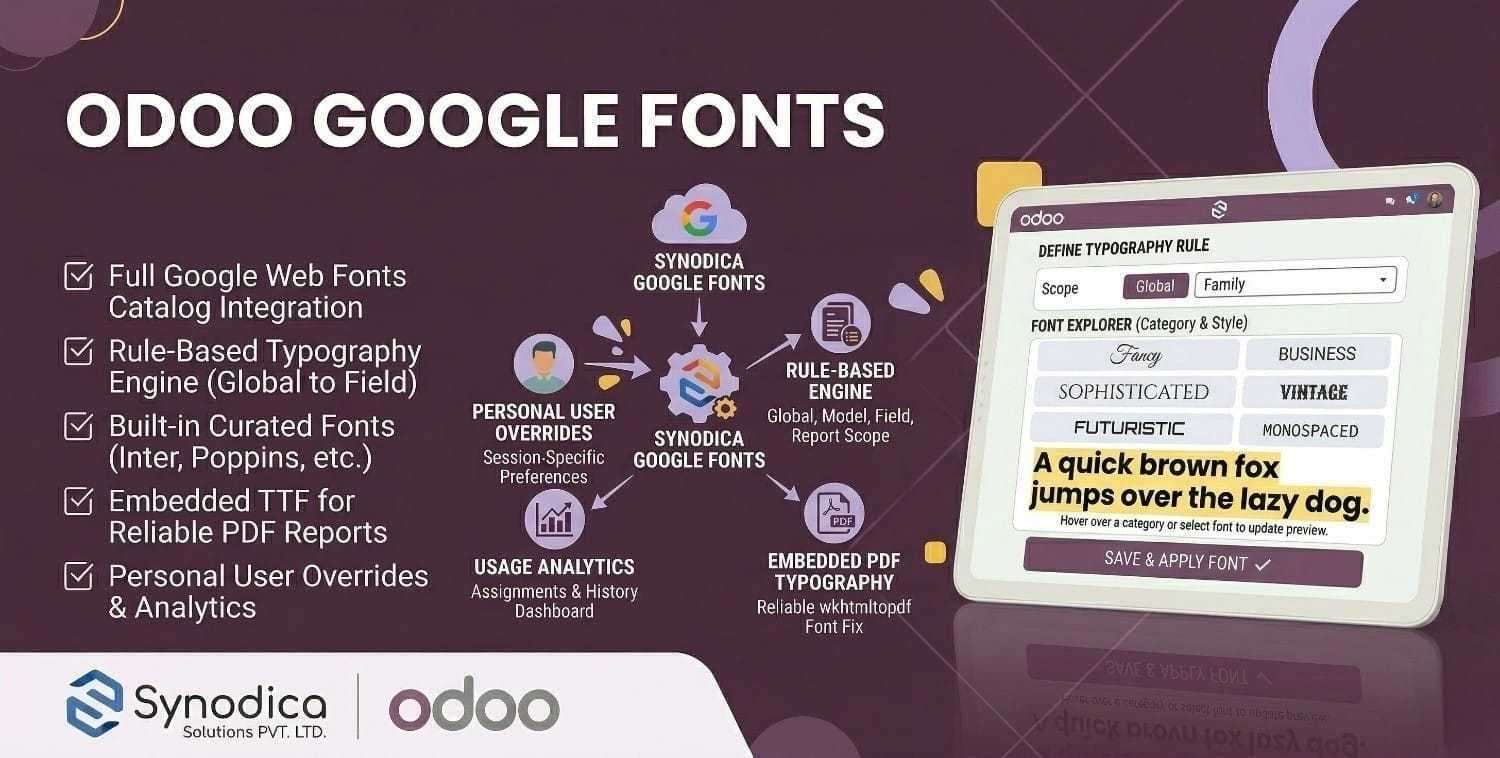
A production-grade, fully data-driven typography engine for Odoo. Integrate the complete Google Web Fonts catalog into your instance — apply custom fonts across backend screens, QWeb reports, and user profiles with zero developer effort.
Typography That Fits Every Need
From global branding to per-report document styling, the module gives administrators and end users precise control over typography across the full Odoo experience.
Global Typography Control
Apply any Google Font across all Odoo apps with a single click. Replace standard system fonts with modern, readable, or brand-aligned typefaces globally.
Per-Report Customization
Use one font for the backend interface while assigning different fonts to invoices, purchase orders, quotations, and other reports based on document style requirements.
User-Centric Preferences
Let individual users define their own interface font settings so the backend feels more comfortable, readable, and personalized without affecting other users.
Seamless Integration
Built to work natively within Odoo so font rendering stays consistent across the web client and PDF report generation with wkhtmltopdf-compatible delivery.
How It Works
From installation to beautiful, brand-consistent typography across every Odoo screen and PDF report.
Install & Configure
Install the module — 8 professional fonts are immediately available. Optionally add your Google Developer API Key to sync 1,000+ fonts from the live catalog.
Set Typography Rules
Choose a global font from Settings → Typography or create granular rules targeting specific models, fields, or individual QWeb reports with priority-based resolution.
Apply & Enjoy
Fonts apply instantly to the Odoo backend and are embedded directly into PDF reports — even bypassing wkhtmltopdf SSL issues — with full icon font protection.
Everything You Need
A complete typography management system — from live font catalog sync to per-user personal font preferences.
8 Built-in Curated Fonts
Inter, Poppins, Montserrat, Nunito Sans, Playfair Display, Merriweather, Fira Code, and Source Sans 3 are pre-loaded at installation — no API key needed to get started.
Live Google Fonts API Sync
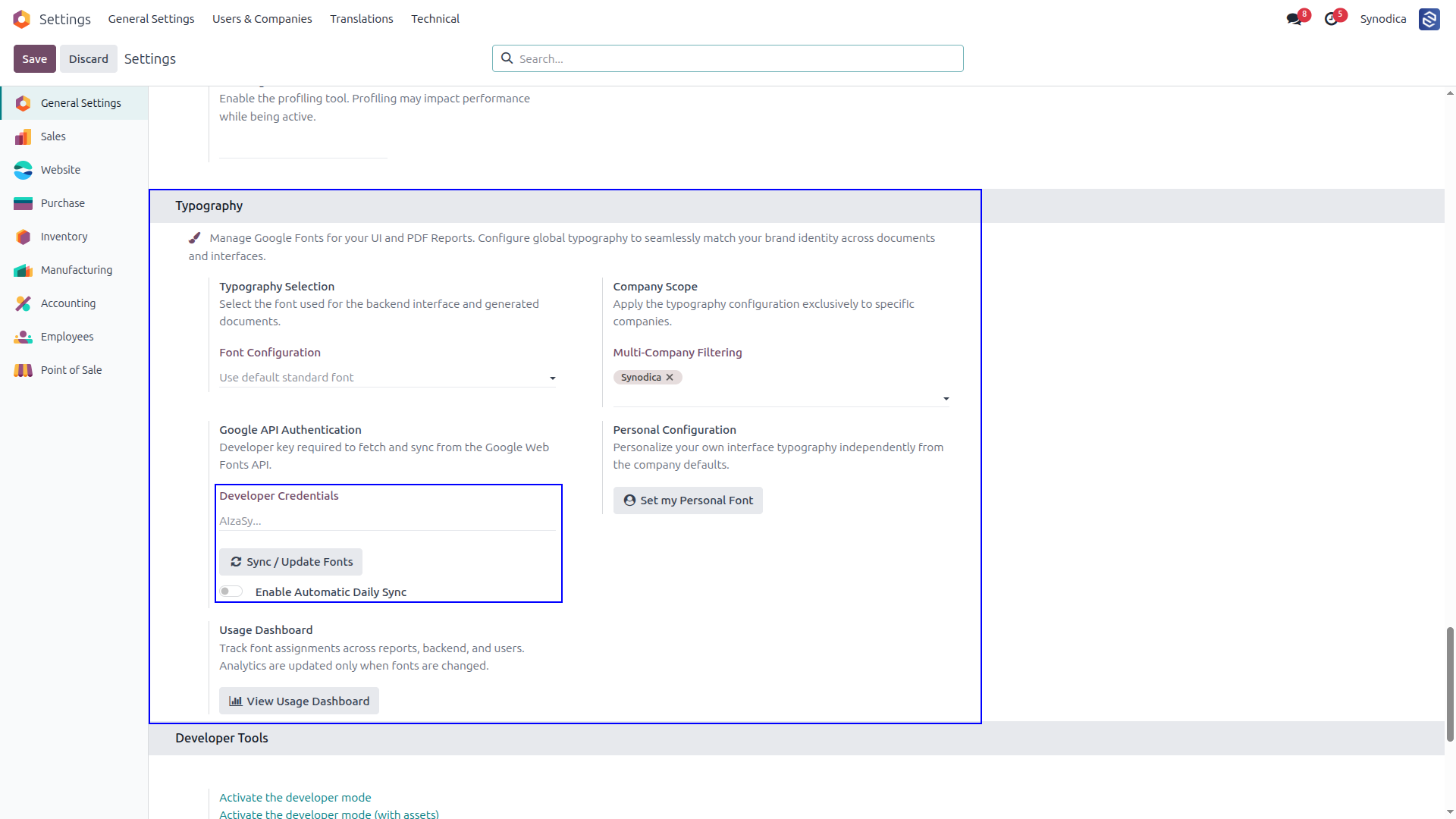
Connect your Google Developer API Key to sync 1,000+ fonts from the official catalog. Enable automatic daily cron sync or trigger manual updates instantly from Settings.
Priority-Driven Rule Engine
Create rules targeting Global, Model, Field, or Report scopes. Priority resolution ensures Field rules always win over Global rules — fully configurable without writing CSS.
PDF Report Font Embedding
Fonts are fetched server-side and Base64-embedded as data URIs in report stylesheets — fully bypassing wkhtmltopdf SSL/TLS failures to fonts.gstatic.com. Beautiful PDFs guaranteed.
Personal User Font Preference
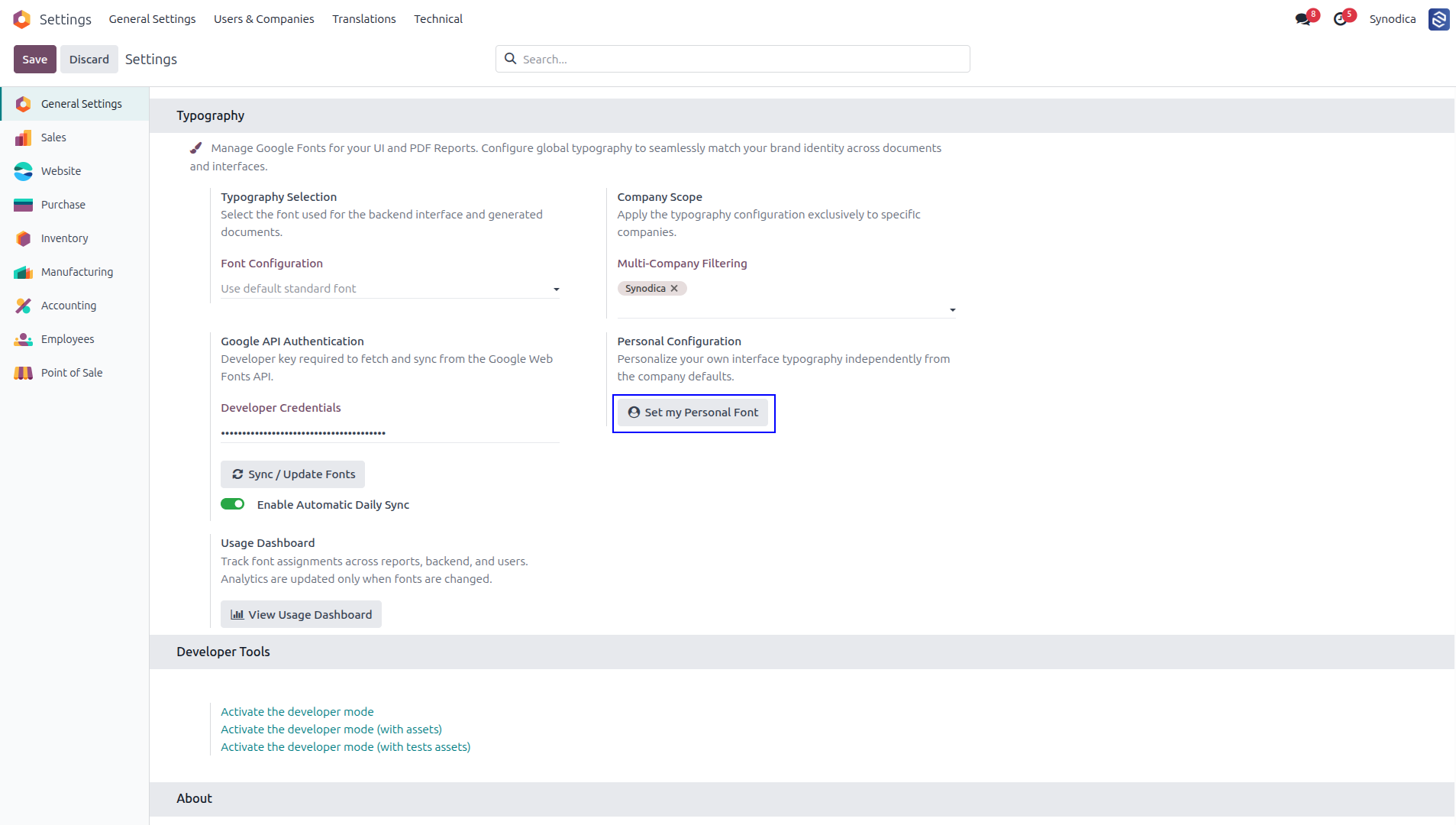
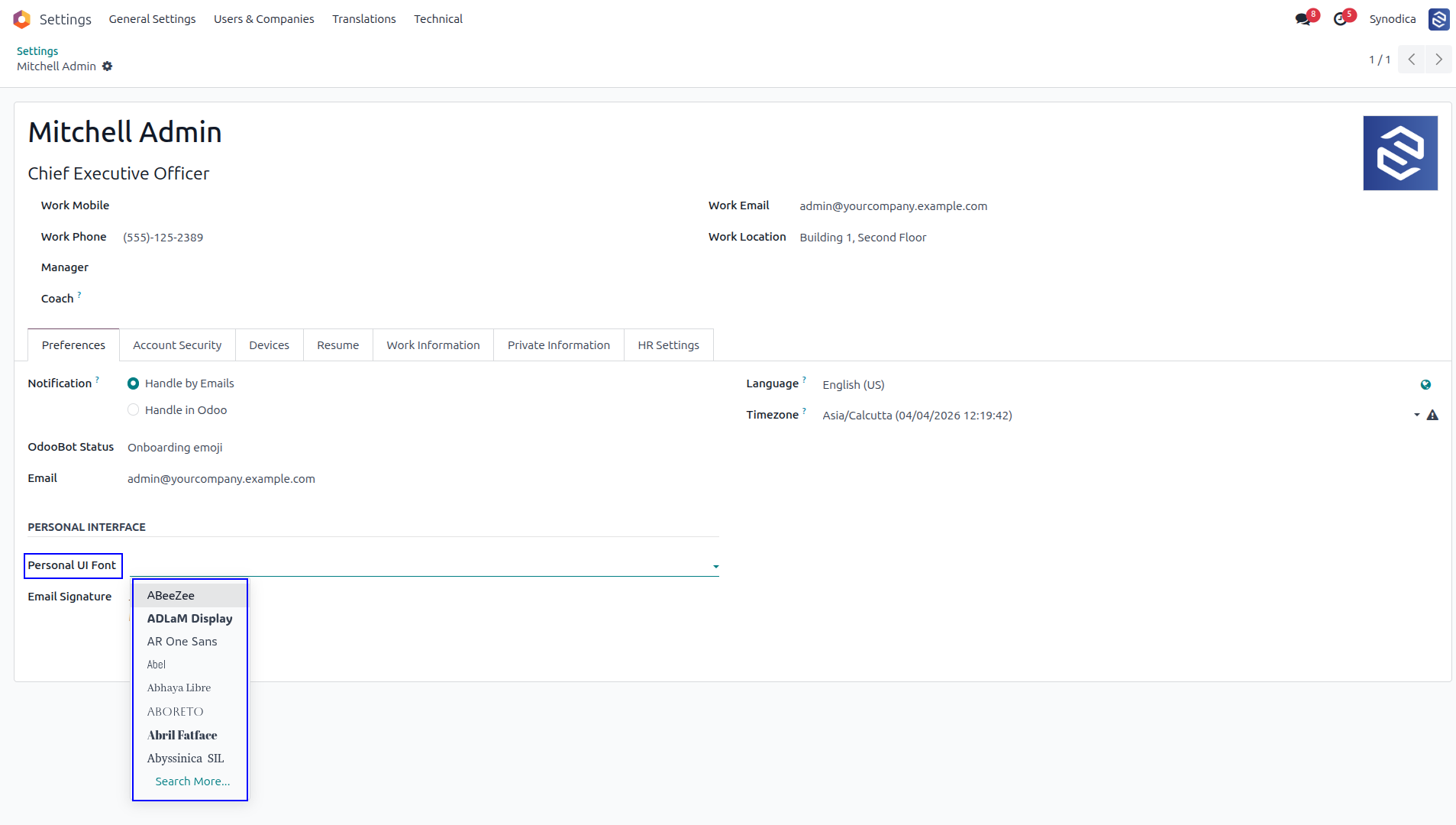
Any user can select a personal UI font from their Preferences page. The font applies only to their browser screen session — never affecting PDFs, reports, or other users.
Full Multi-Company Support
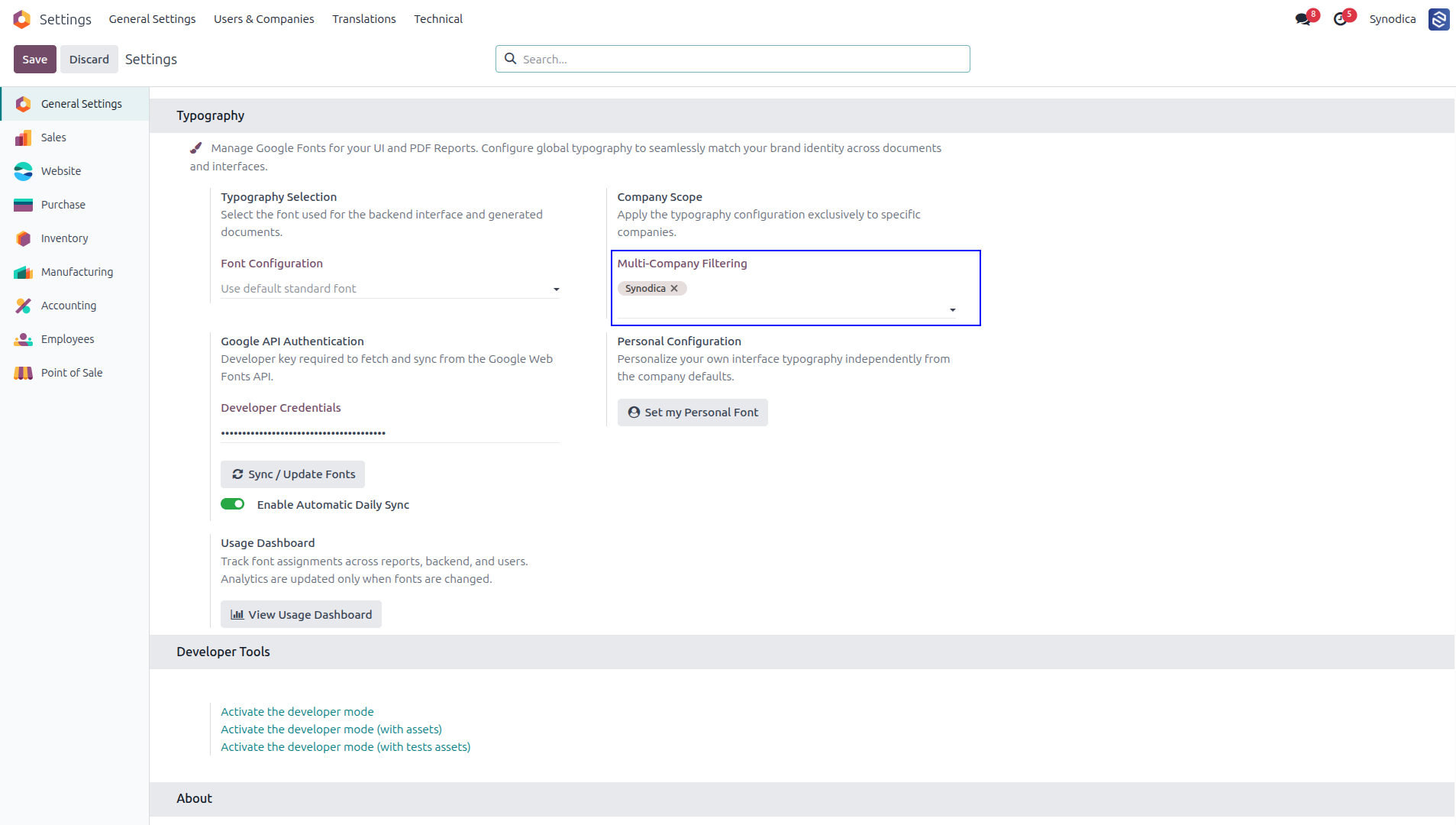
Each Odoo company has completely independent font rules. Push a global configuration to multiple companies at once from a single Settings panel using the Company Scope picker.
Font Usage Analytics
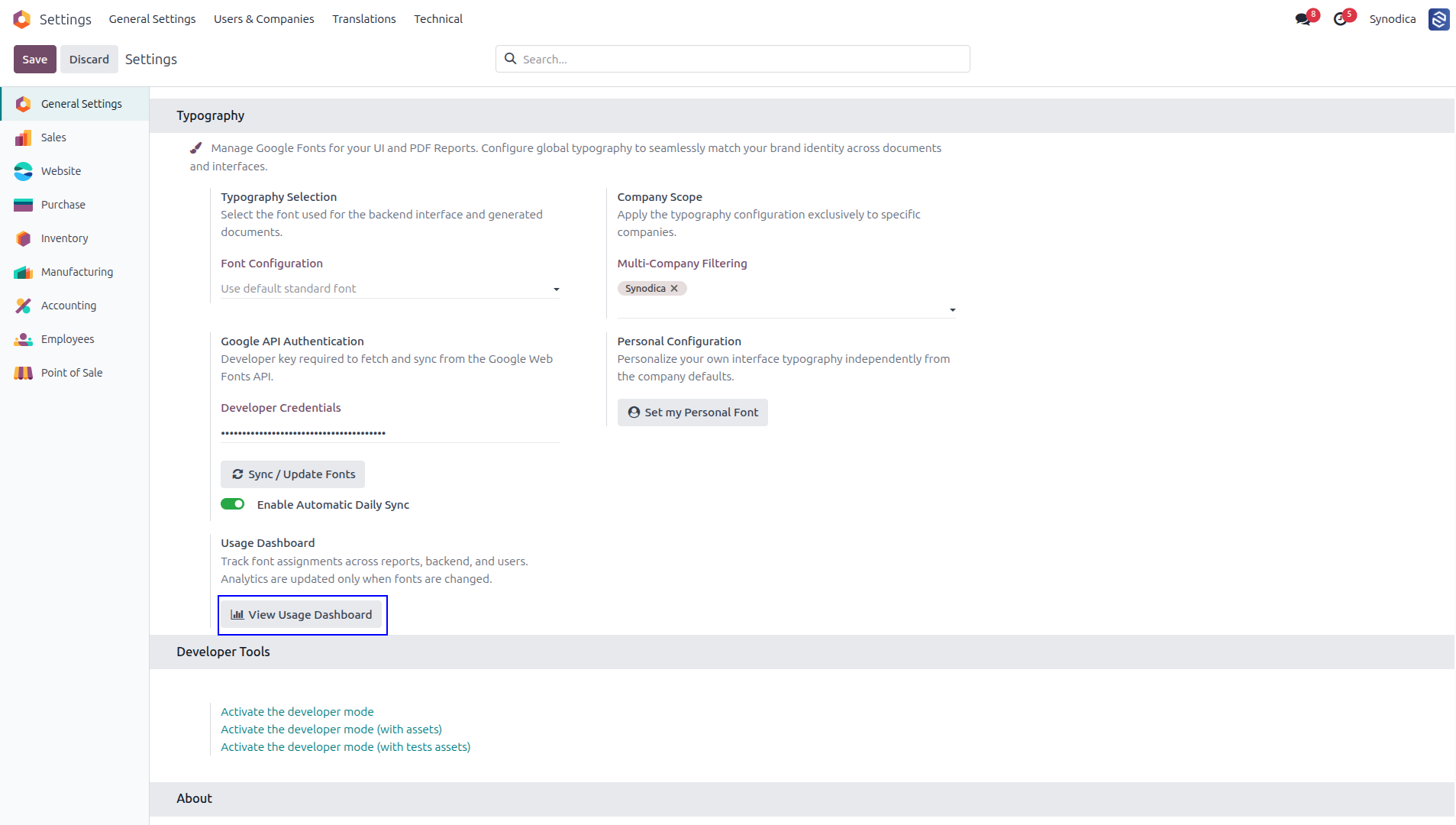
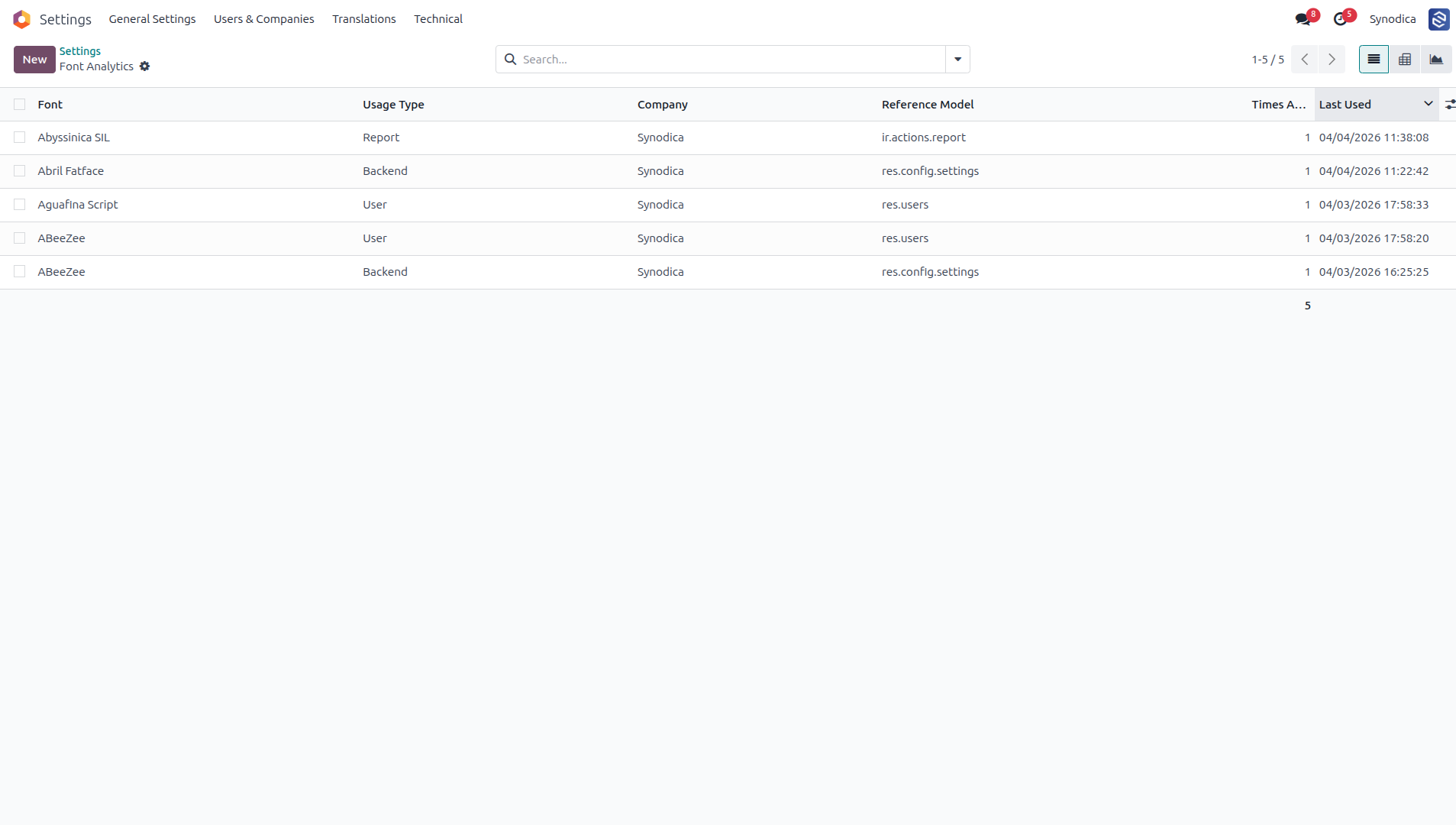
Track every font assignment across Backend, Report, User, and Website usage types. Access the analytics dashboard from Settings → Font Analytics with list, pivot, and graph views.
Live Font Preview Widget
The OWL-powered font picker renders each font name in its own typeface inside the dropdown. A live preview sentence updates in real time as you select weights and styles.
Versioned CSS Cache
CSS payloads are ORM-cached per company and auto-invalidated on every rule change. Dedicated HTTP endpoints with version-busting URLs deliver backend and report stylesheets with 1-hour browser caching.
Watch the full walkthrough — from installation and configuration to live font switching and PDF report embedding.
Full product demo — Odoo Google Fonts by Synodica Solutions Pvt. Ltd.
See It in Action
A visual journey through the primary tip and service fee features inside Odoo.
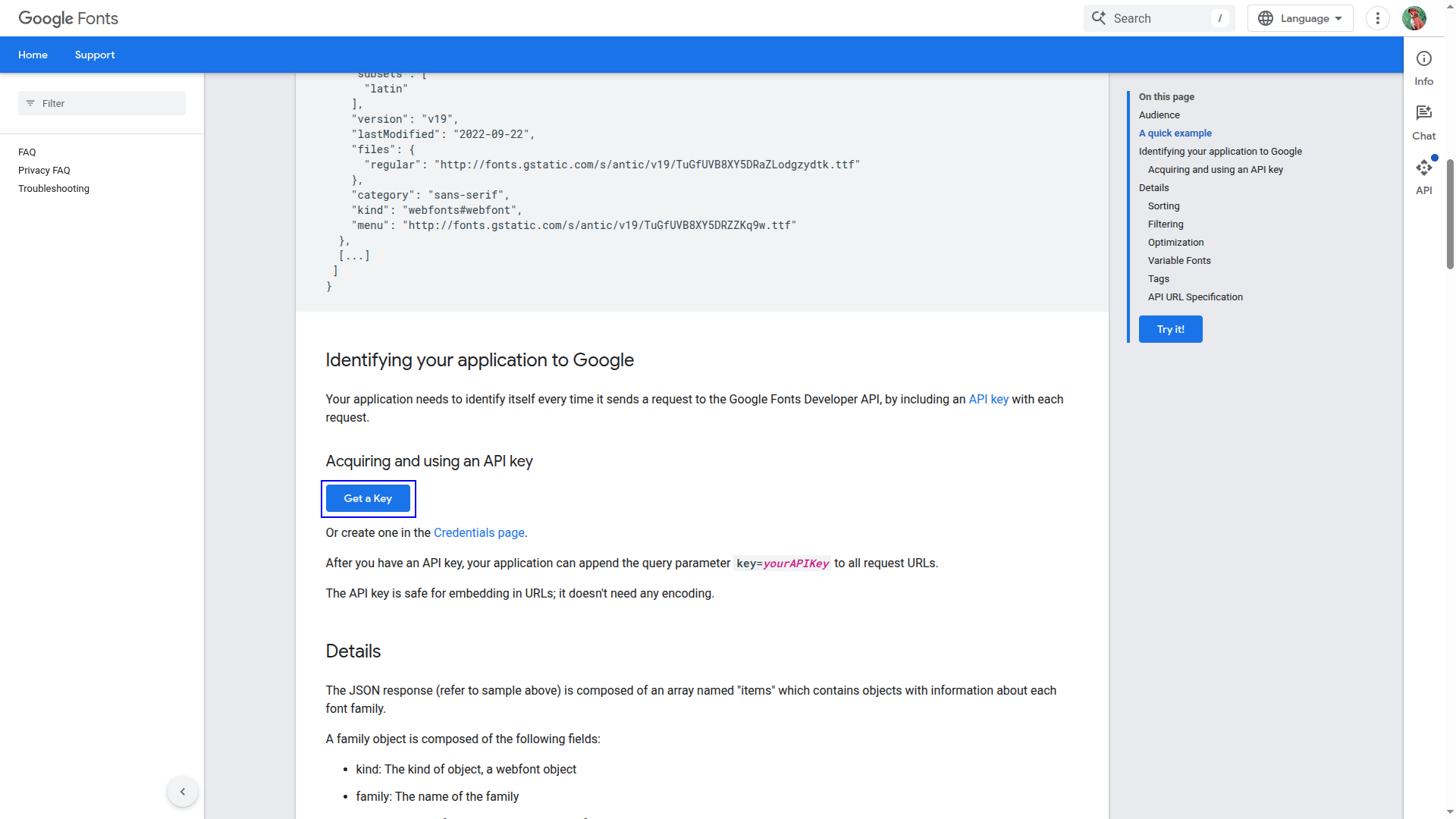
Search for Google Fonts Api Key in Your Browser, Open the Google Fonts Developer Api Documentation, and Click Get Api Key to Generate Your Key for Integration
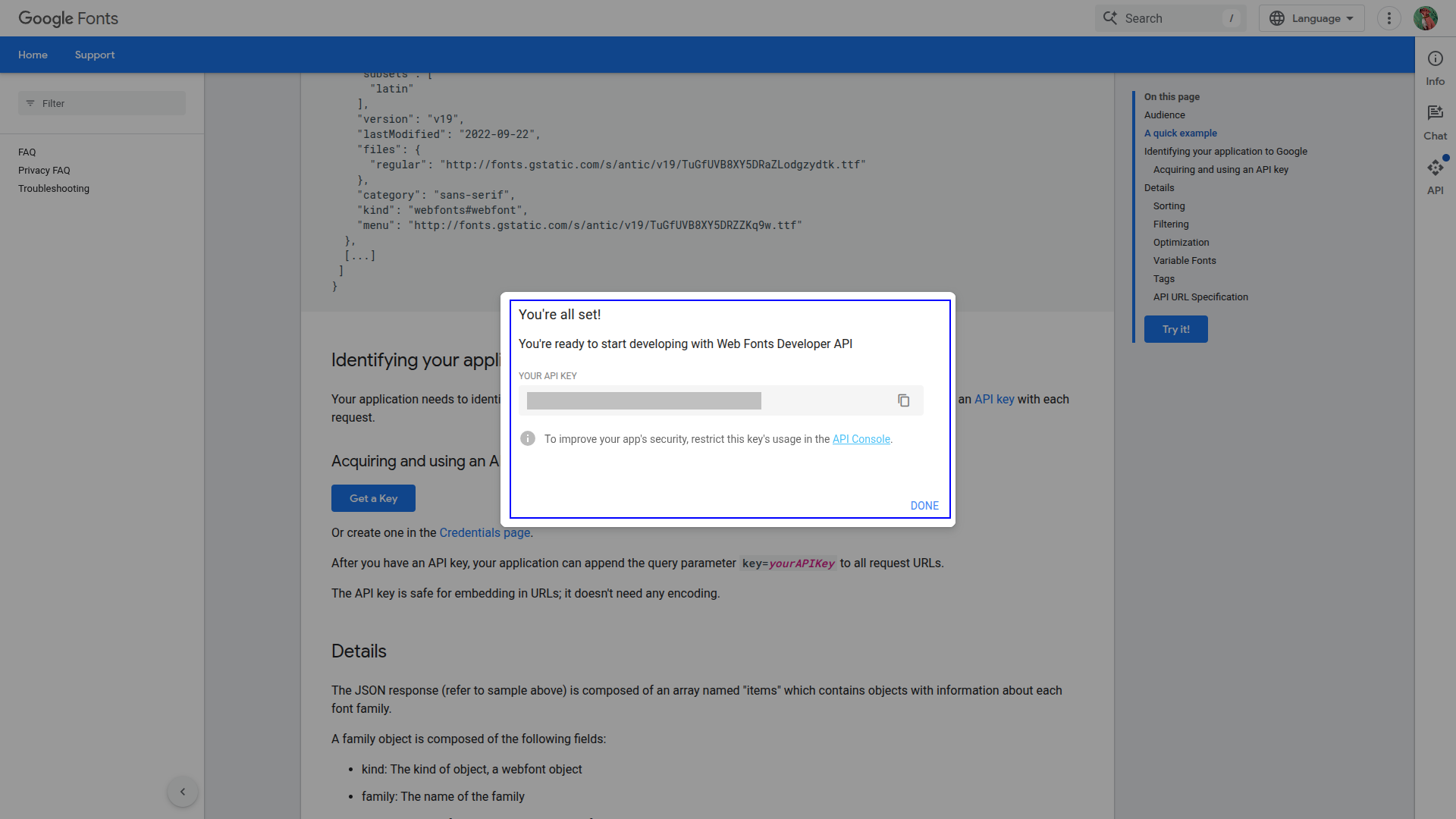
Click Get Api Key, Generate Your Google Fonts Api Key, and Copy It Securely to Use in the Next Configuration Step
Enter Your Api Key, Click Sync/update Fonts to Fetch the Font List, and Enable Auto Daily Sync for Automatic Updates
After Syncing, Browse the Imported Google Fonts, Select Your Preferred Font from the List, and Apply It to Your Odoo Interface and Reports
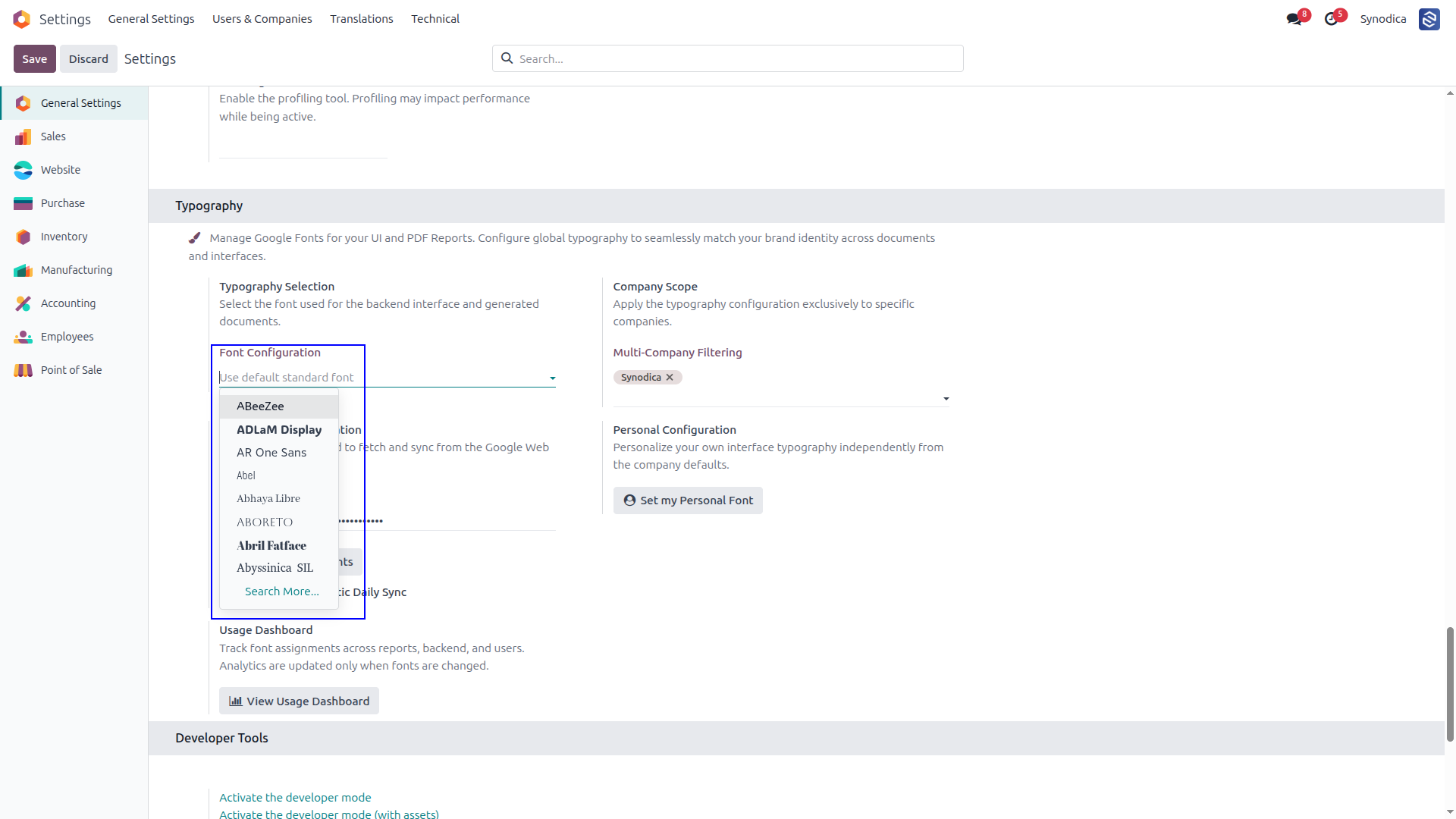
Select A Google Font From The Typography Settings And Save The Configuration To Apply The Font Globally Across The Odoo Backend And Generated Reports
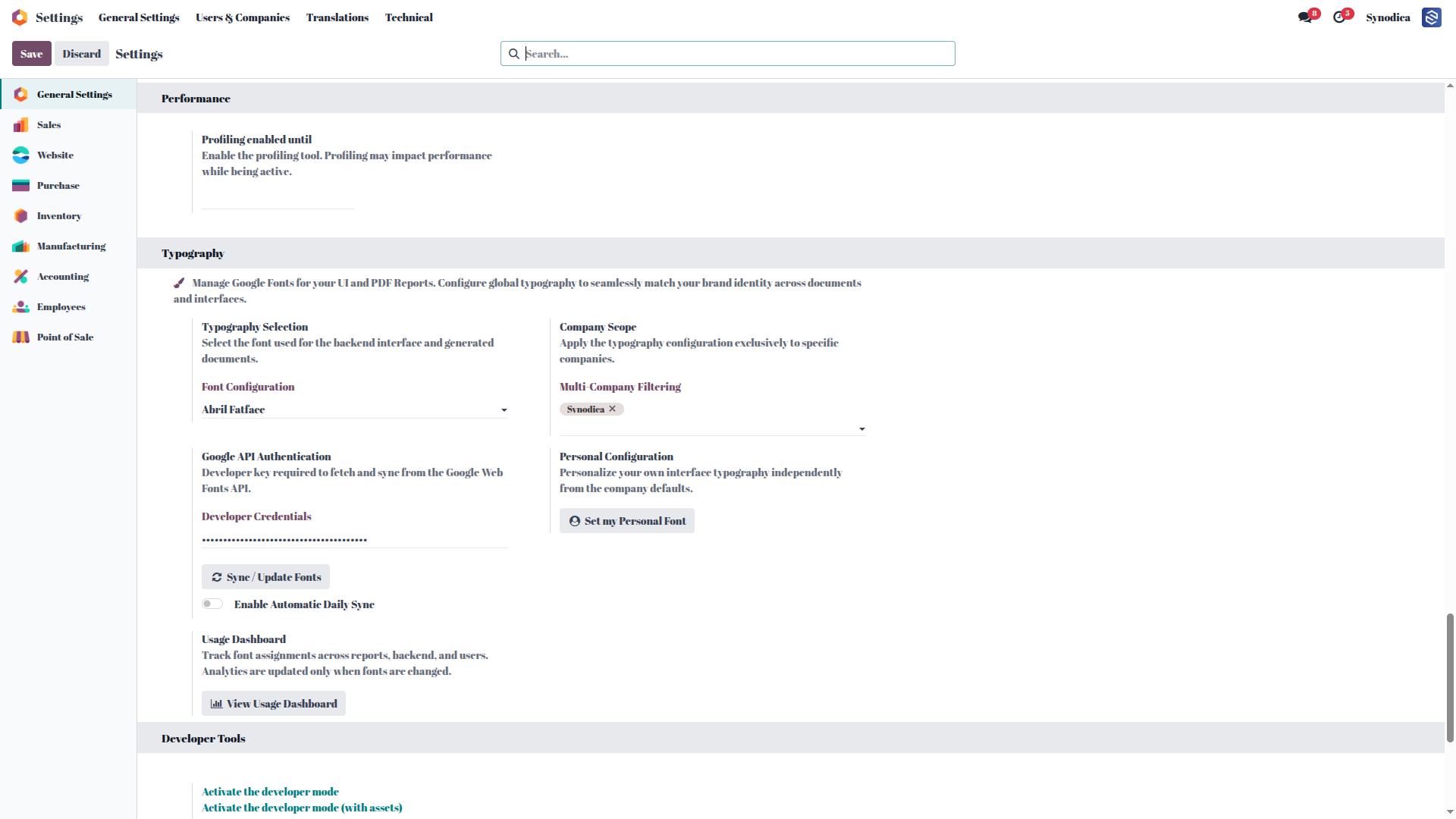
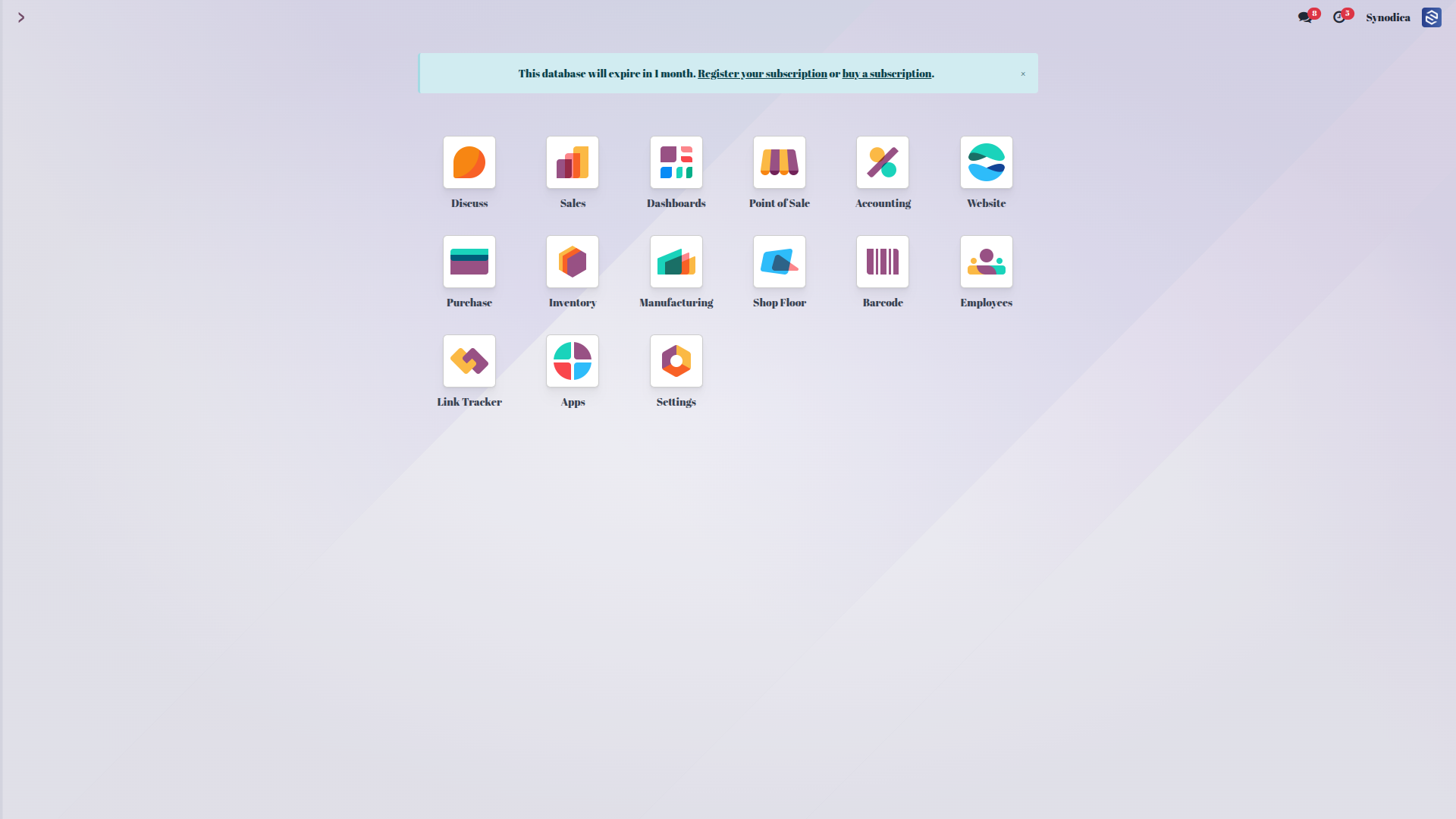
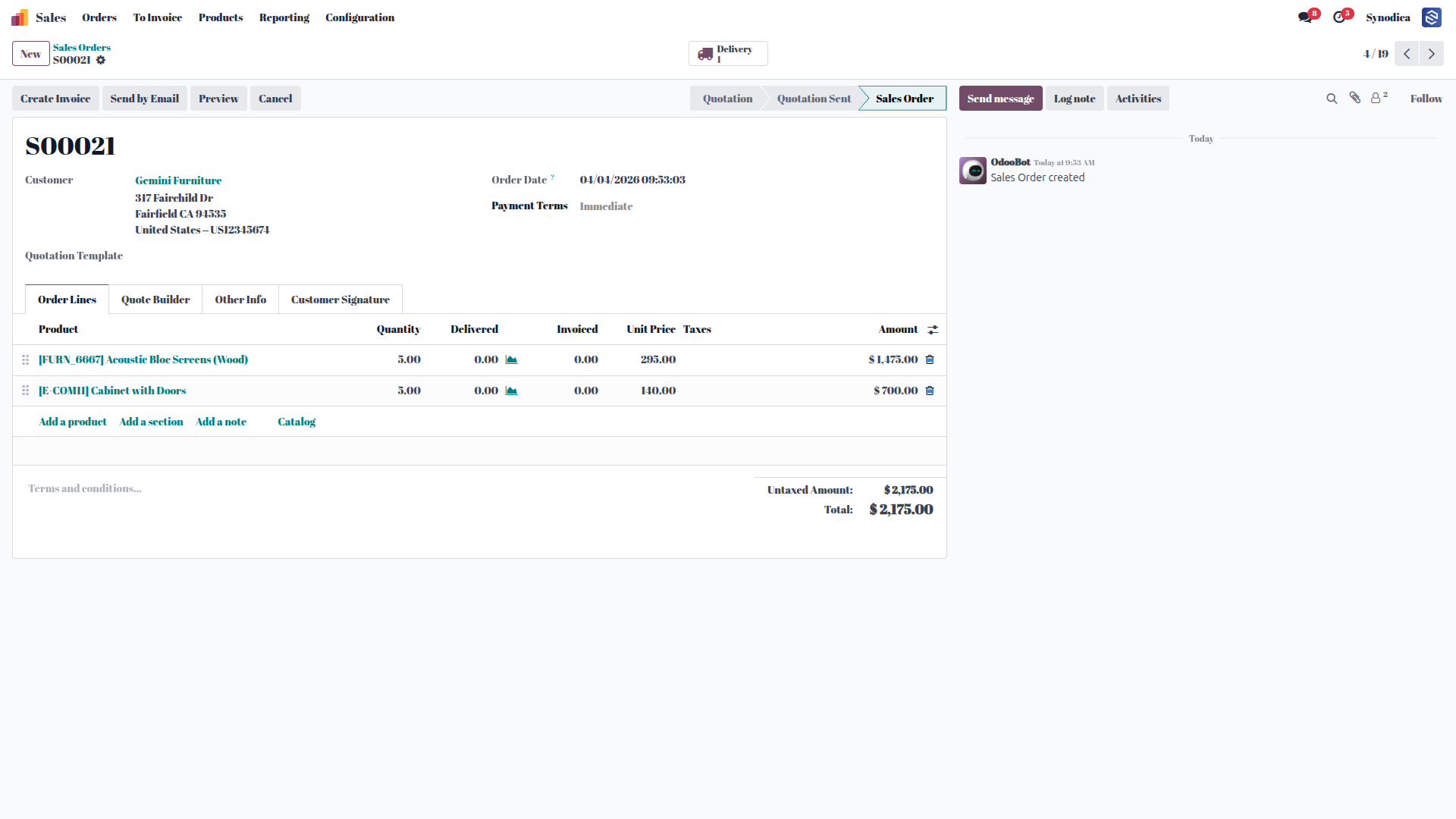
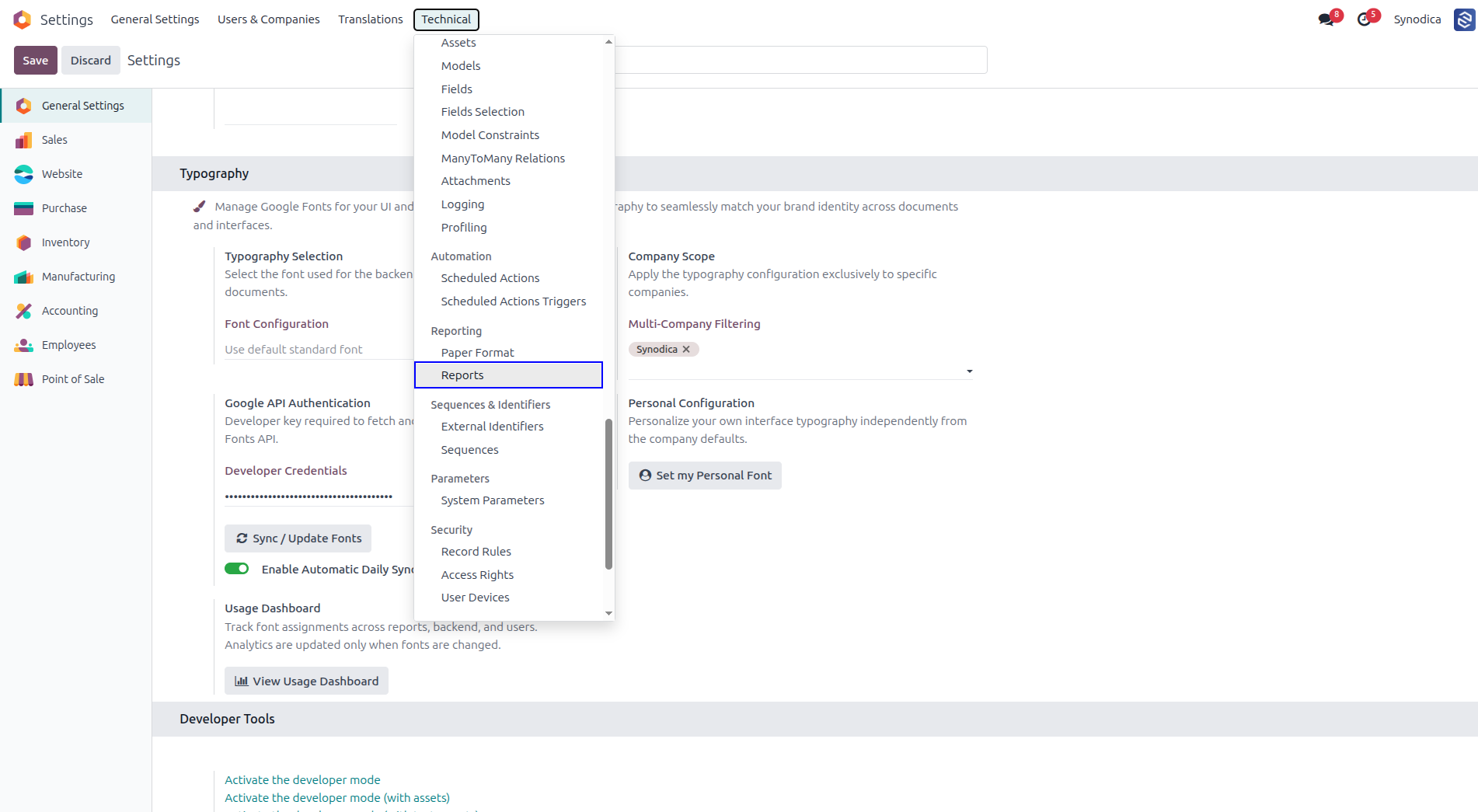
Navigate to Technical > Reports, Open the Desired Report, and Select a Google Font to Customize Its Document Appearance
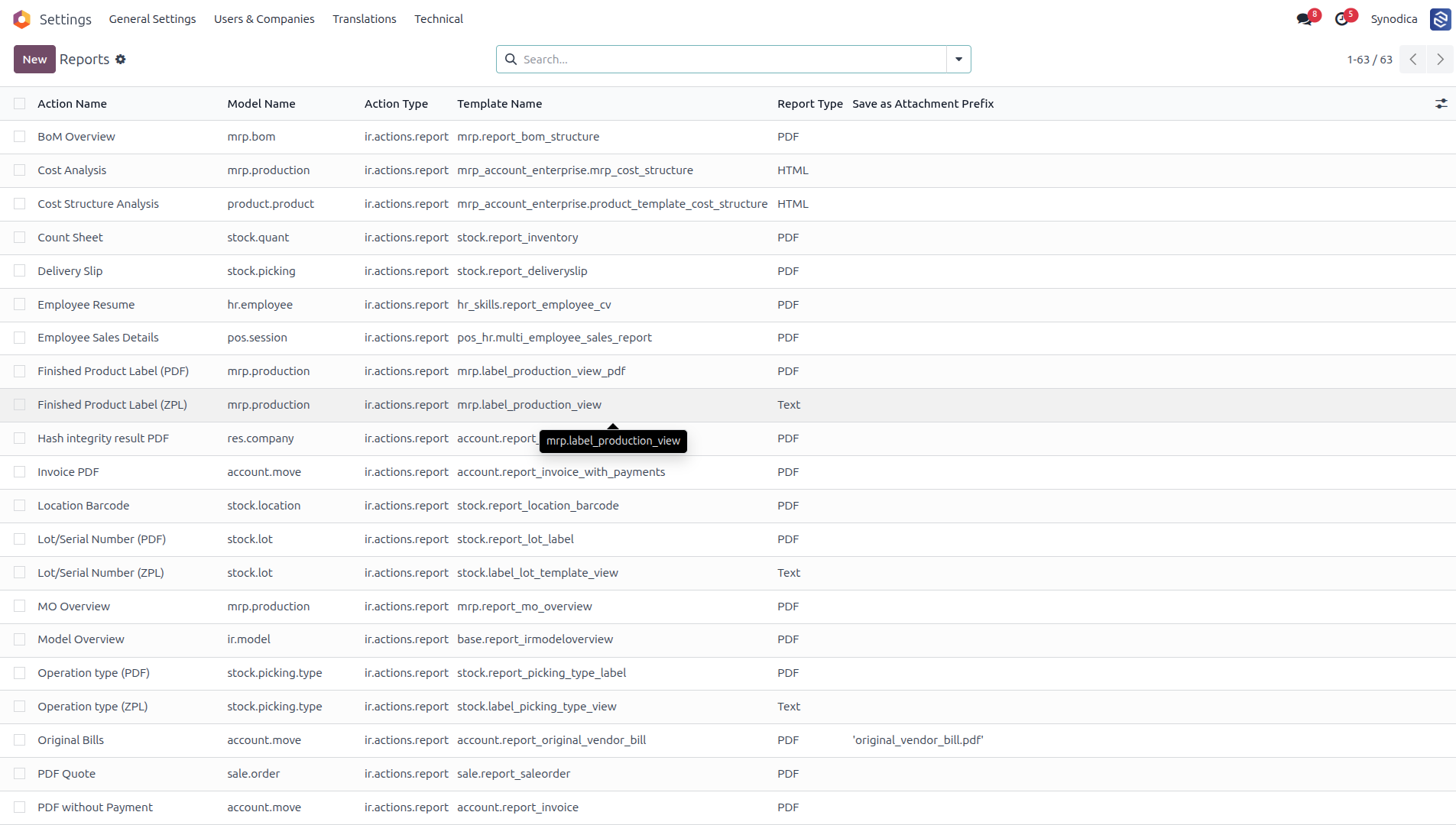
Select the Custom Font You Want to Apply to This Specific Report
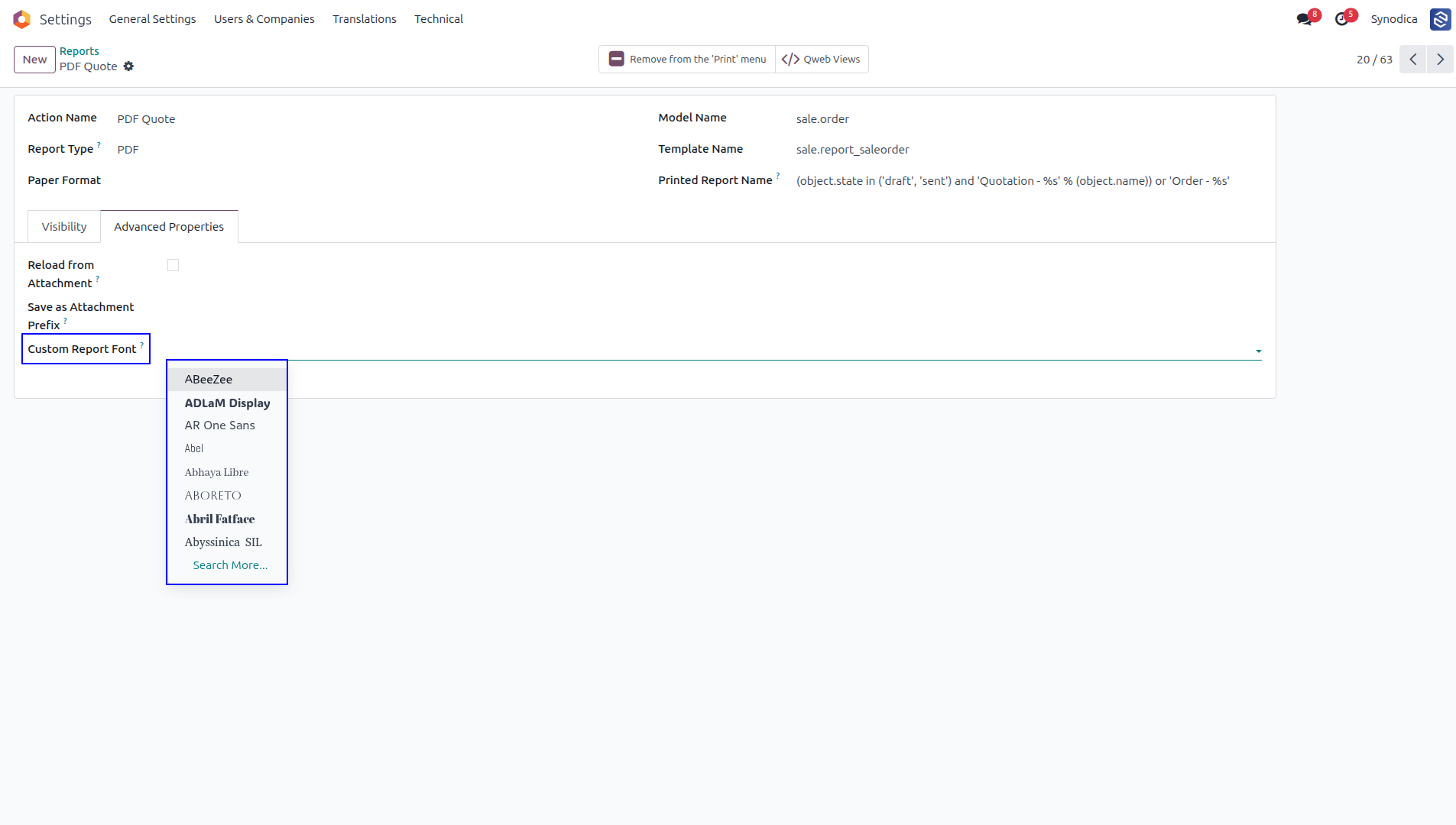
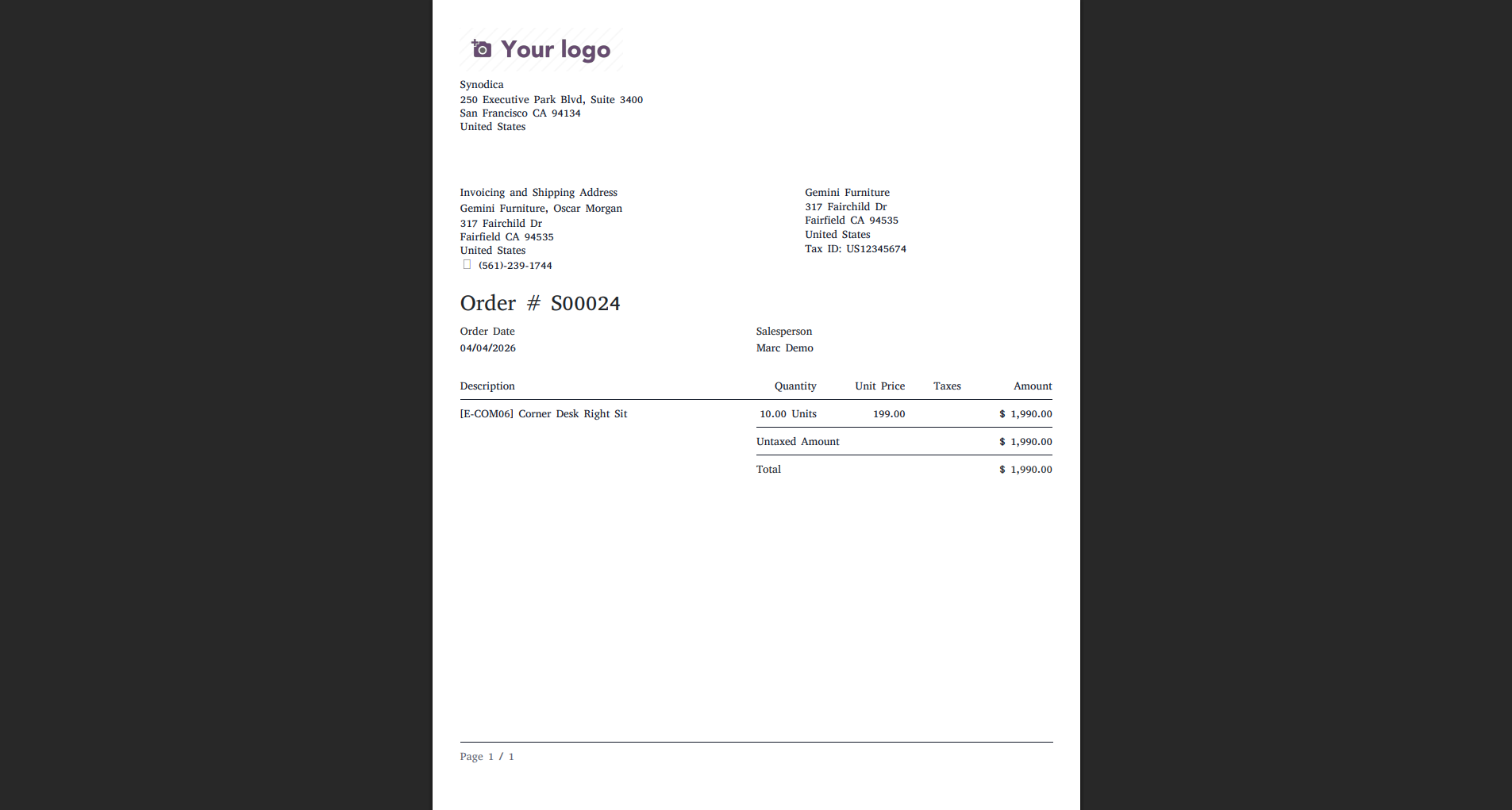
Open the Report and Print It to See the Applied Font Result
View the Printed Report to See the Applied Google Font and Typography Changes
Apply Typography Settings Company-wise for Specific Companies
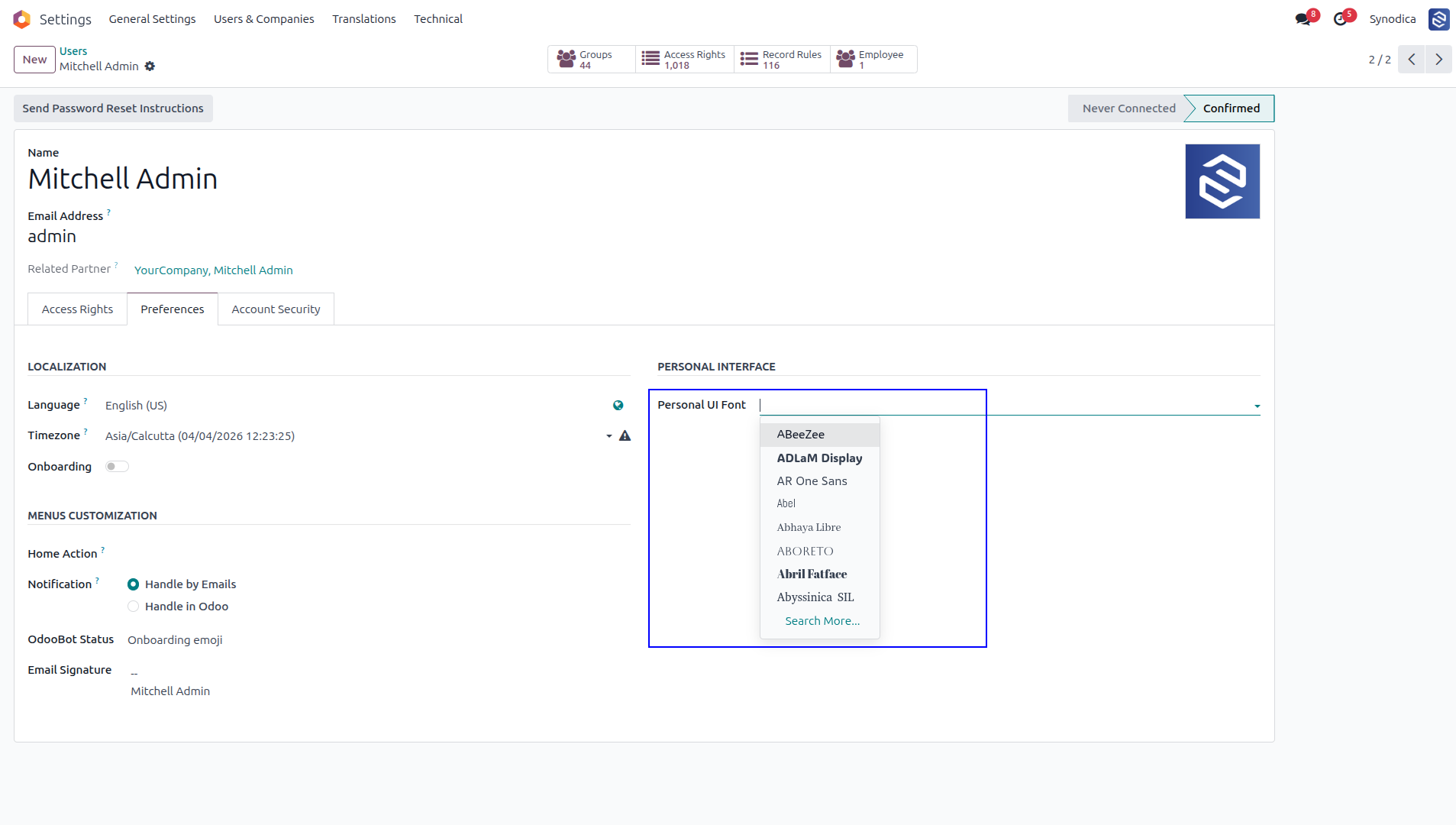
Go to Your User Profile, Select Your Preferred Personal Font, and Apply It to Customize Your Ui Appearance Without Affecting Backend Configurations
Select Your Preferred Personal Font from Your Profile Settings to Customize Your Ui Appearance
Configure Fonts User-wise to Apply Typography Changes Both Globally and for Report Documents
Track Font Assignments Across Reports, Backend, and Users. Analytics Are Updated Automatically Whenever Font Configurations Are Changed
See the Font Analytics to Track Font Usage Across Reports, Backend, and Users
Ready From Day One
Eight professionally curated Google Fonts are included out of the box — no API key, no internet sync needed.
Quick Start Guide
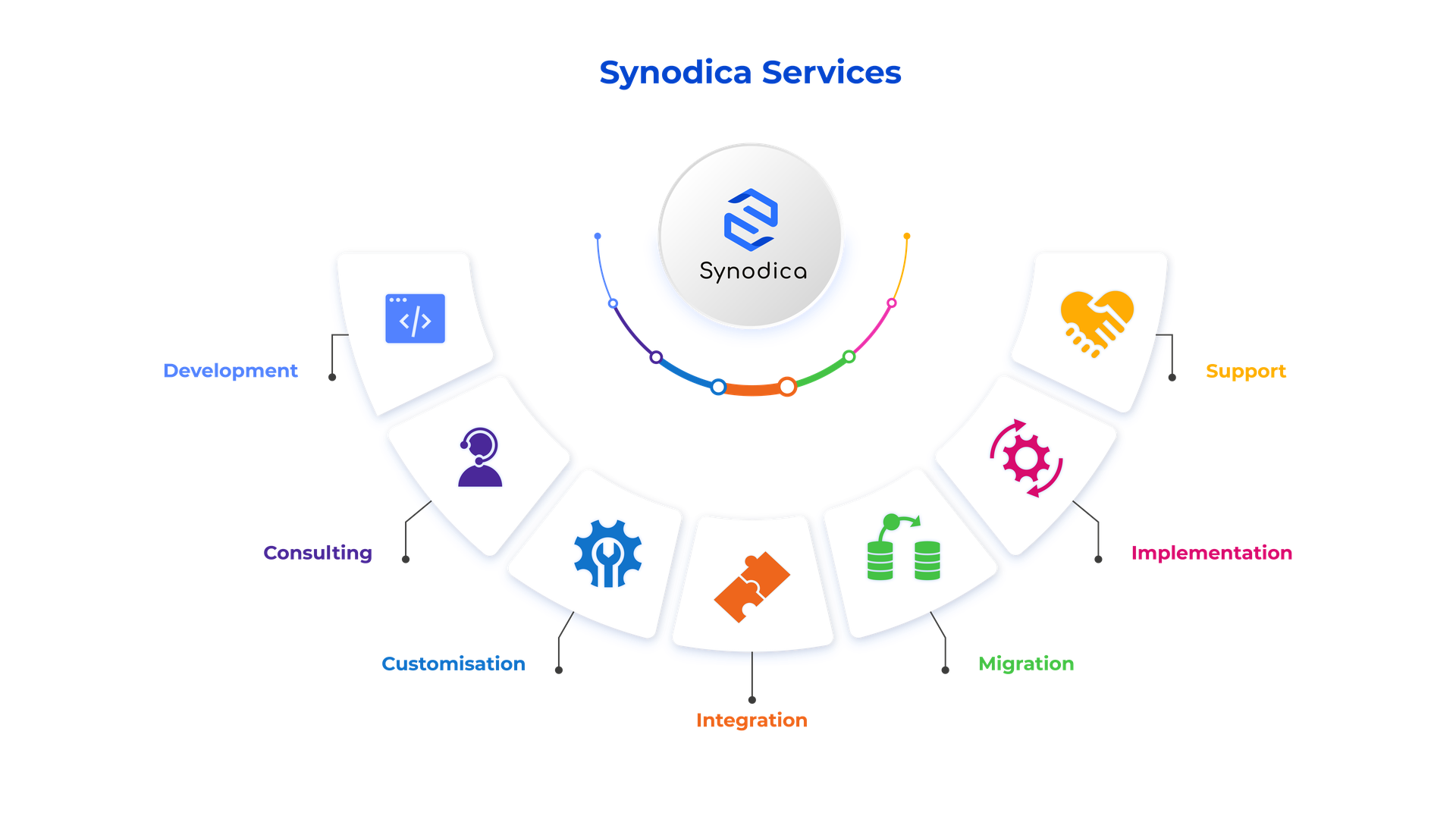
Specialized Odoo Services
We build, customize, and maintain Odoo solutions for businesses worldwide — from implementation to advanced integrations.
Need Custom Font & Typography Solutions?
Our experts can customize font rules, report styling, and brand typography to perfectly match your business identity in Odoo.
support@synodica.comSupport & Contact
For support, customization requests, or bug reports, contact:
Synodica Solutions Pvt. Ltd.
© 2024–2026 Synodica Solutions Pvt. Ltd. — Google Font Manager — Licensed under LGPL-3
We create ERP solutions for you using Odoo ERP that will build a strong and efficient business for you. It's SYNODICA WAY