

euPago Payment Acquirer

EUPAGO PAYMENT ACQUIRER
Our euPago Payment Integration for Odoo enhances e-commerce by seamlessly linking euPago's robust payment capabilities to your online store. This integration automates payment workflows, reduces errors, and saves time, offering customers a smooth checkout experience with various payment options. Key features include secure payment handling, support for multiple payment methods, automated order processing, and real-time transaction monitoring within Odoo. Integrating euPago empowers your business with efficient payment processing and improved user experience, transforming your Odoo e-commerce platform into a secure and efficient payment powerhouse..
Watch Demo Here


Enable customers to make online payments directly on your Odoo website or application using various payment methods supported by euPago.
If your business model involves recurring payments, you can automate these payments through Odoo using Eupago.
Ensure smooth integration with euPago payment gateway, enabling secure and reliable transactions for your customers.
Easily initiate refunds directly from Odoo . This simplifies the refund process and improves customer satisfaction.
Allow users to view payment references dynamically within Odoo, displaying detailed transaction information such as Payment method, Transaction reference, Amount and more.
Allow users to download or print payment reference receipts directly within odoo. This feature enhances convenience for users who need physical copies of their payment references.
Enables seamless payment transactions directly from the Odoo portal, sales, and invoices, providing users with a unified and efficient payment experience.
Receive real-time updates on payment statuses directly within Odoo via Webhooks.
Payment From Website
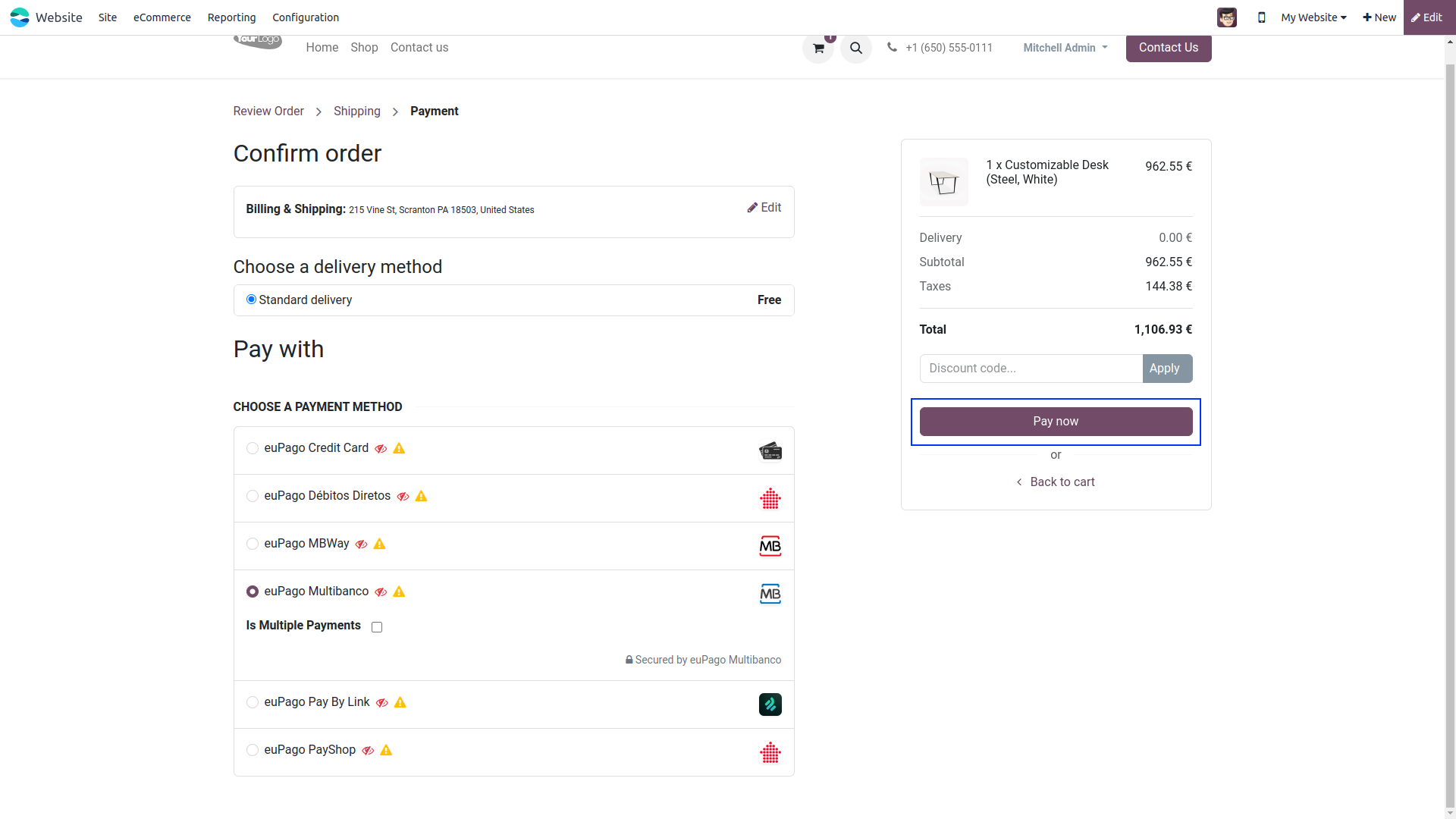
To pay with euPago Multibanko Payment Method, select Multibanko as payment method and Click Pay Now button. For multiple payments, you can select Is Multiple Payments checkbox. And you will redirect you to the Payment confirmation page.
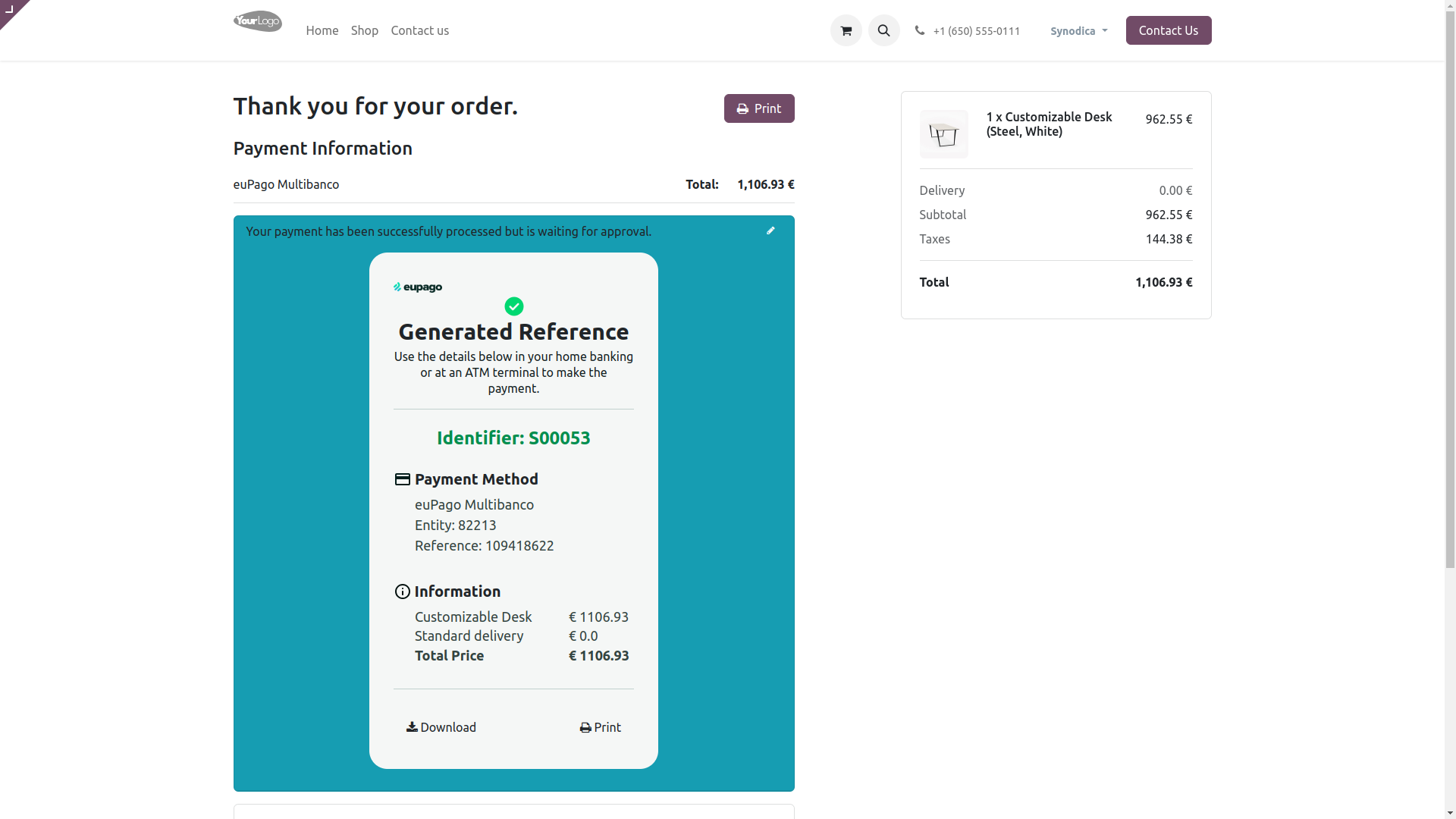
On Payment confirmation page, you will see the Payment Reference with payment method and payment amount. You can download or print the payment reference to make the payment.
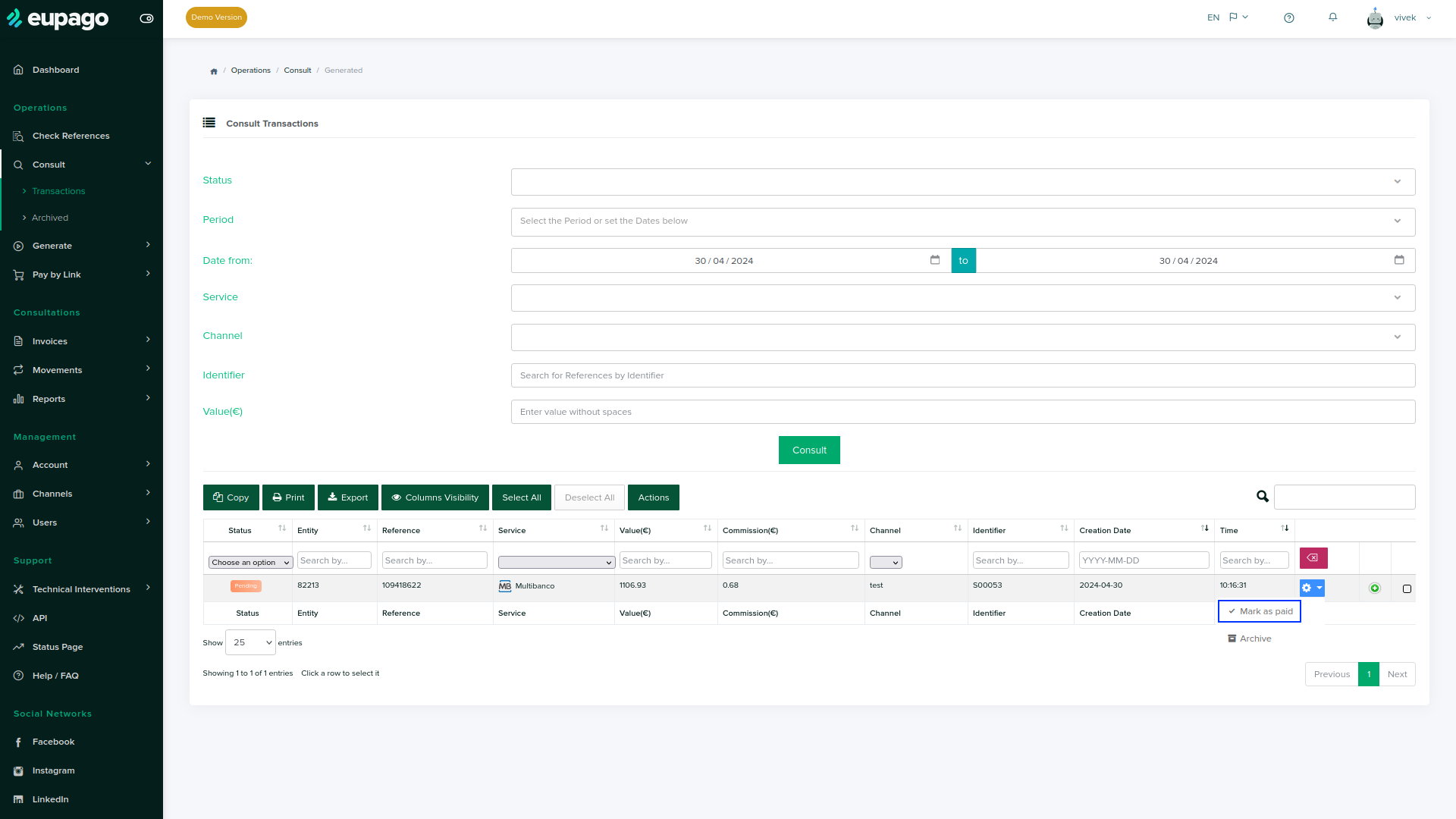
To confirm payment in odoo, Consult transactions in euPago Portal. After verifying reference paid, click Mark as Paid to confirm the payment.
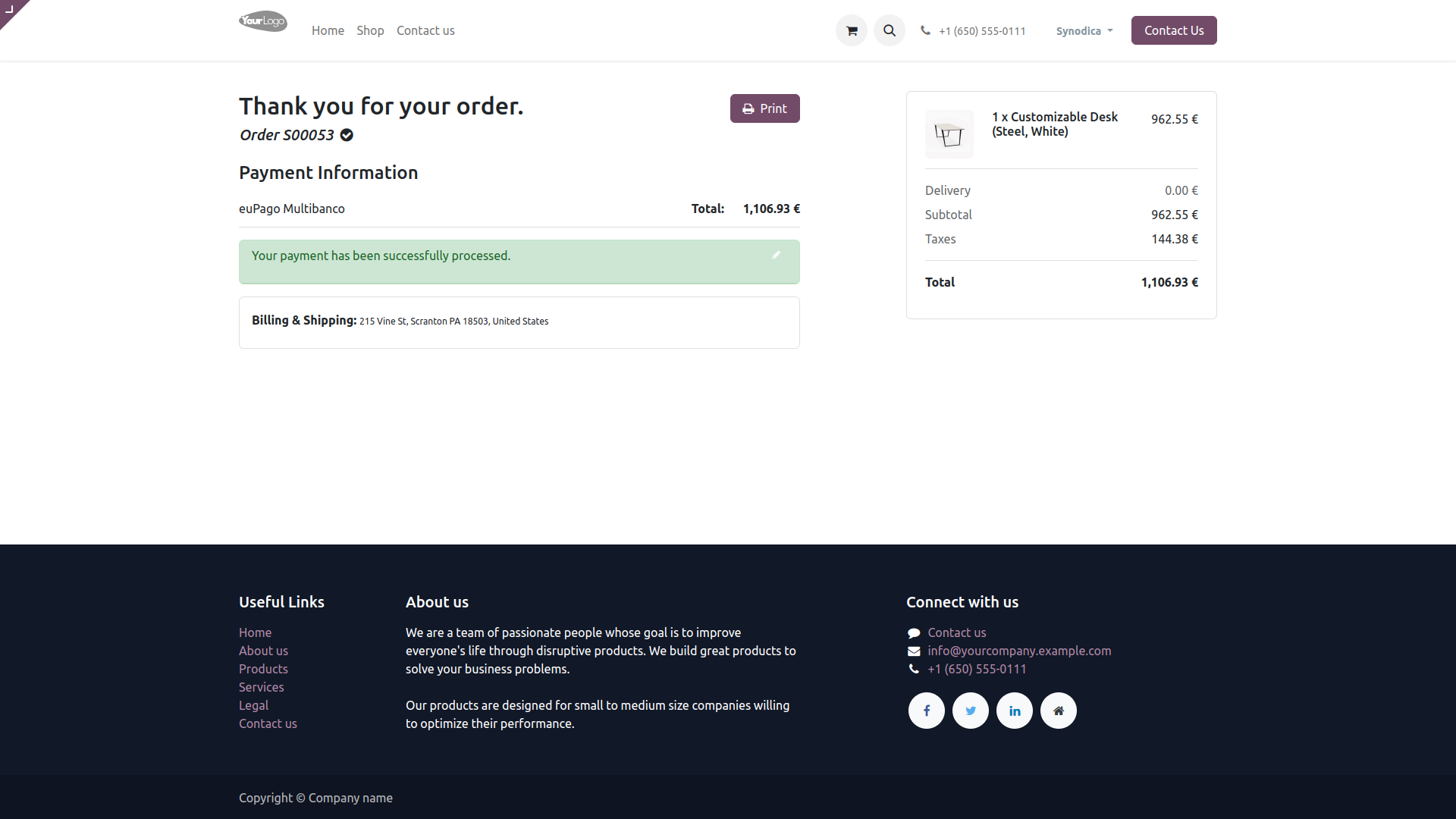
After confirming the payment, you will see the payment status as Paid in odoo.

Payment From Sale Order
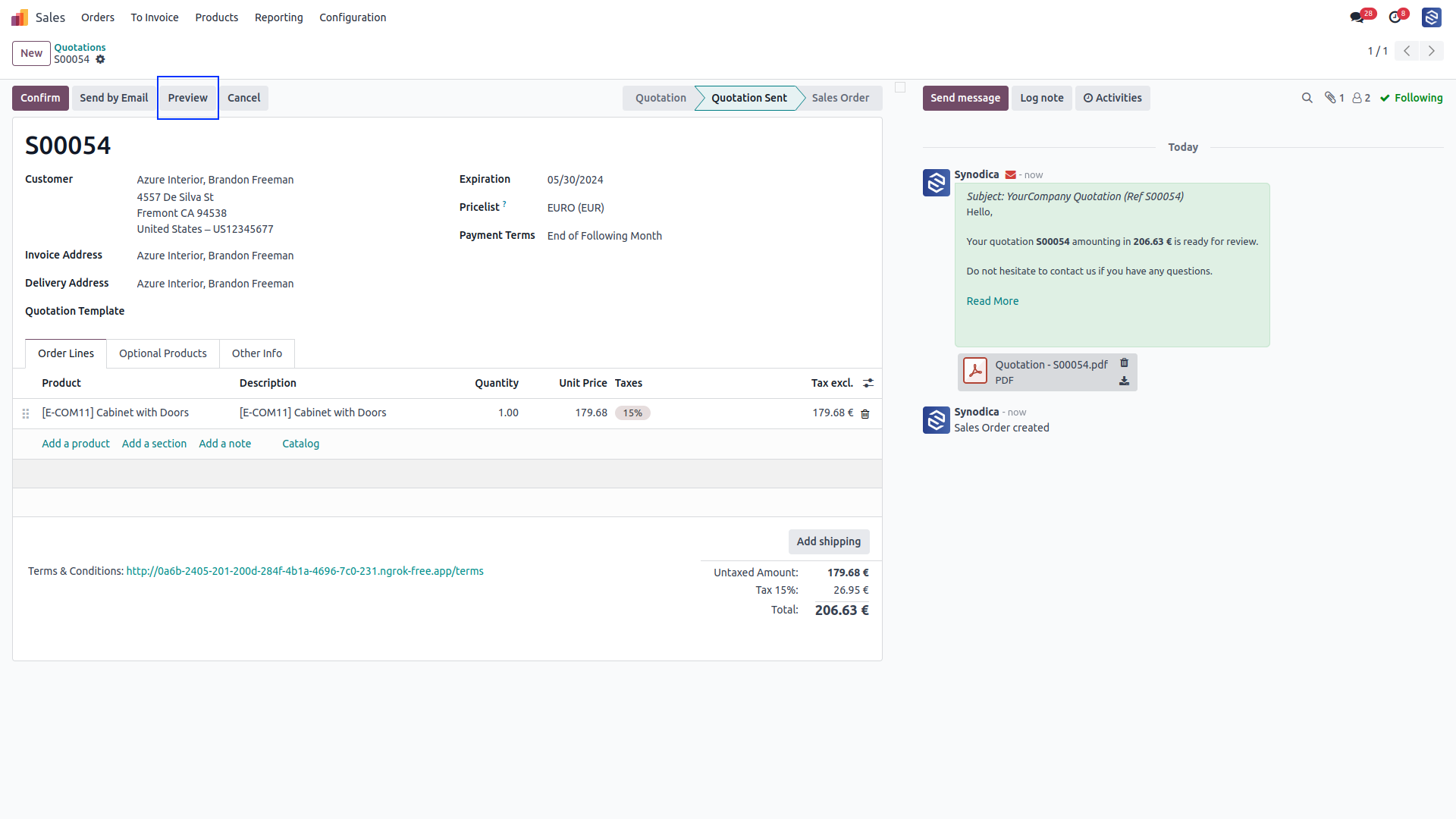
To pay with sale order, create sale order and click Preview button
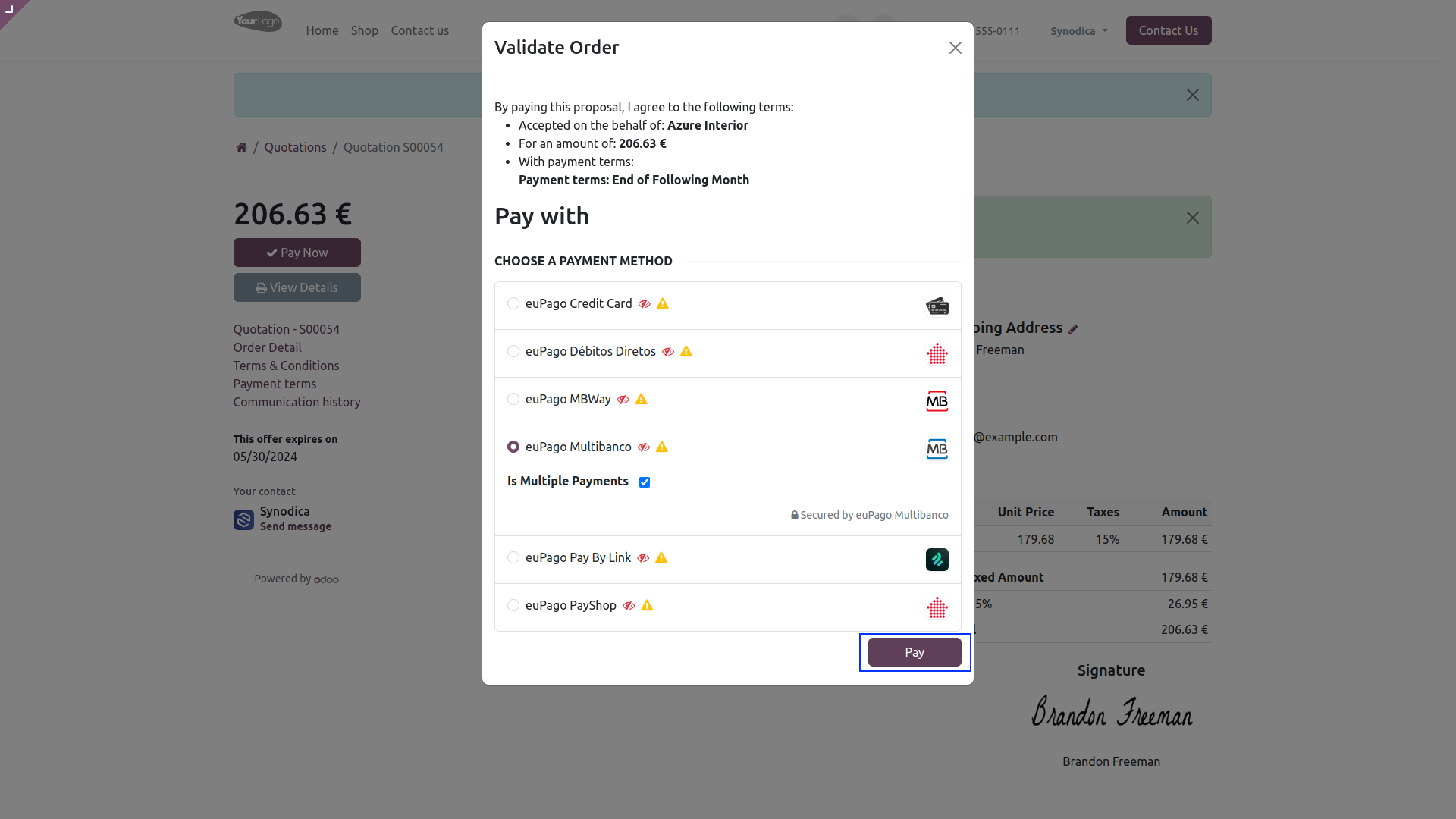
Now click Sign & Pay, Sign document and select euPago Multibanko as payment method. Then click Pay.
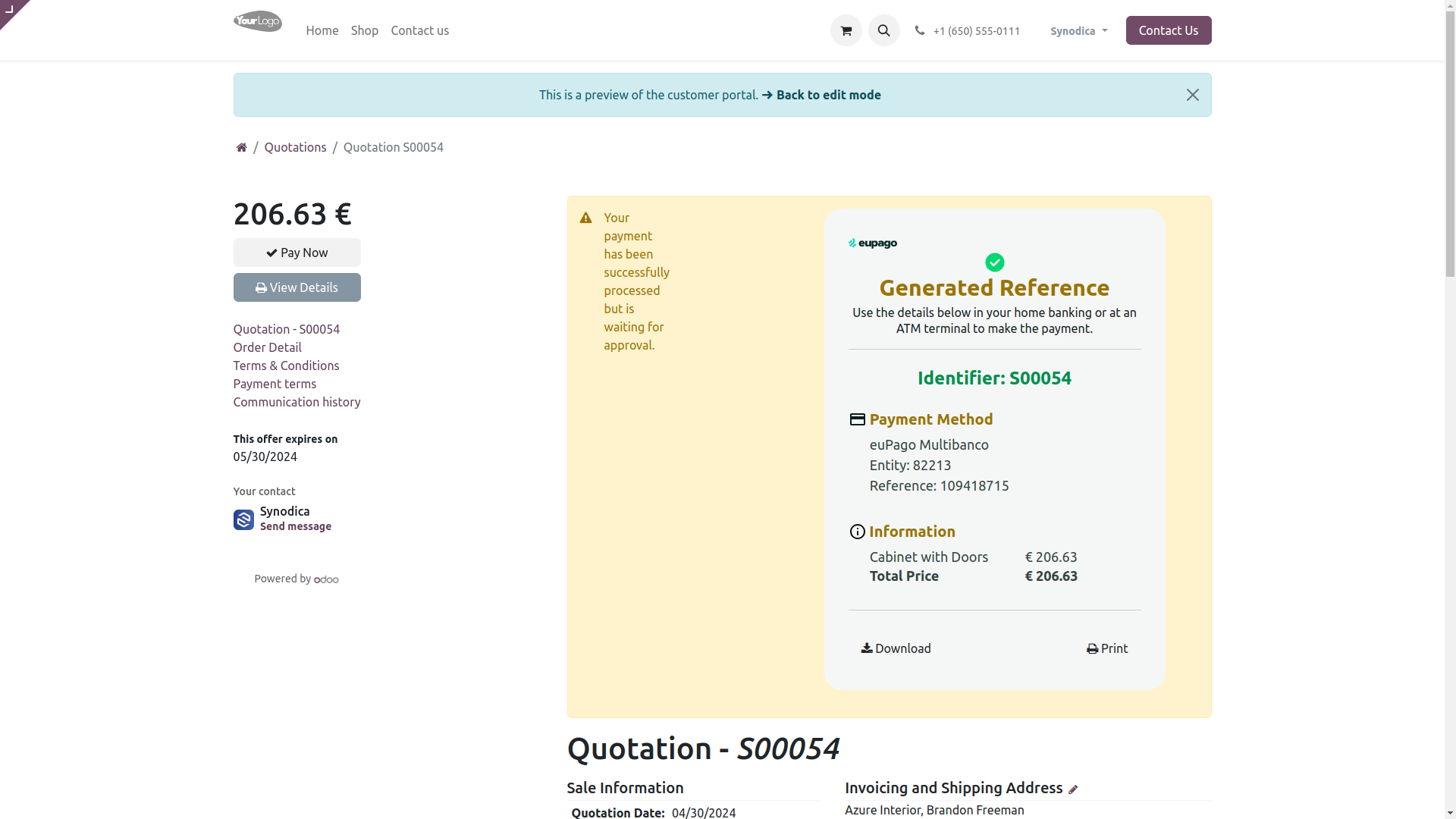
After redirecting to the payment confirmation page, you will see the Payment Reference with payment method and payment amount.
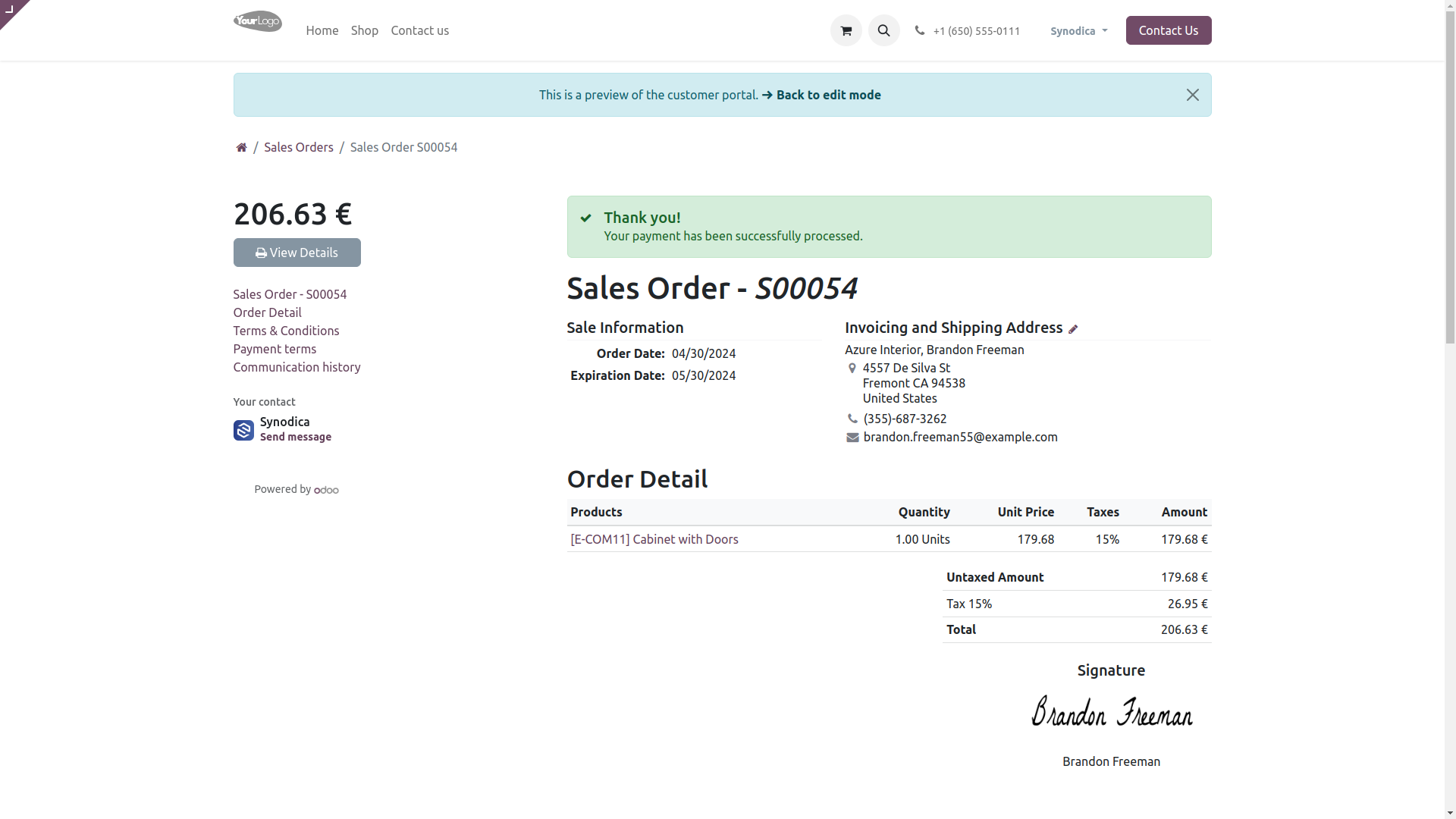
After confirming payment on euPago portal, you will see the payment status as Paid in odoo.

Payment From Invoice
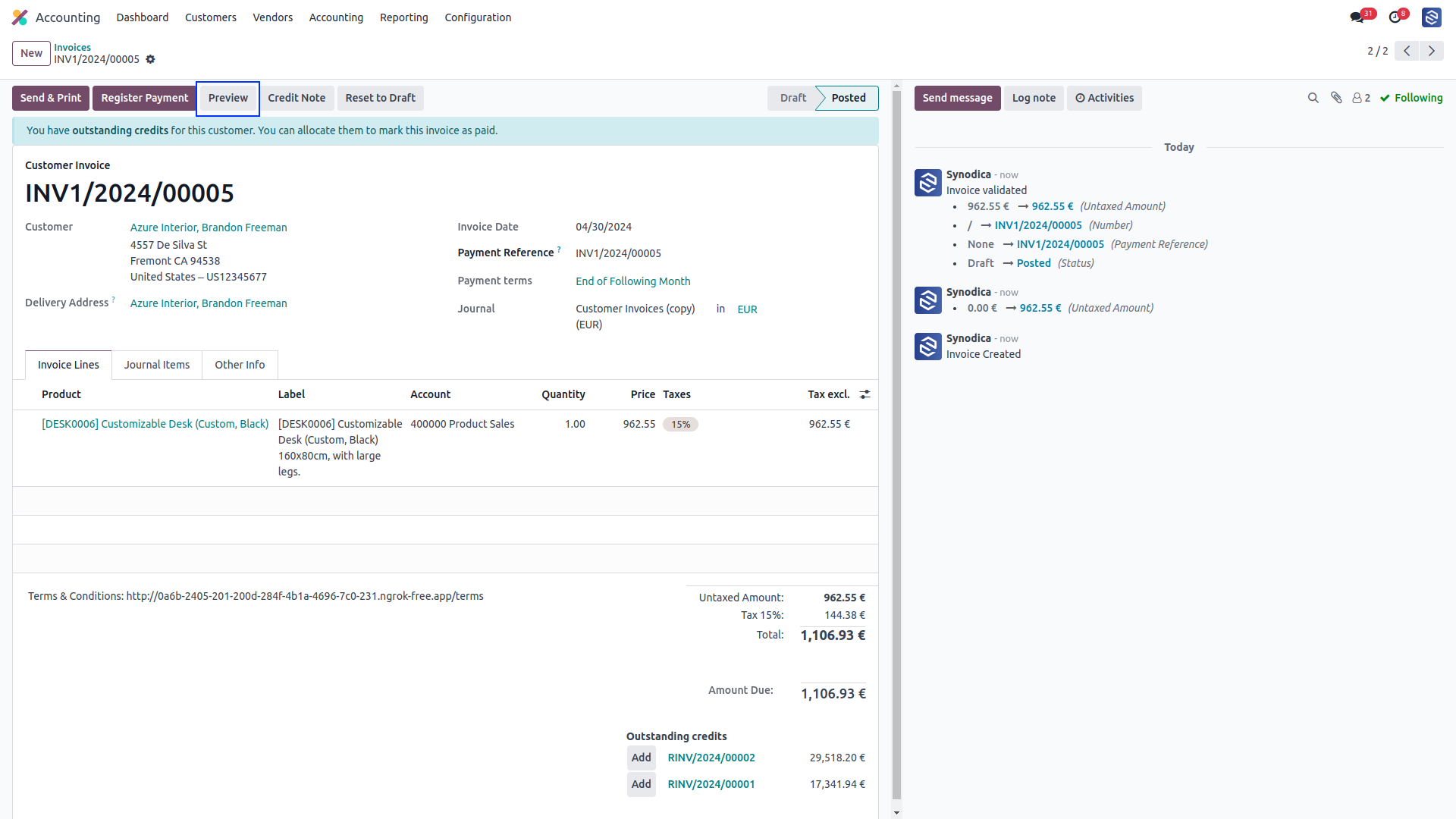
To pay with invoice, create invoice and click Preview button
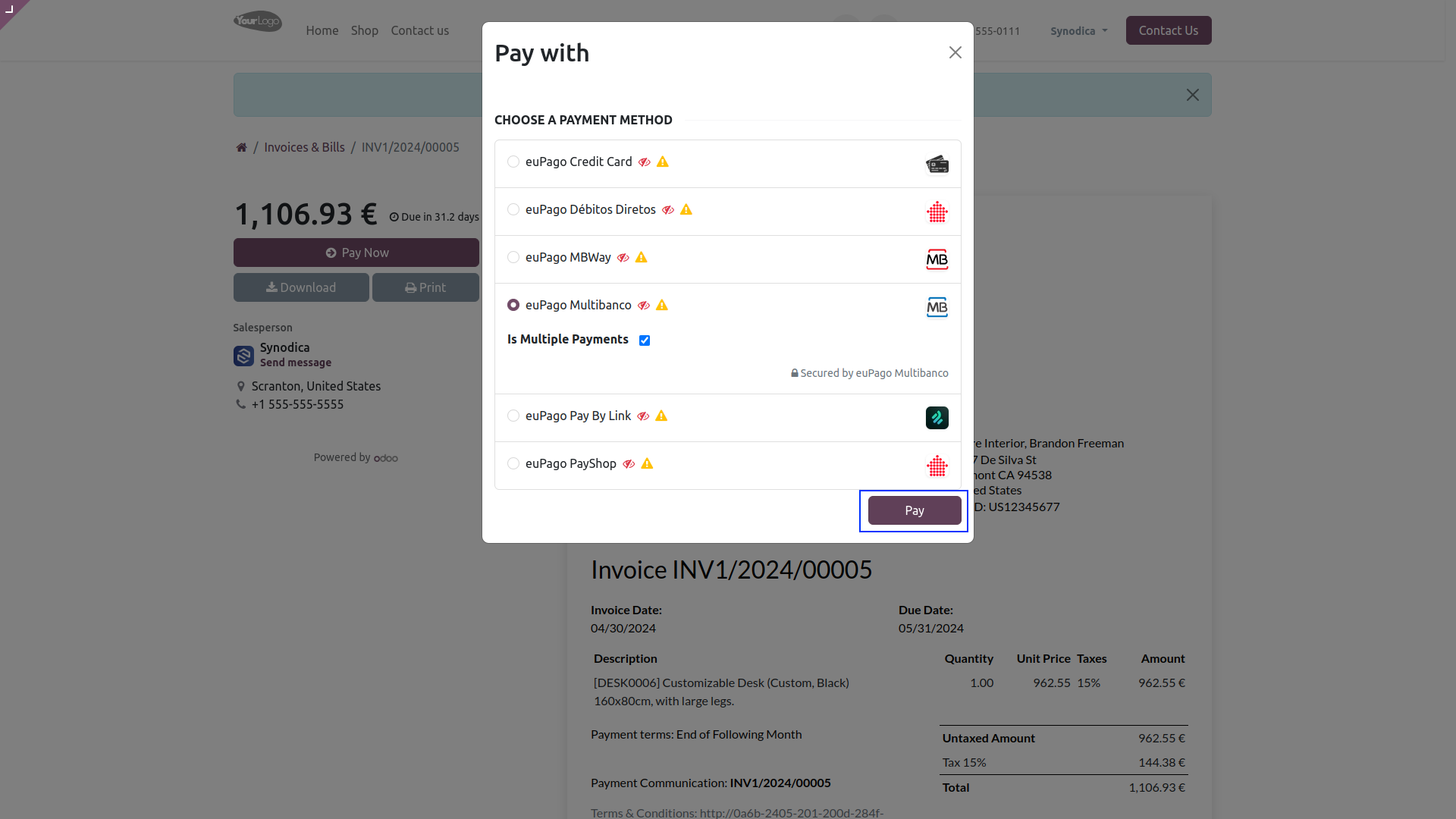
Now click Pay Now, There select euPago Multibanko as payment method. Then click Pay.
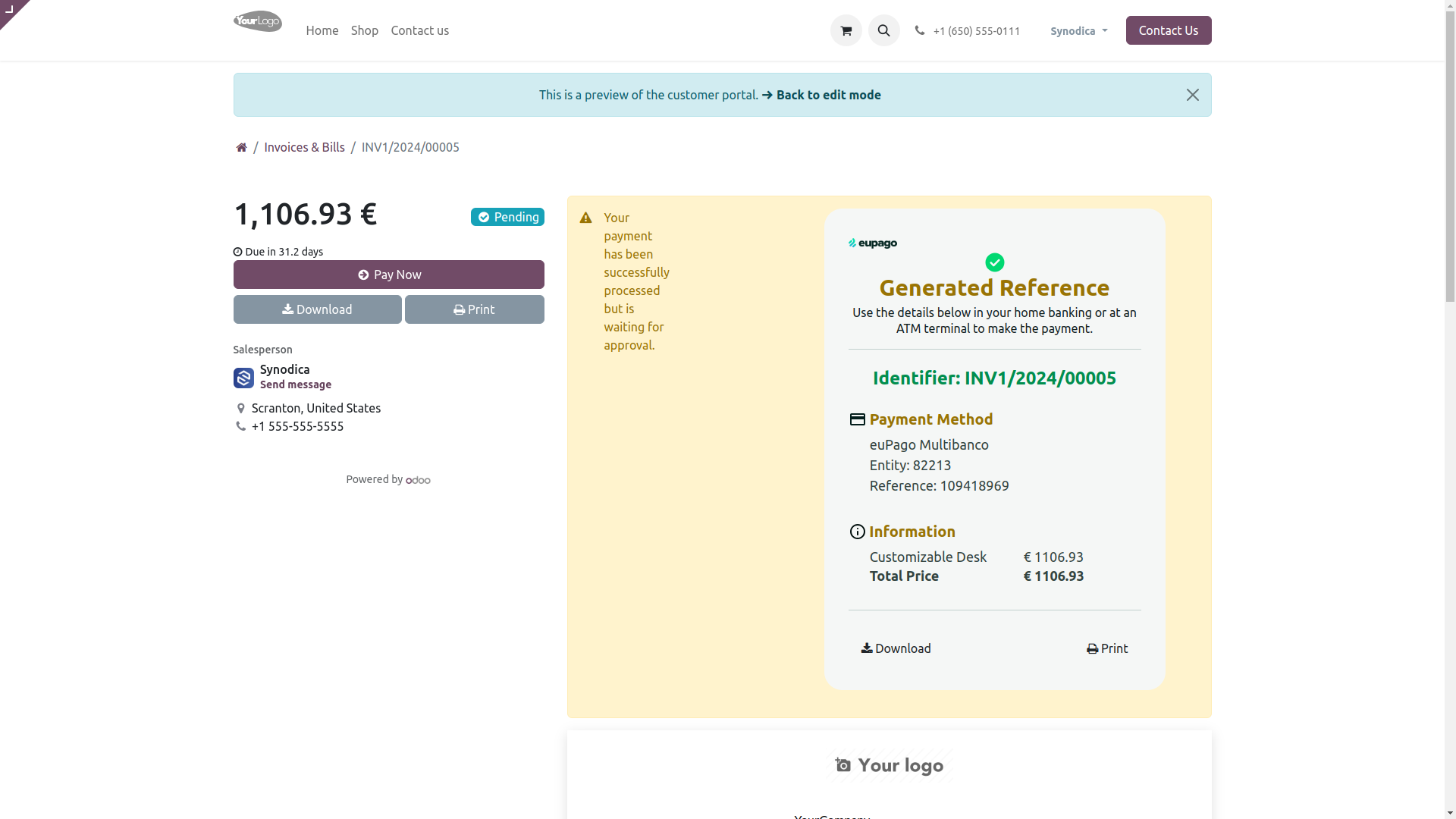
After redirecting to the payment confirmation page, you will see the Payment Reference with payment method and payment amount.
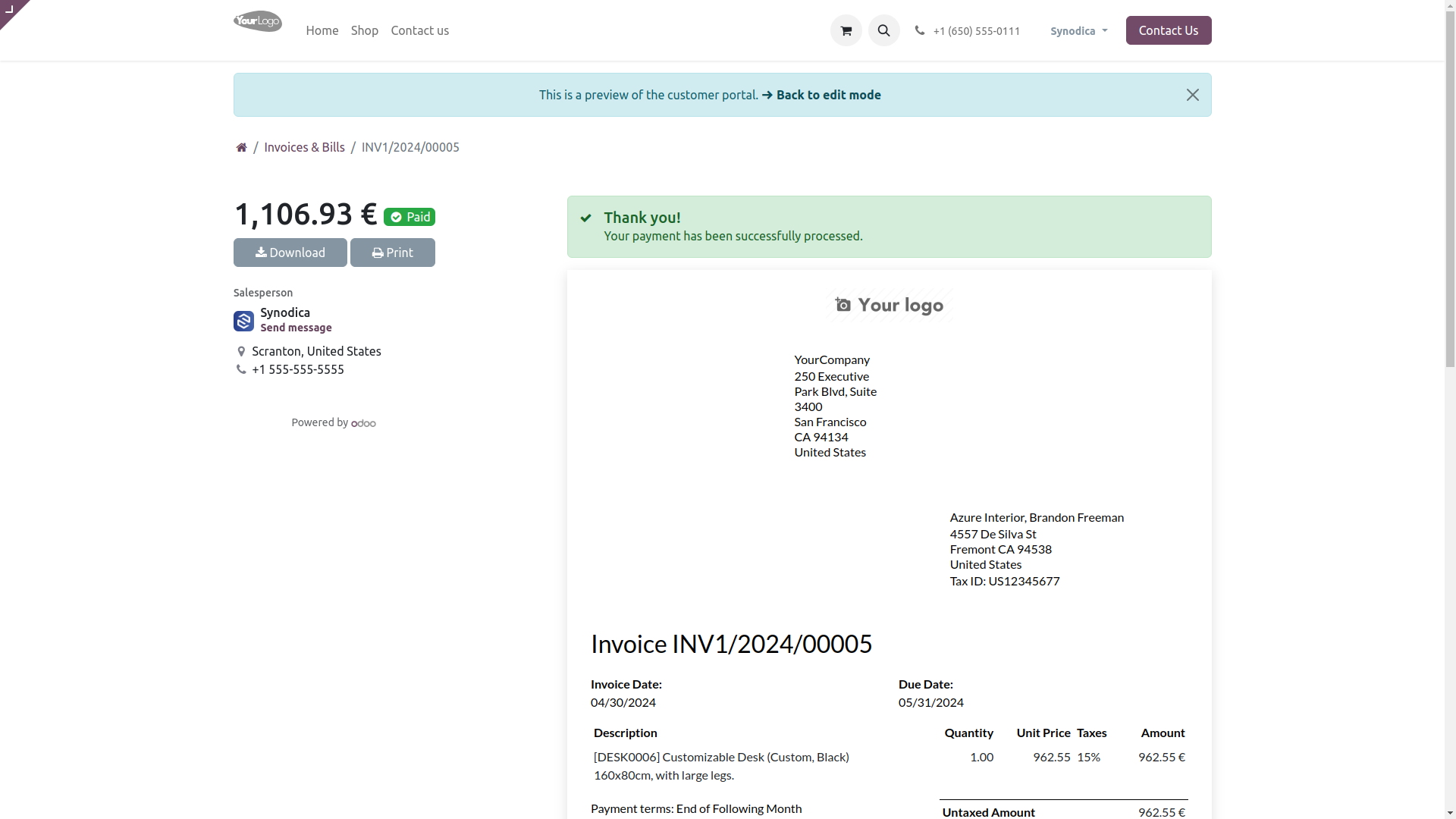
After confirming payment on euPago portal, you will see the payment status as Paid in odoo.
Payment From Website
To pay with euPago MBWay Payment Method, select MBWay as payment method. Enter Phone Number to make payment and Click Pay Now button. And you will redirect you to the Payment confirmation page.
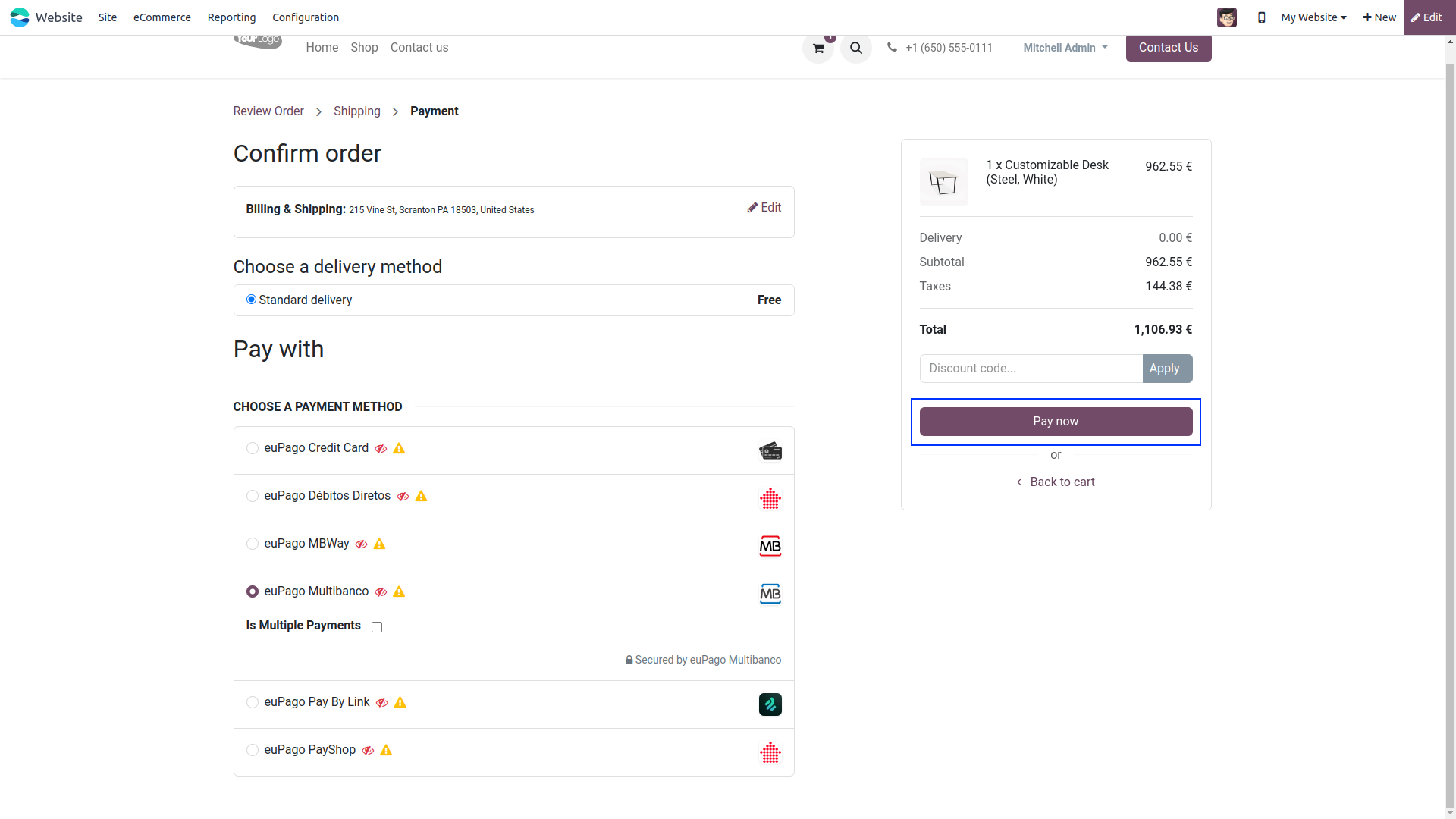
On Payment confirmation page, you will see the Payment Reference with payment method and payment amount. You can download or print the payment reference to make the payment.
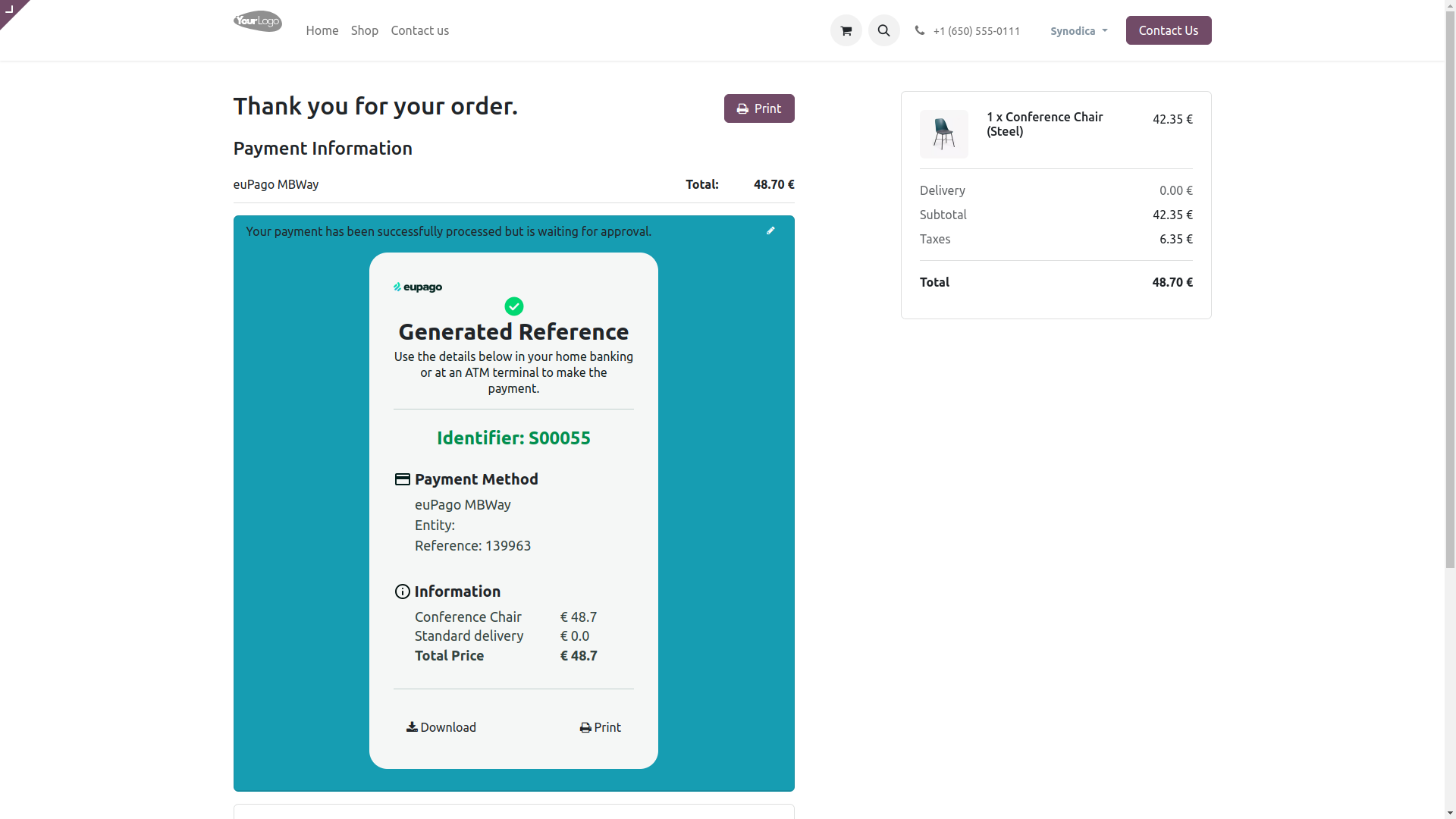
To confirm payment in odoo, Consult transactions in euPago Portal. After verifying reference paid, click Mark as Paid to confirm the payment.
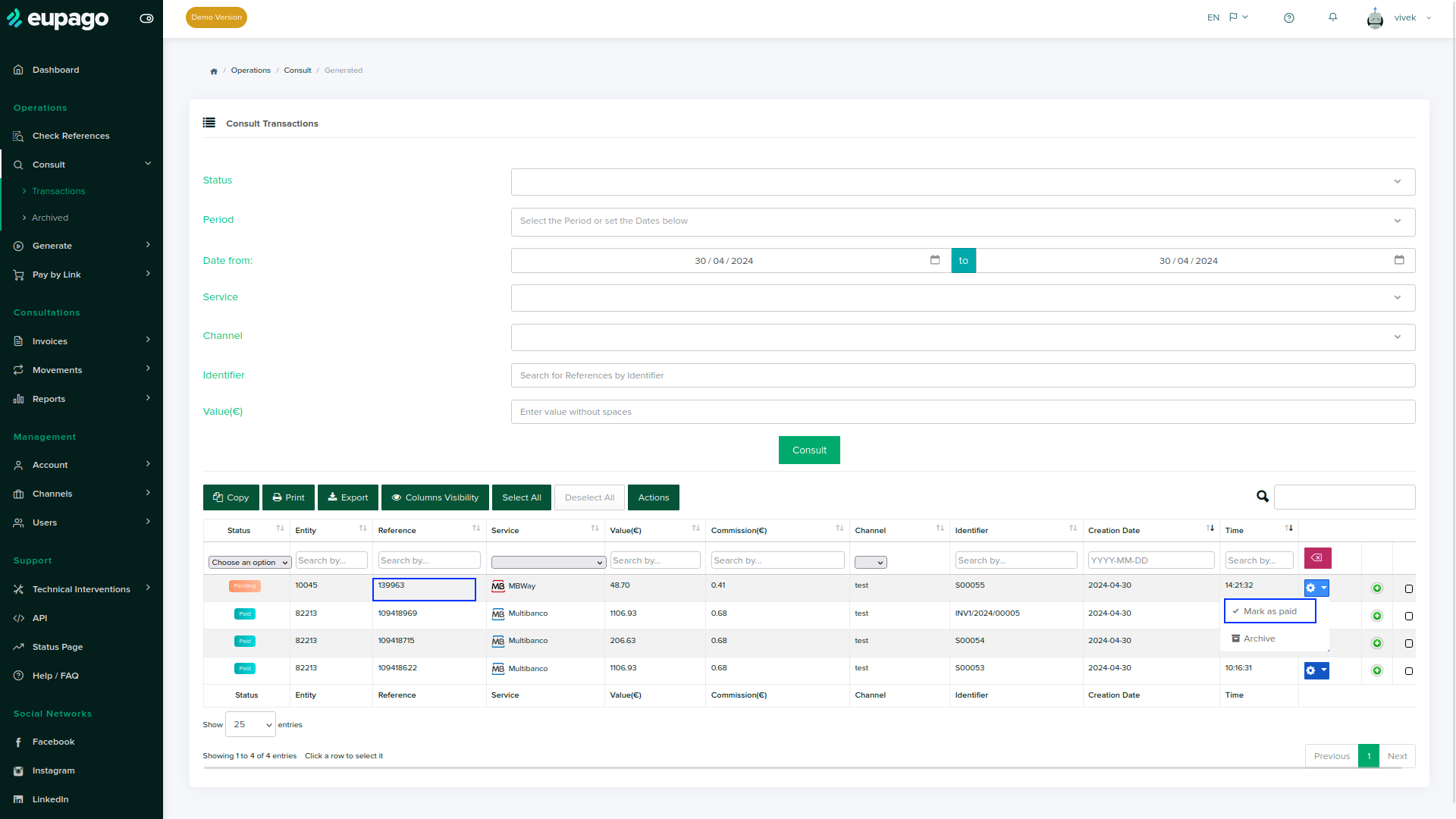
After confirming the payment, you will see the payment status as Paid in odoo.

Payment From Sale Order
To pay with sale order, create sale order and click Preview button
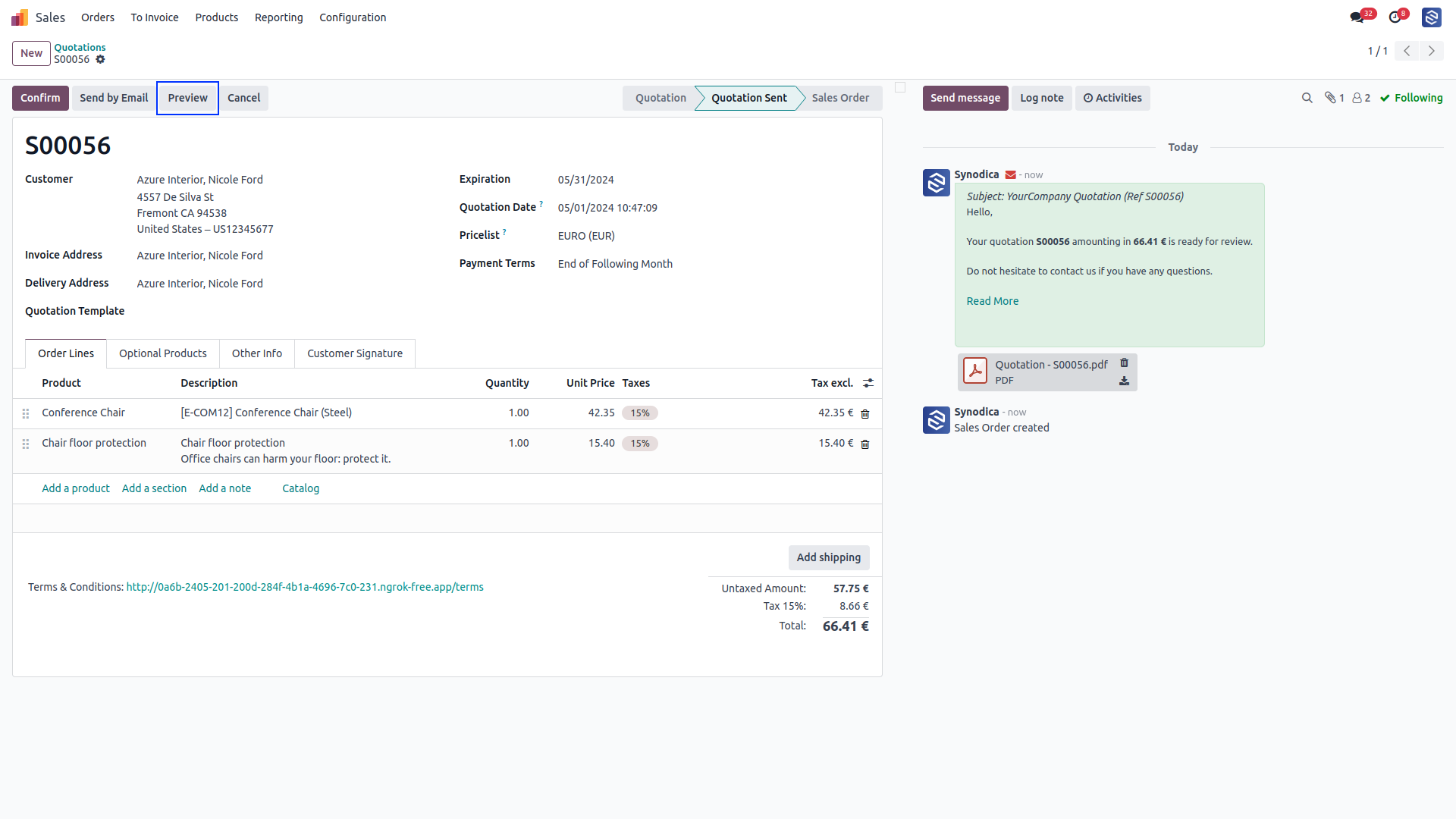
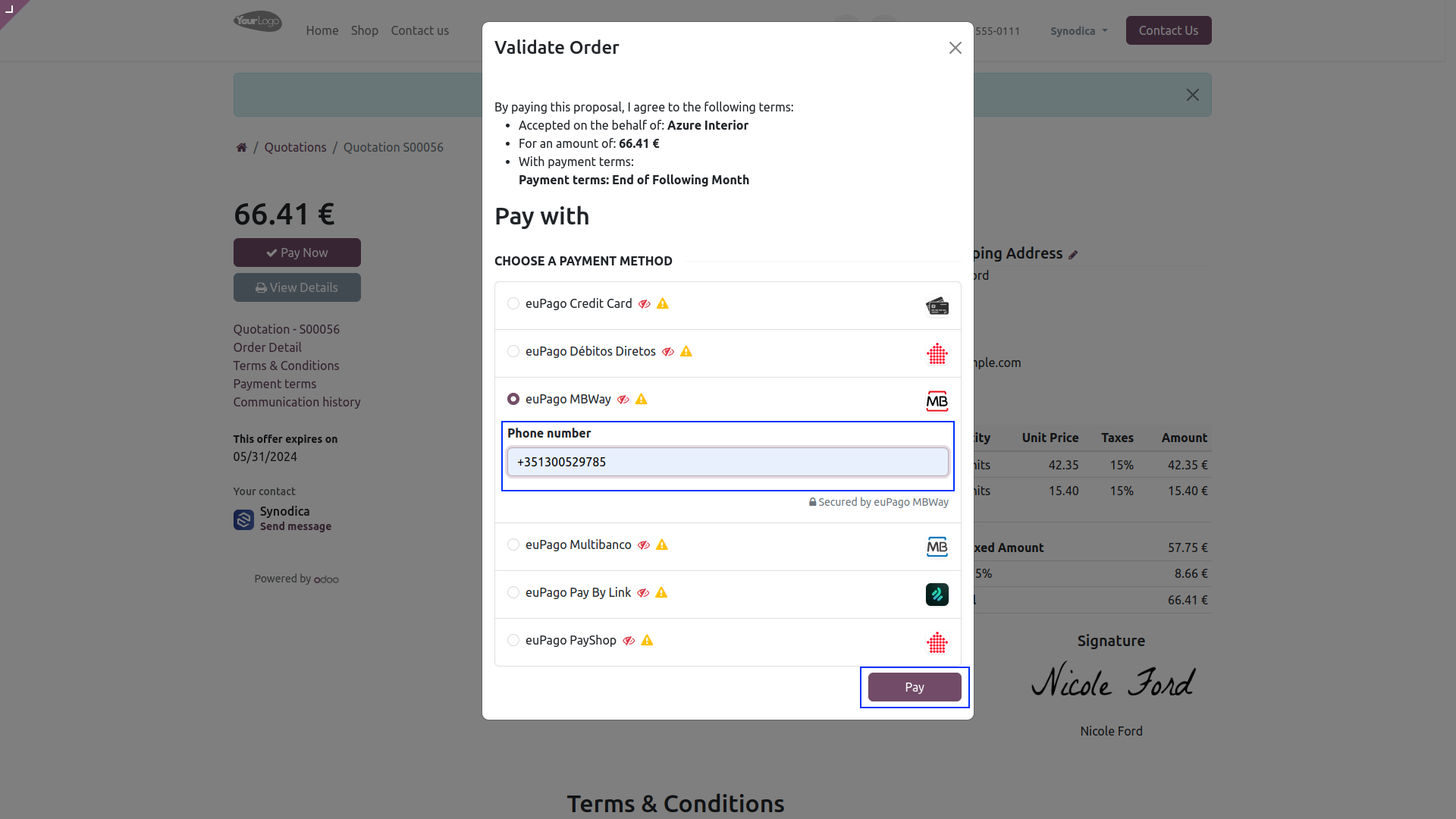
Now click Sign & Pay, Sign document and select euPago MBWay as payment method. Then enter Phone Number to make payment and click Pay.
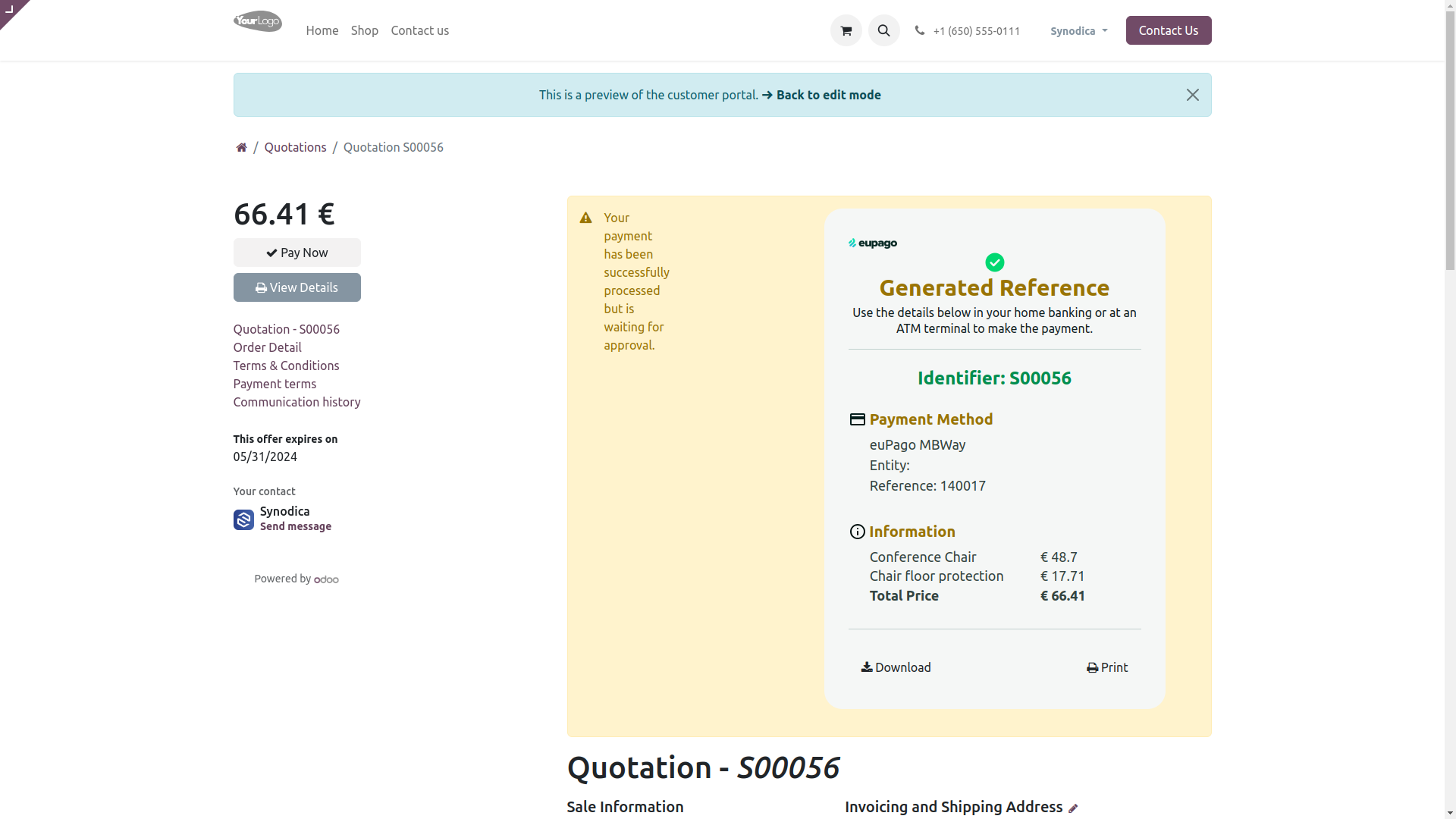
After redirecting to the payment confirmation page, you will see the Payment Reference with payment method and payment amount.
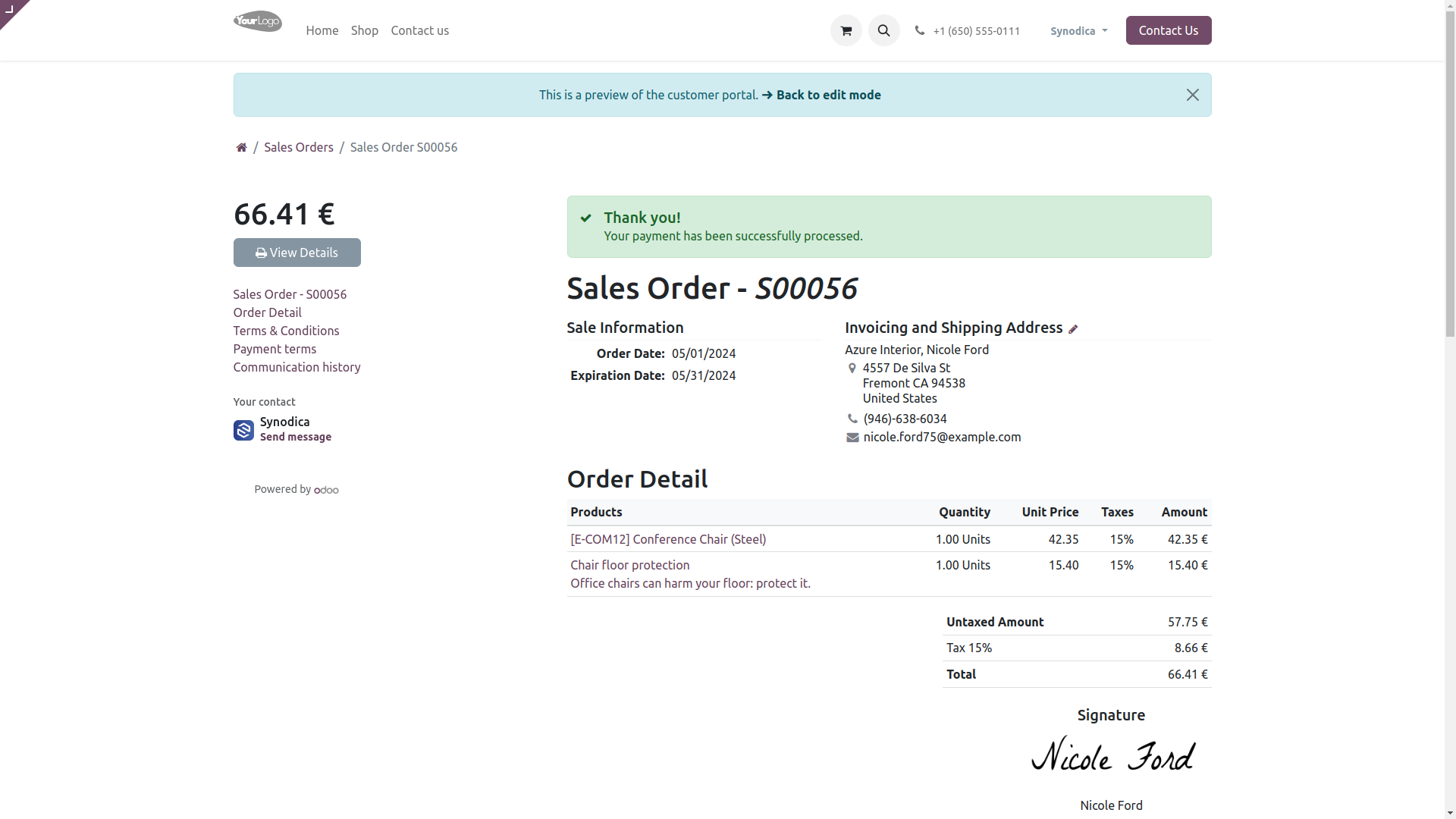
After confirming payment on euPago portal, you will see the payment status as Paid in odoo.q

Payment From Invoice
To pay with invoice, create invoice and click Preview button
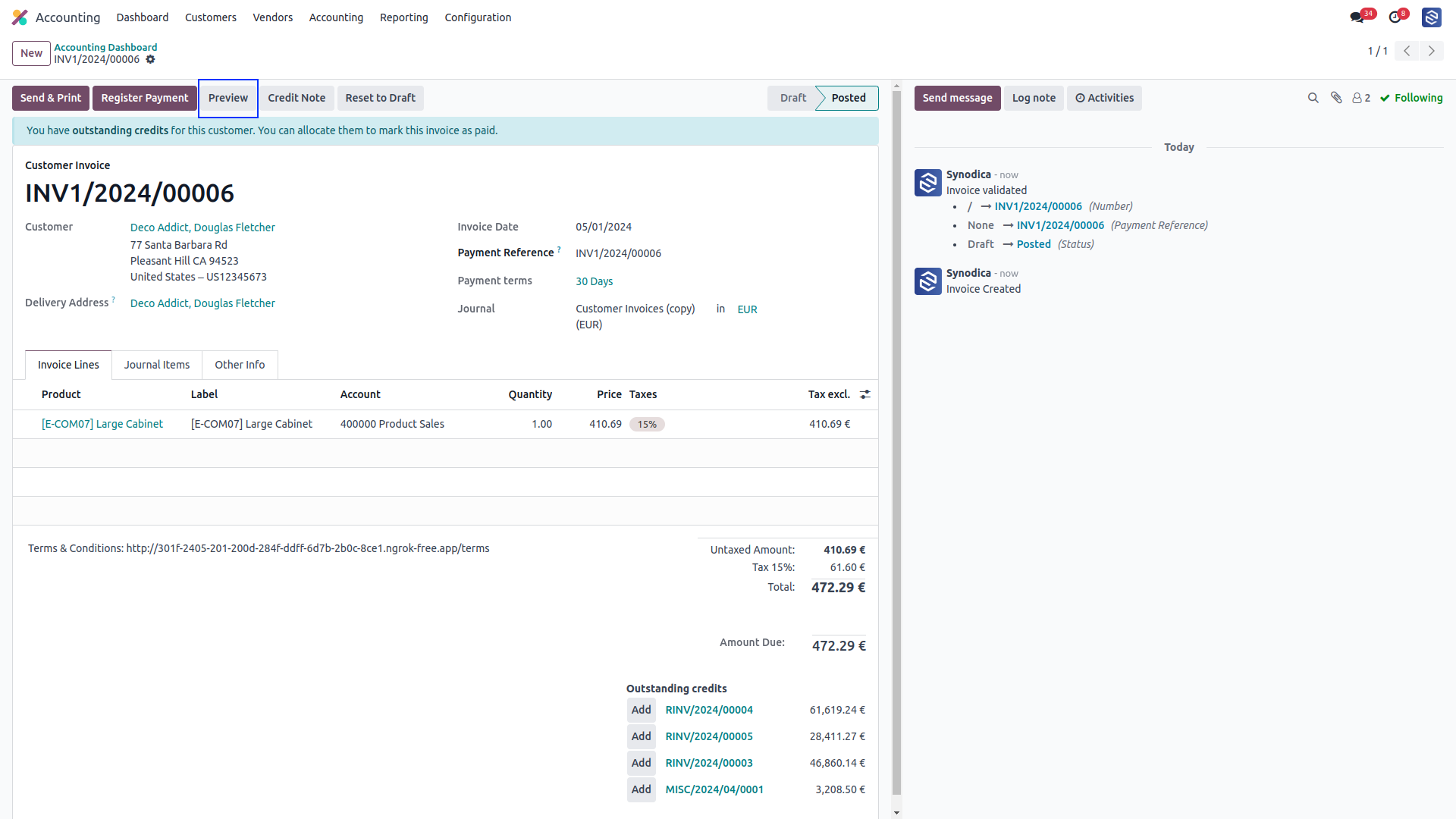
Now click Pay Now, There select euPago MBWay as payment method. Then enter Phone Number to make payment and click Pay.
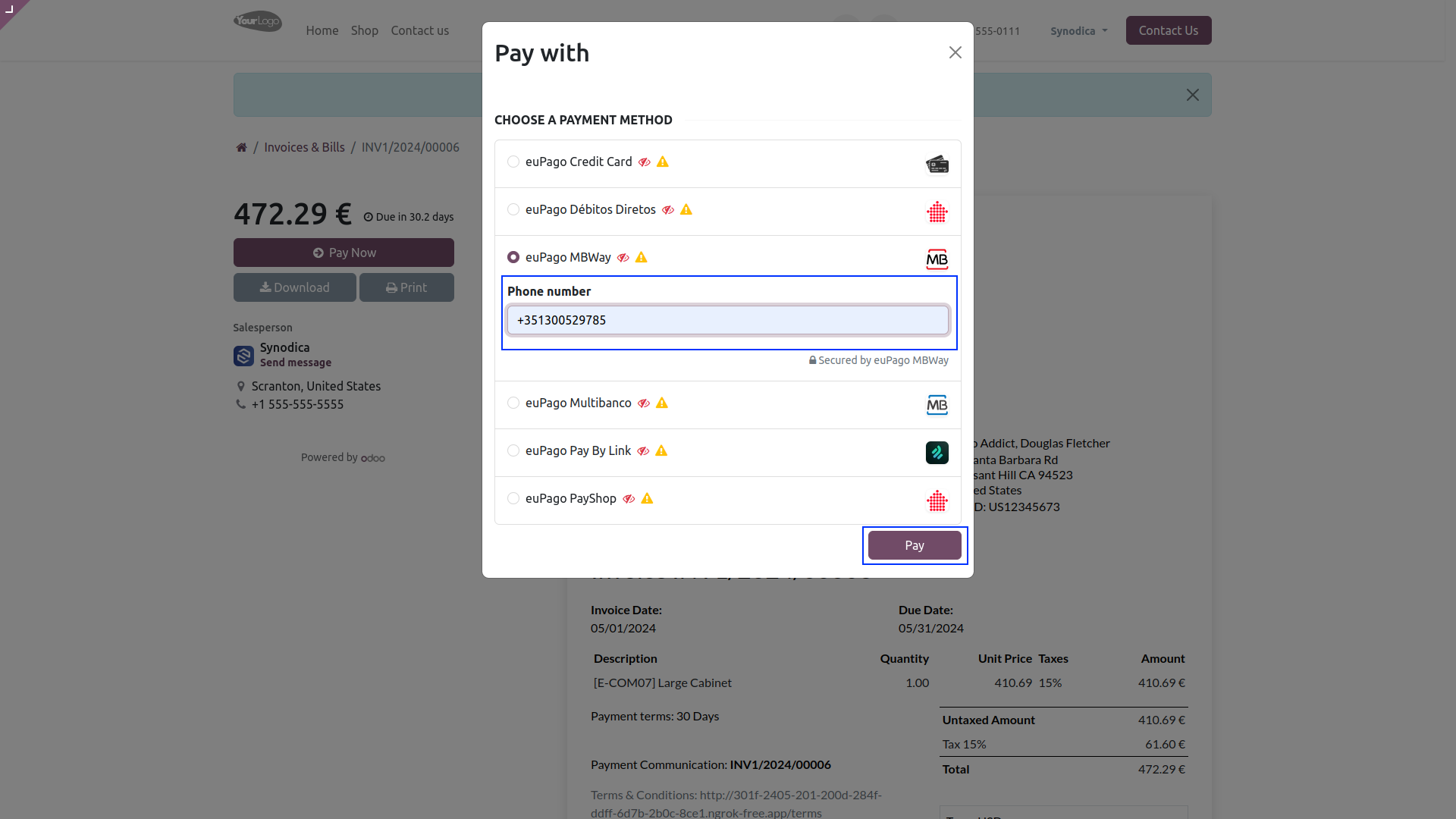
After redirecting to the payment confirmation page, you will see the Payment Reference with payment method and payment amount.
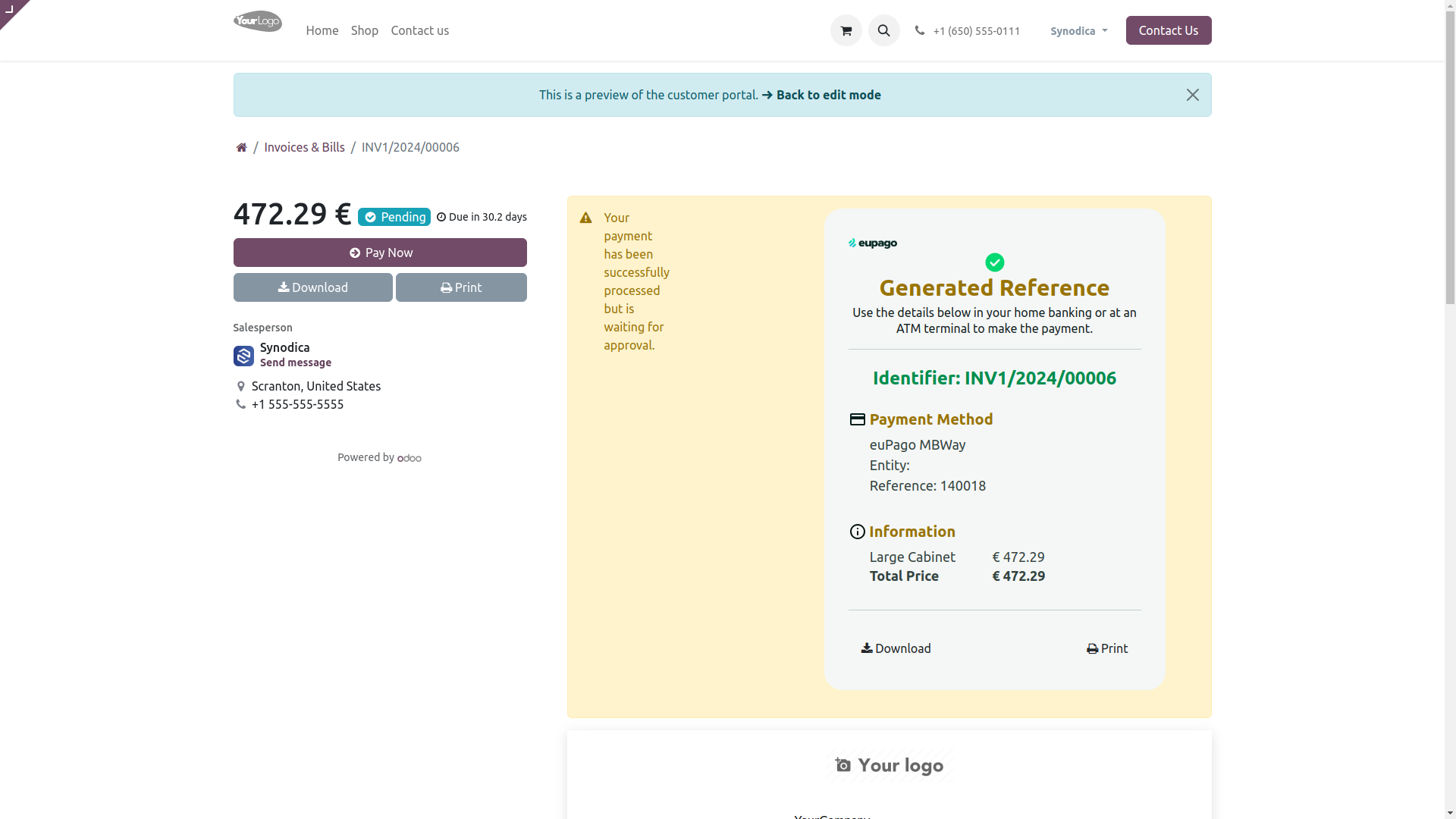
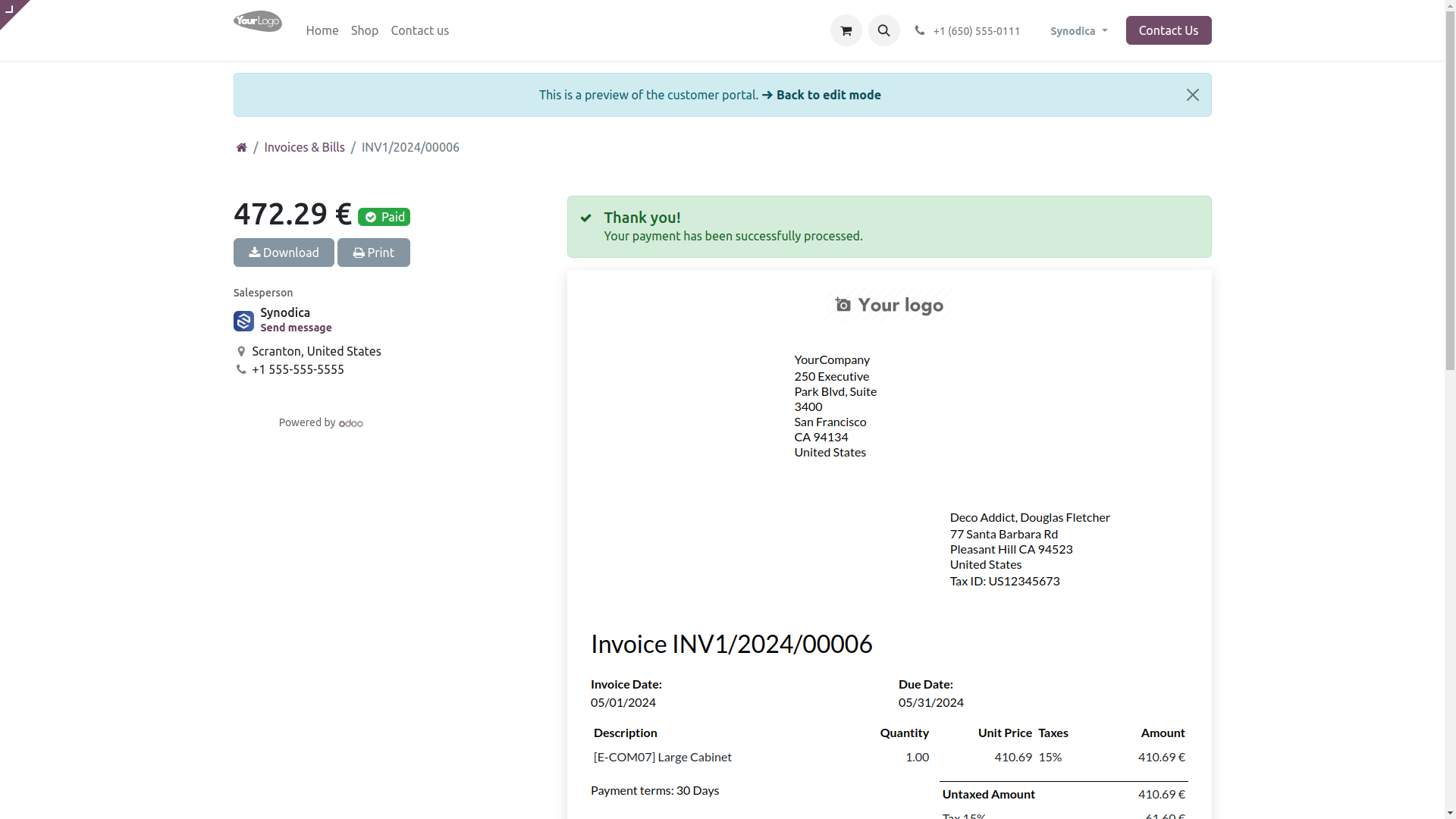
After confirming payment on euPago portal, you will see the payment status as Paid in odoo.
Payment From Website
To pay with euPago PayShop Payment Method, select PayShop as payment method.Click Pay Now button. And you will redirect you to the Payment confirmation page.
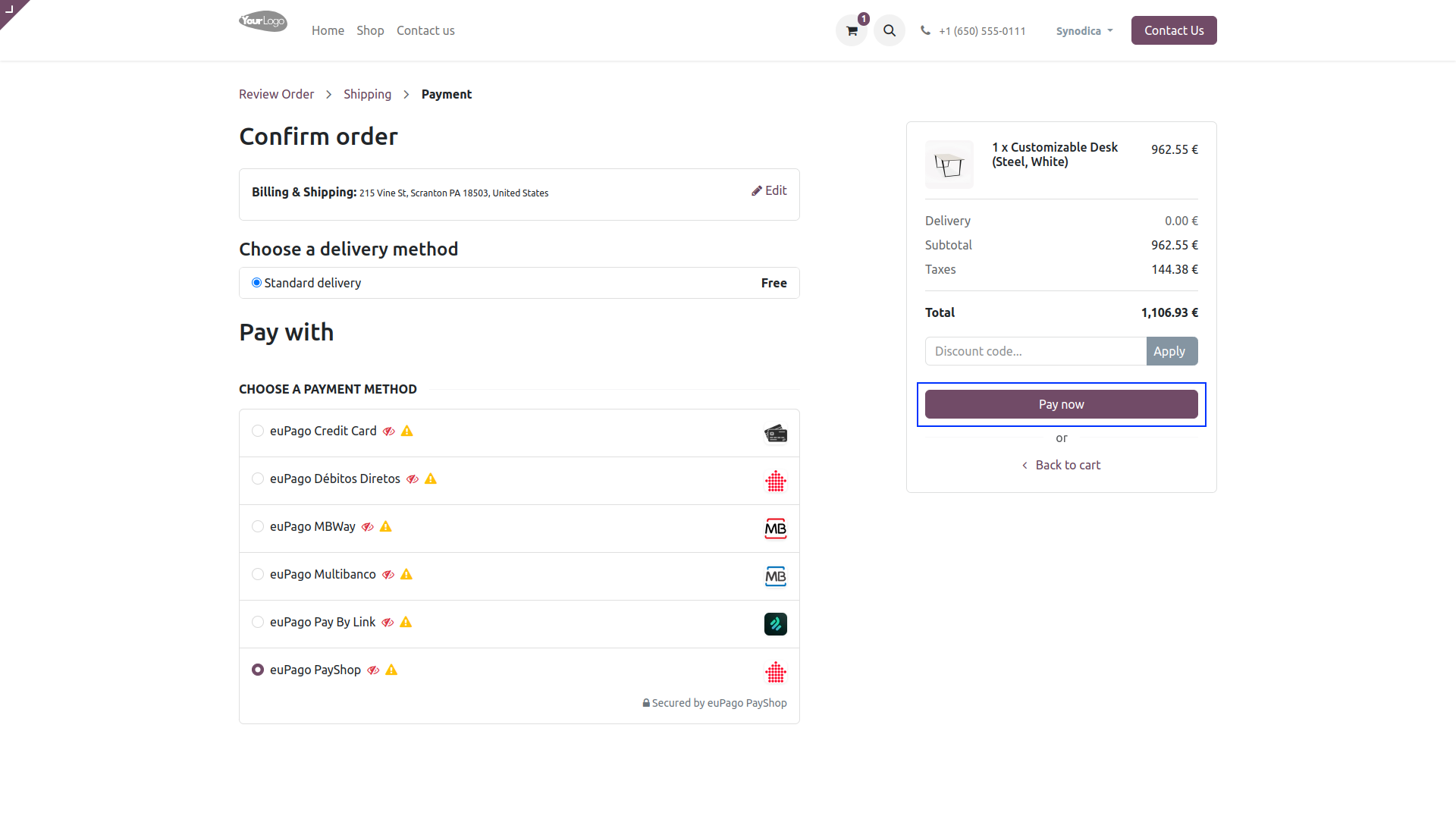
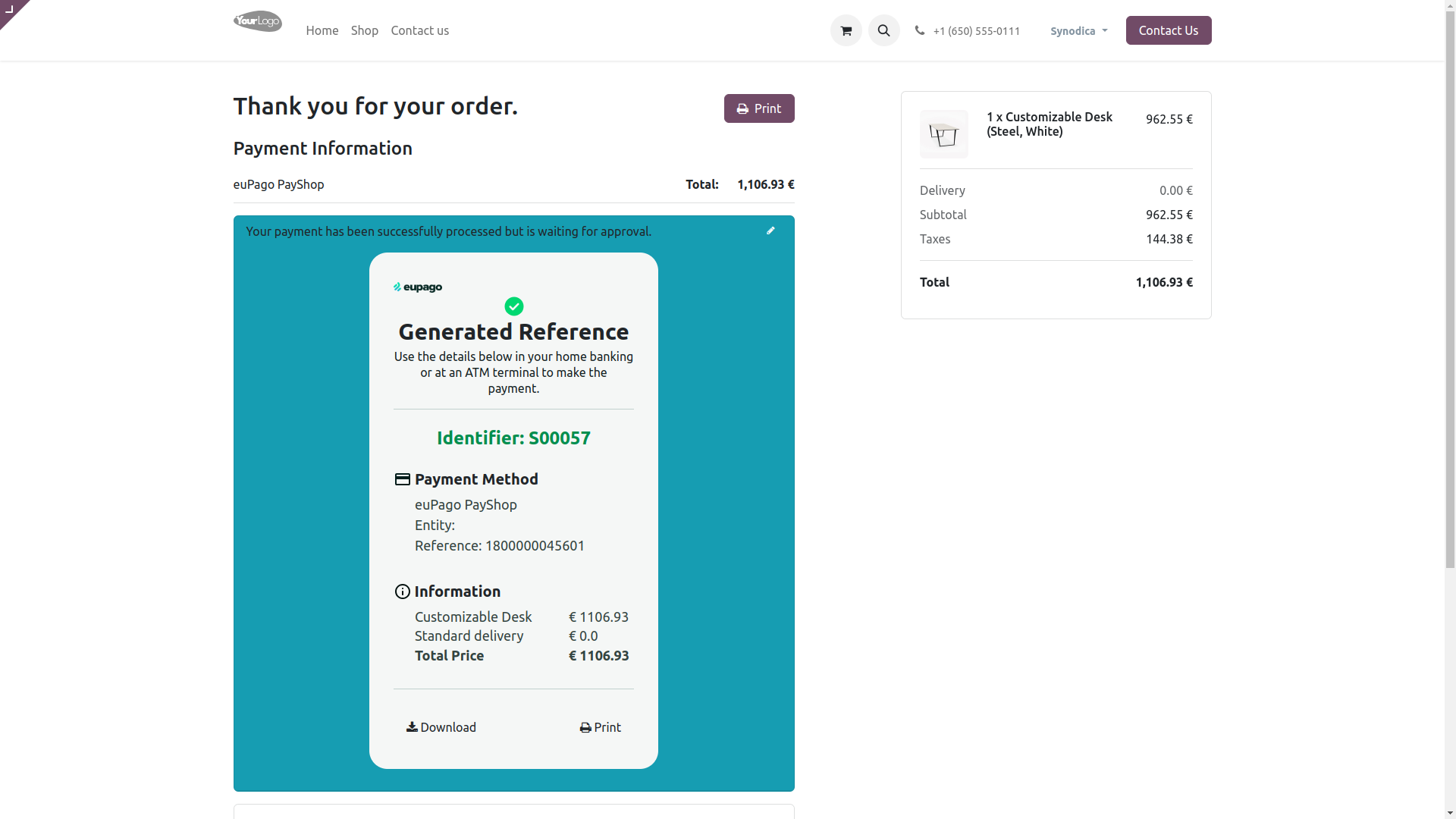
On Payment confirmation page, you will see the Payment Reference with payment method and payment amount. You can download or print the payment reference to make the payment.
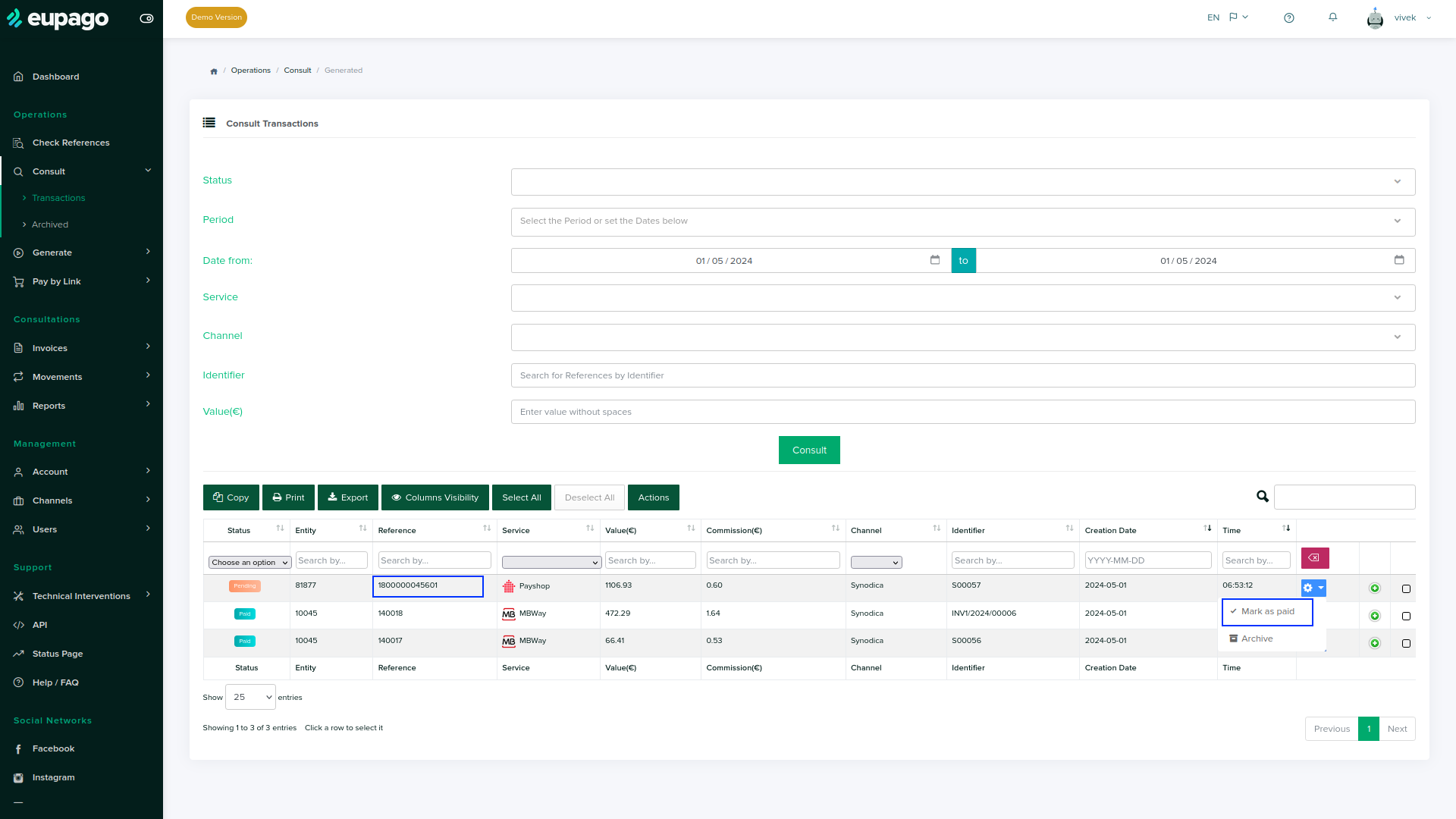
To confirm payment in odoo, Consult transactions in euPago Portal. After verifying reference paid, click Mark as Paid to confirm the payment.
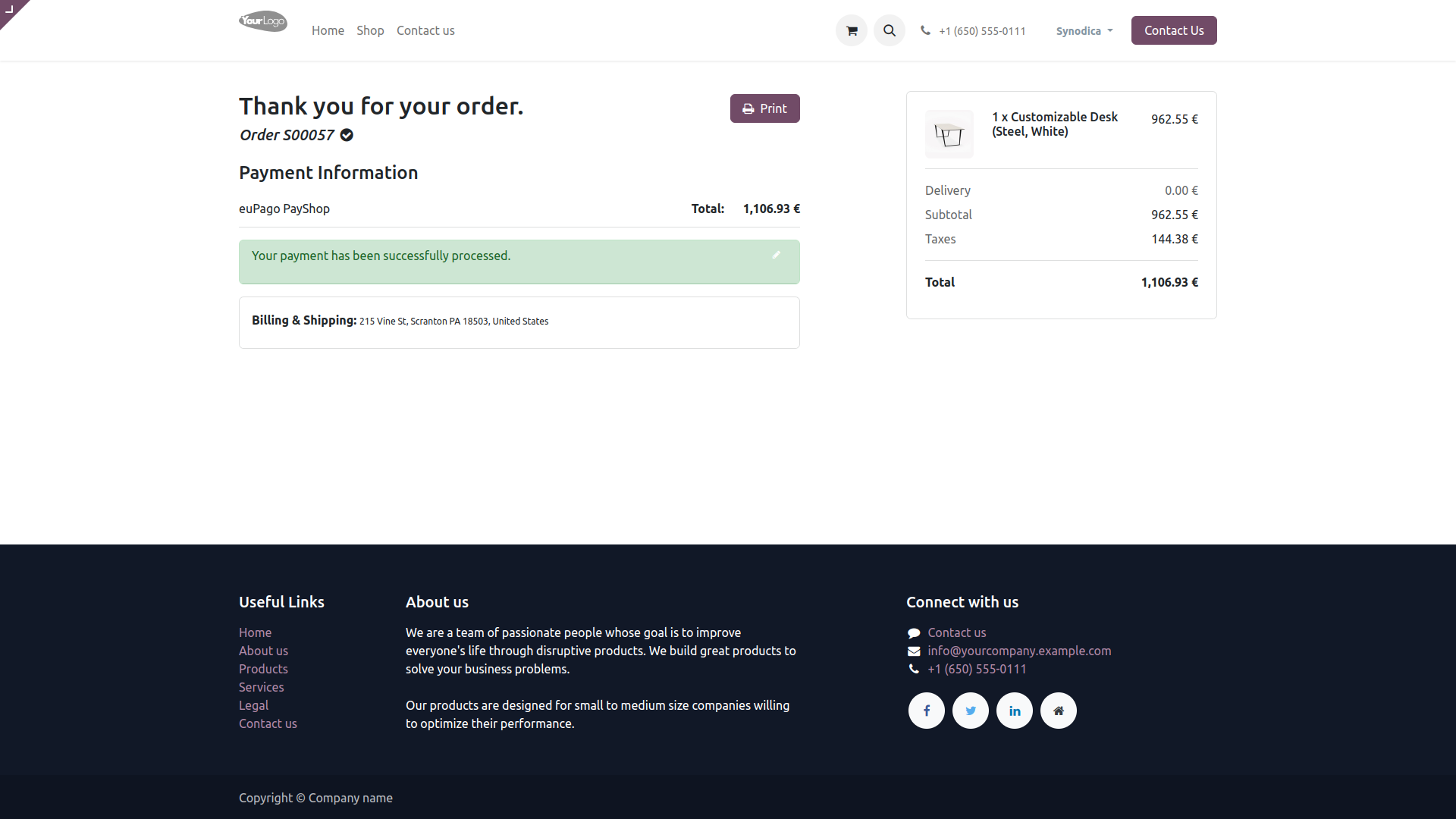
After confirming the payment, you will see the payment status as Paid in odoo.

Payment From Sale Order
To pay with sale order, create sale order and click Preview button
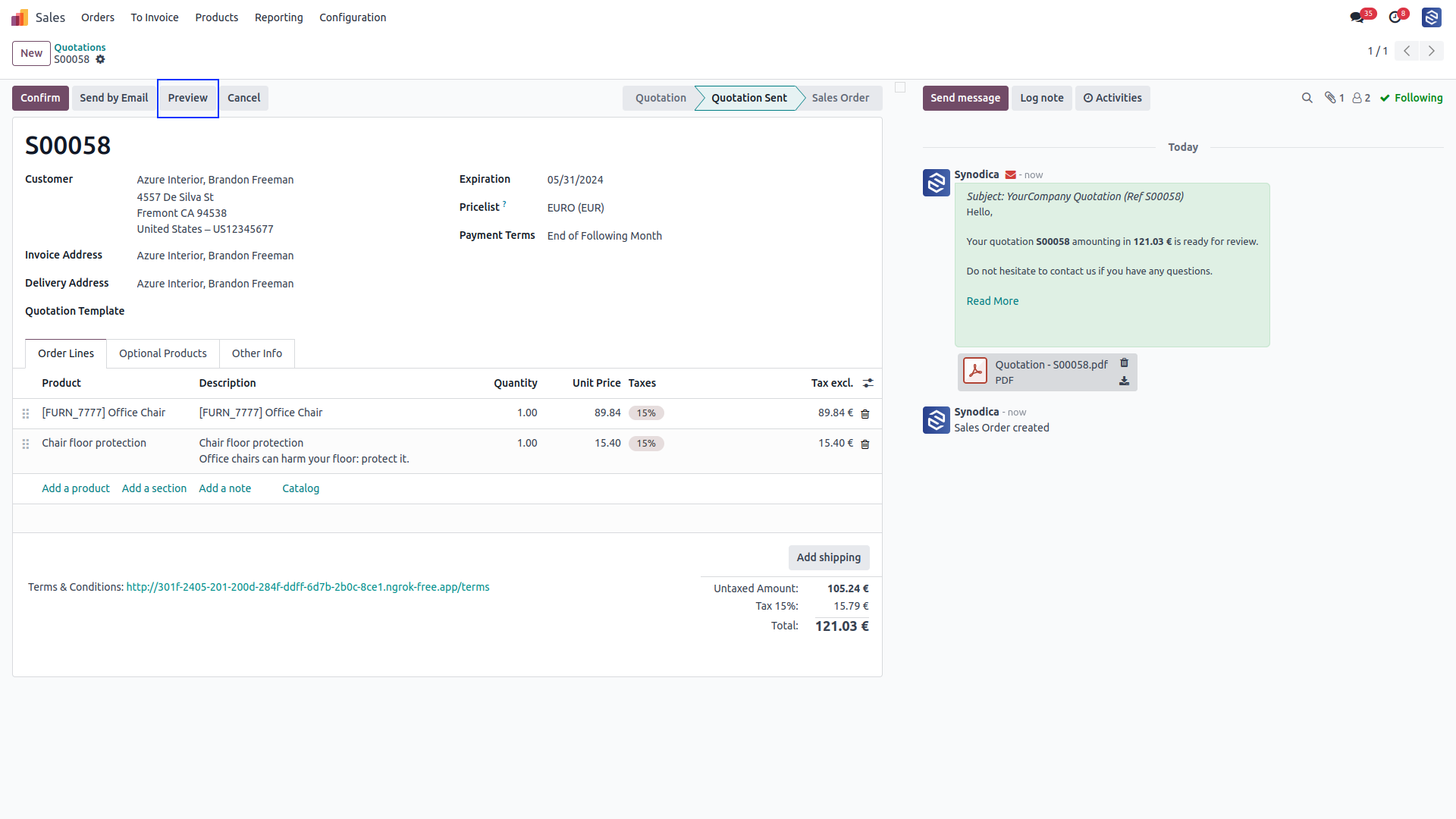
Now click Sign & Pay, Sign document and select euPago PayShop as payment method. Then click Pay.
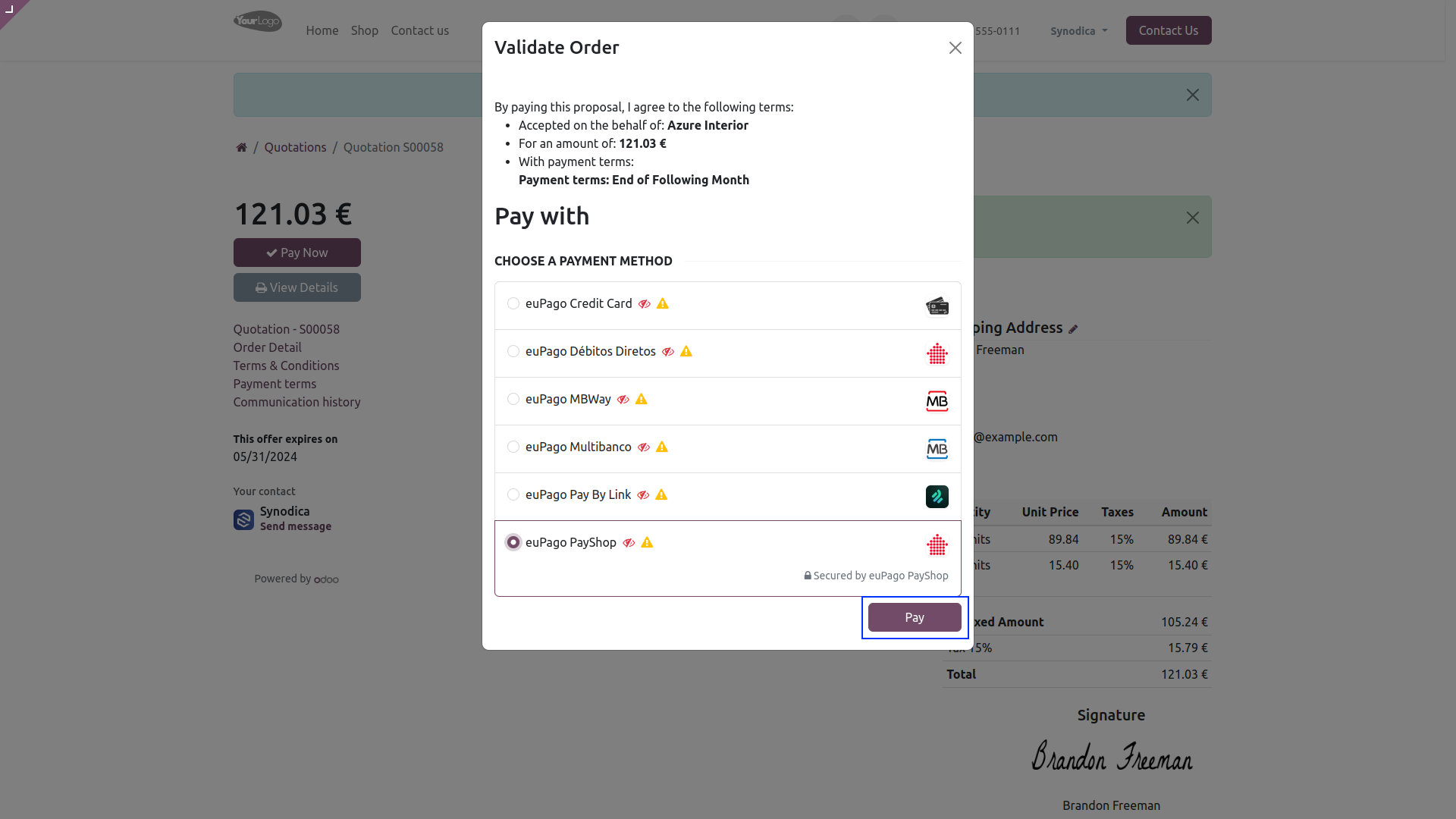
After redirecting to the payment confirmation page, you will see the Payment Reference with payment method and payment amount.
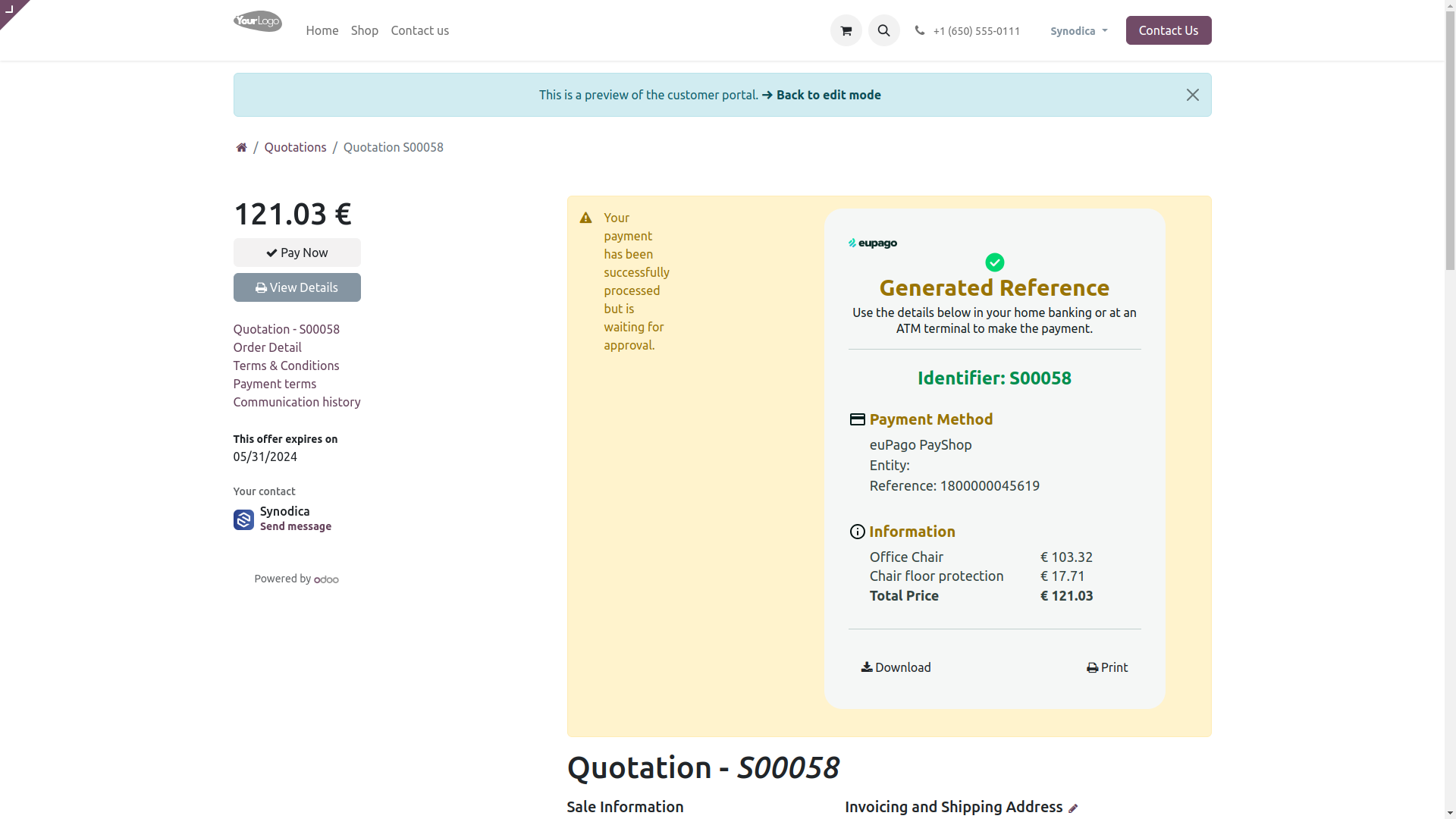
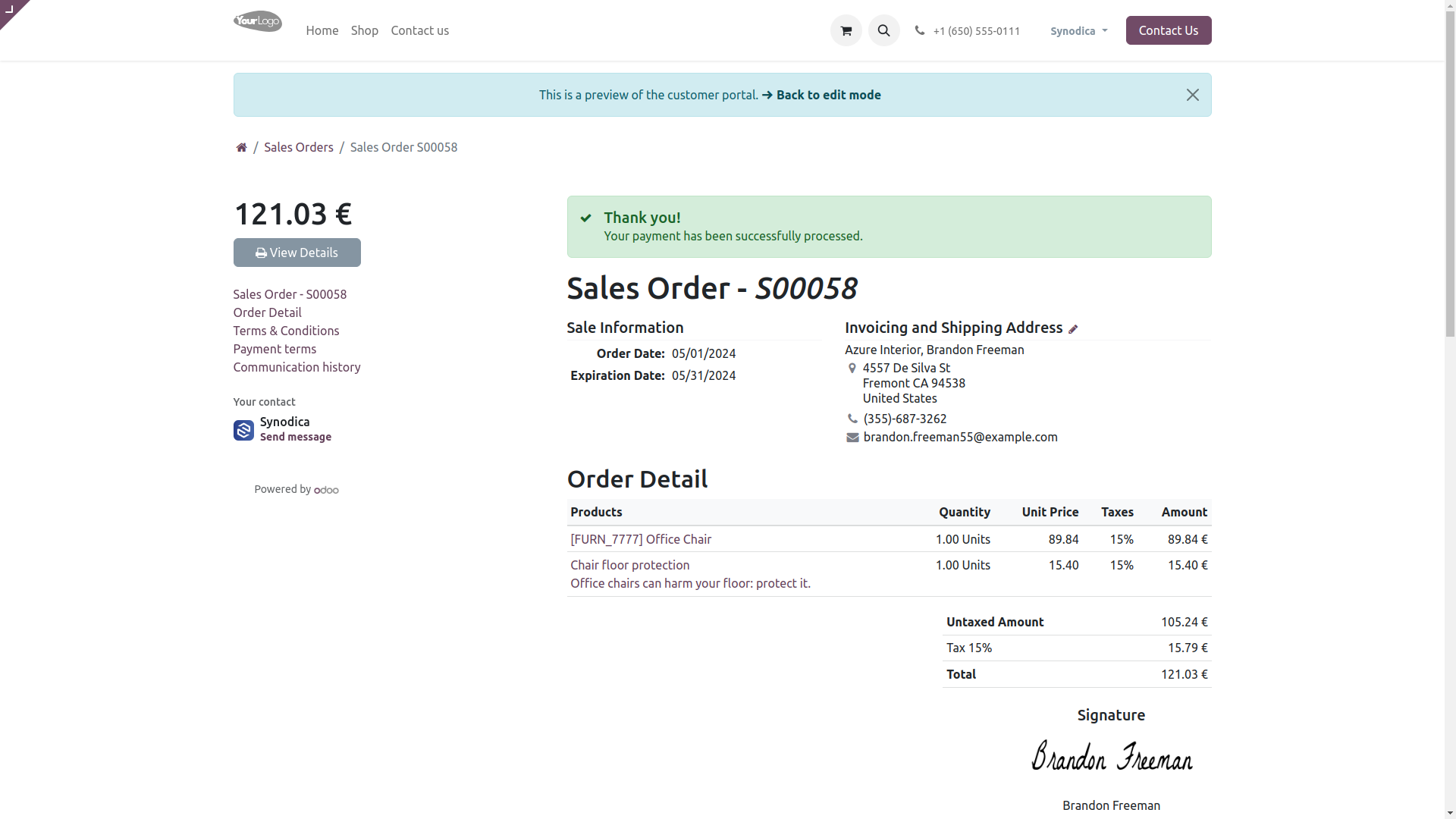
After confirming payment on euPago portal, you will see the payment status as Paid in odoo.

Payment From Invoice
To pay with invoice, create invoice and click Preview button
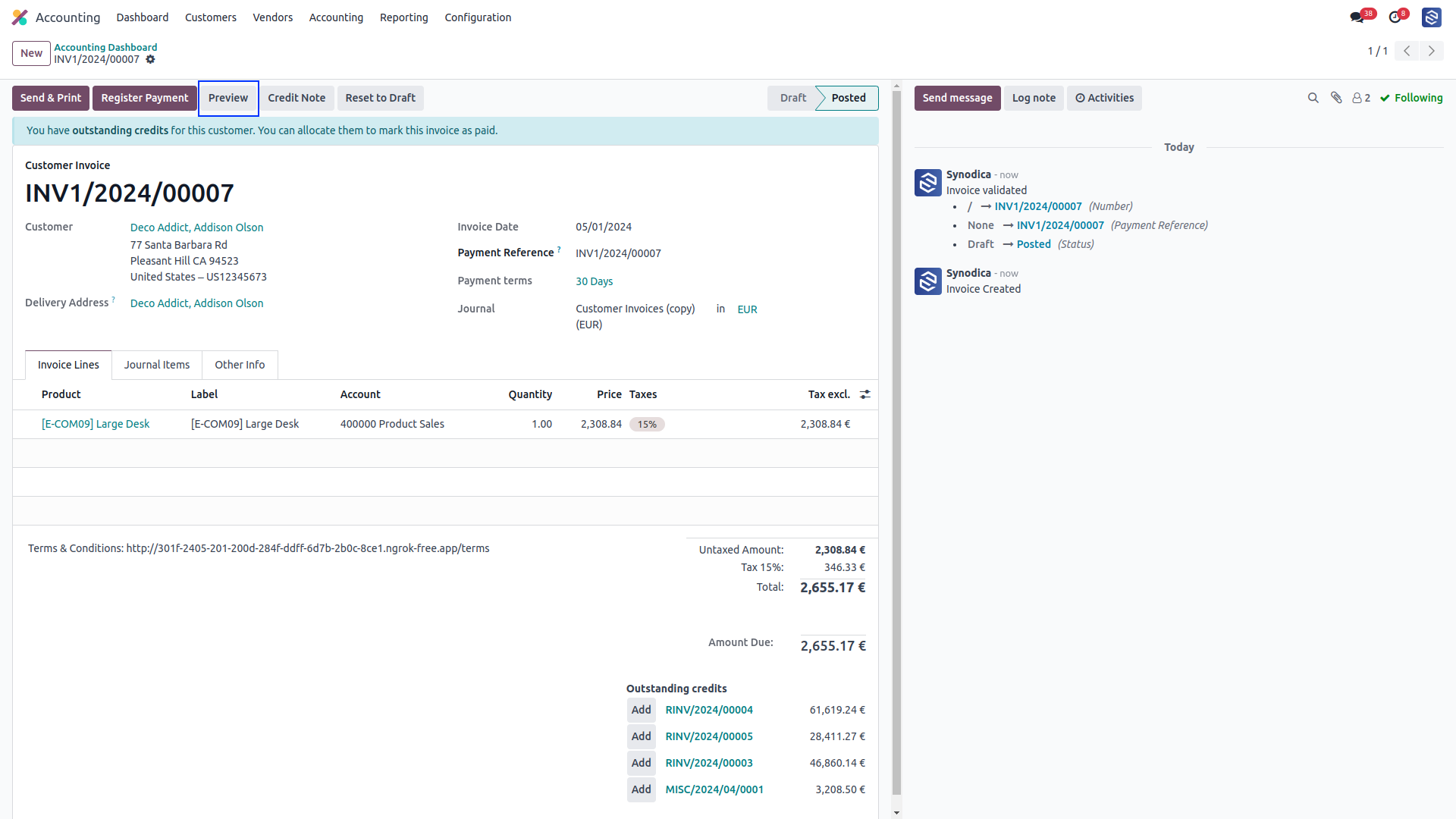
Now click Pay Now, There select euPago PayShop as payment method. Then click Pay.
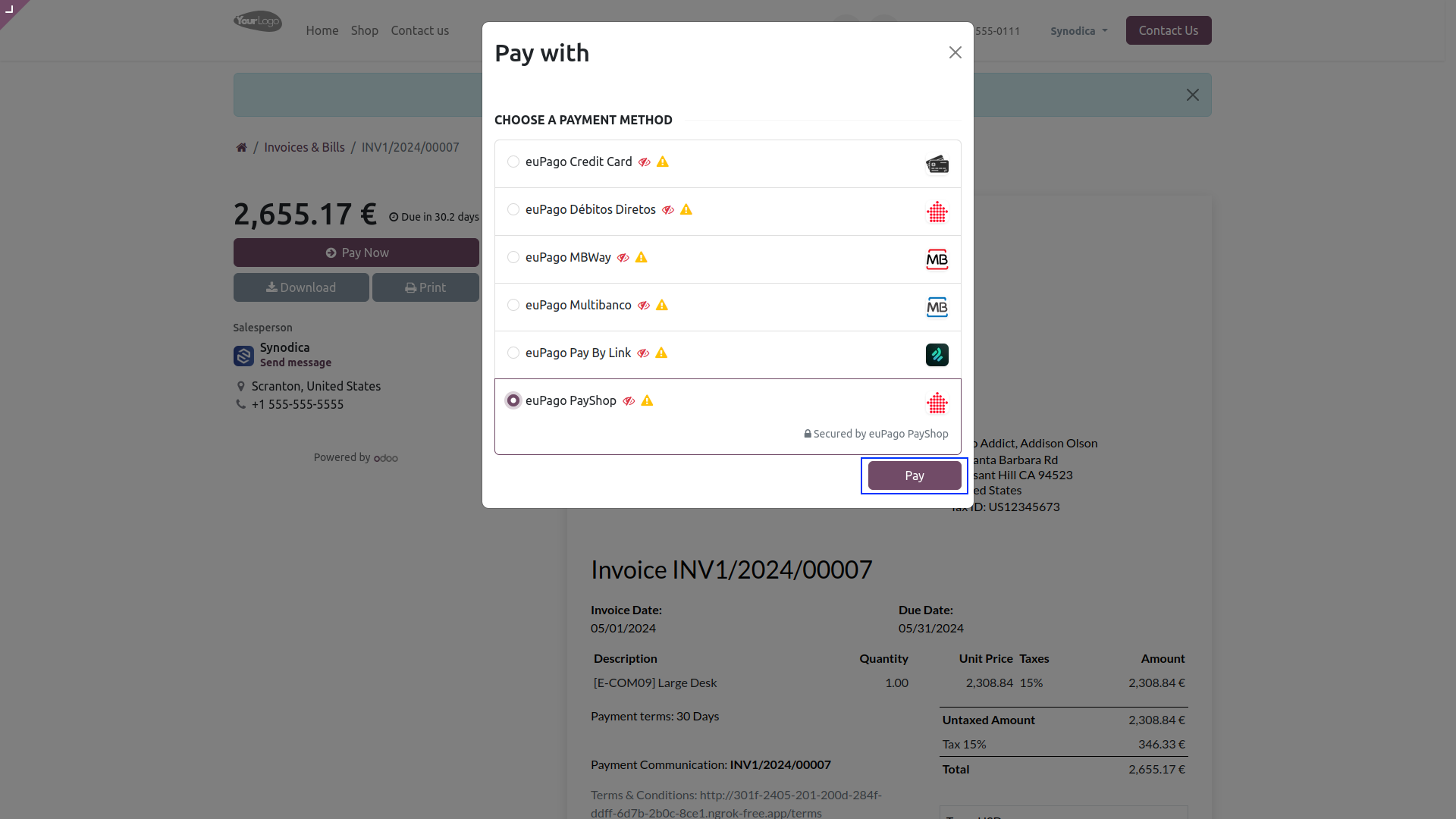
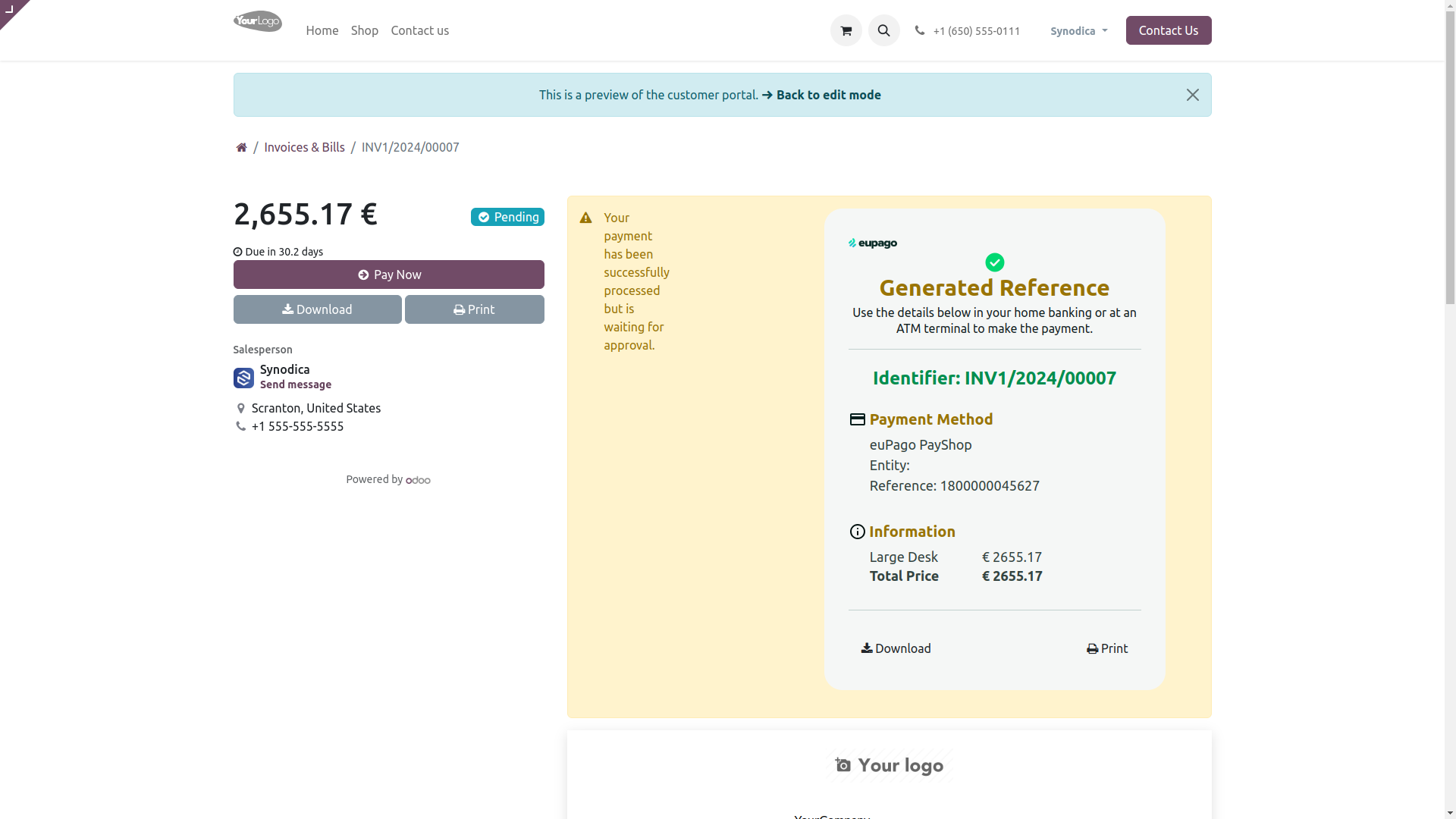
After redirecting to the payment confirmation page, you will see the Payment Reference with payment method and payment amount.
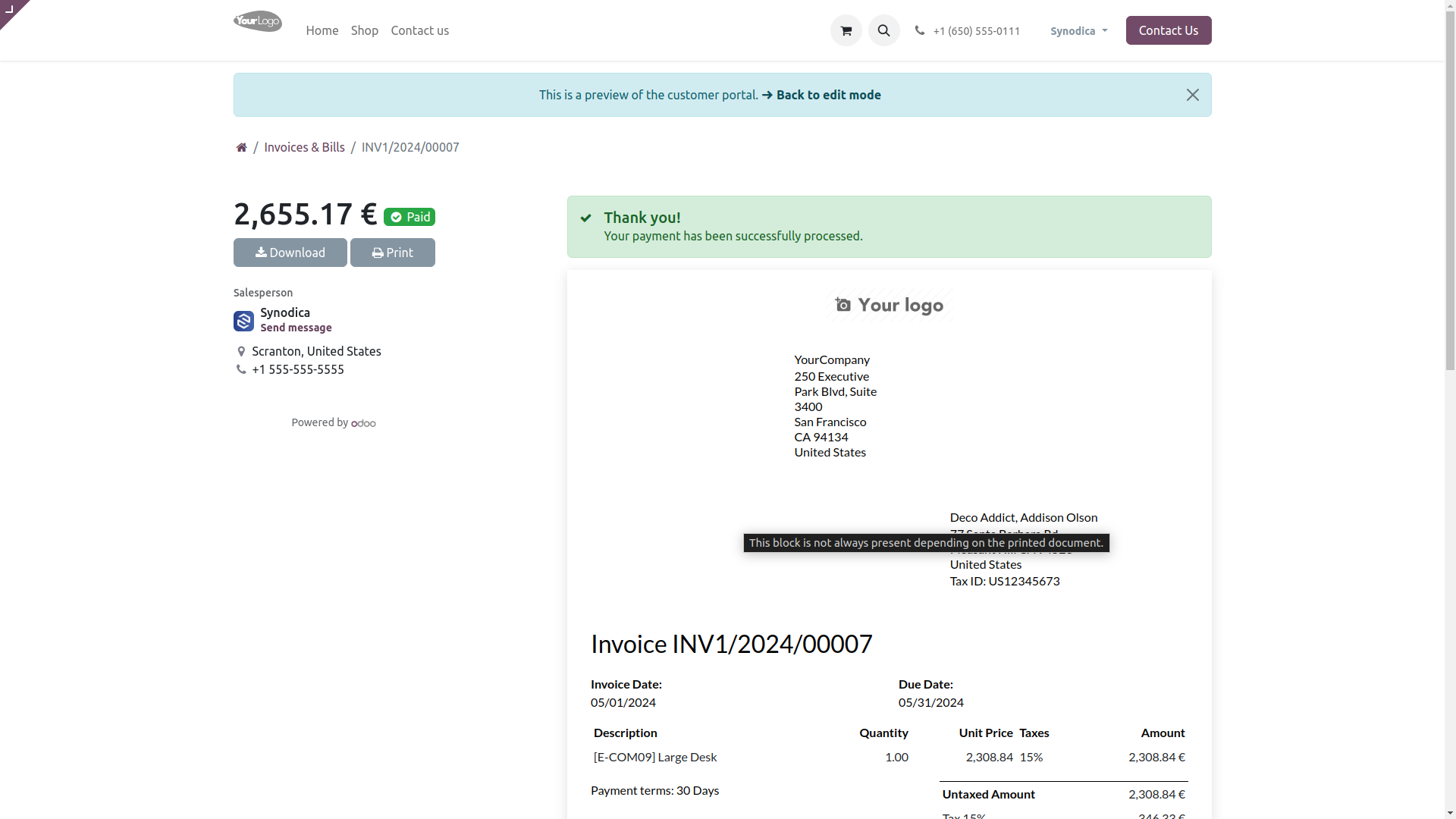
After confirming payment on euPago portal, you will see the payment status as Paid in odoo.
Payment From Website
To pay with euPago Débitos Diretos Payment Method, select Débitos Diretos as payment method. Fill out from as per your requirements (we support multiple features for Débitos Diretos payment such as onetime/recurrent payment, automatic or manual payments, frequency for recurrent payments and date for payment collection) and Click Pay Now button. And you will redirect you to the Payment confirmation page.
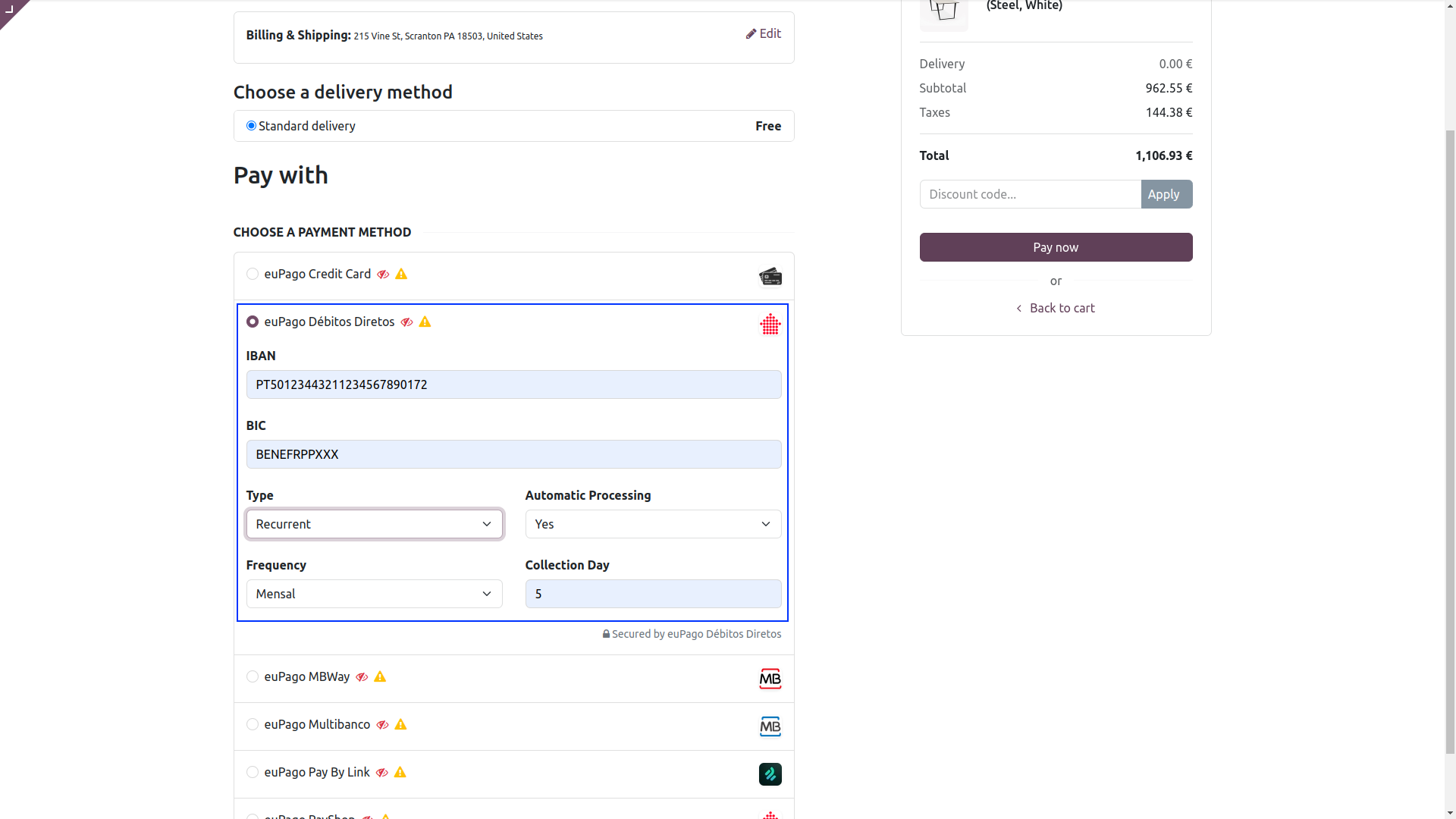
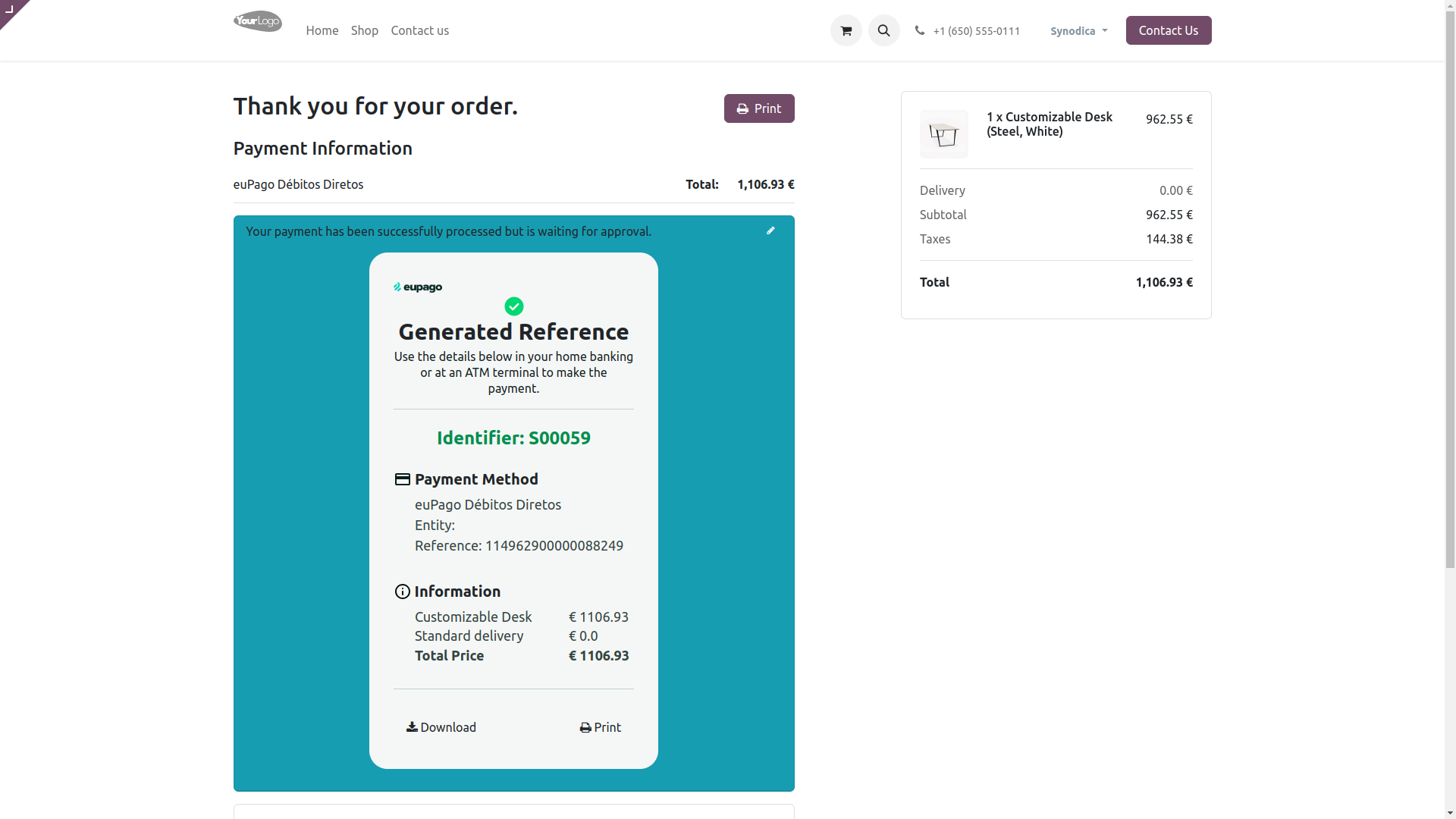
On Payment confirmation page, you will see the Payment Reference with payment method and payment amount. You can download or print the payment reference. And You can process payment as directed in email notification.

Payment From Sale Order
To pay with sale order, create sale order and click Preview button
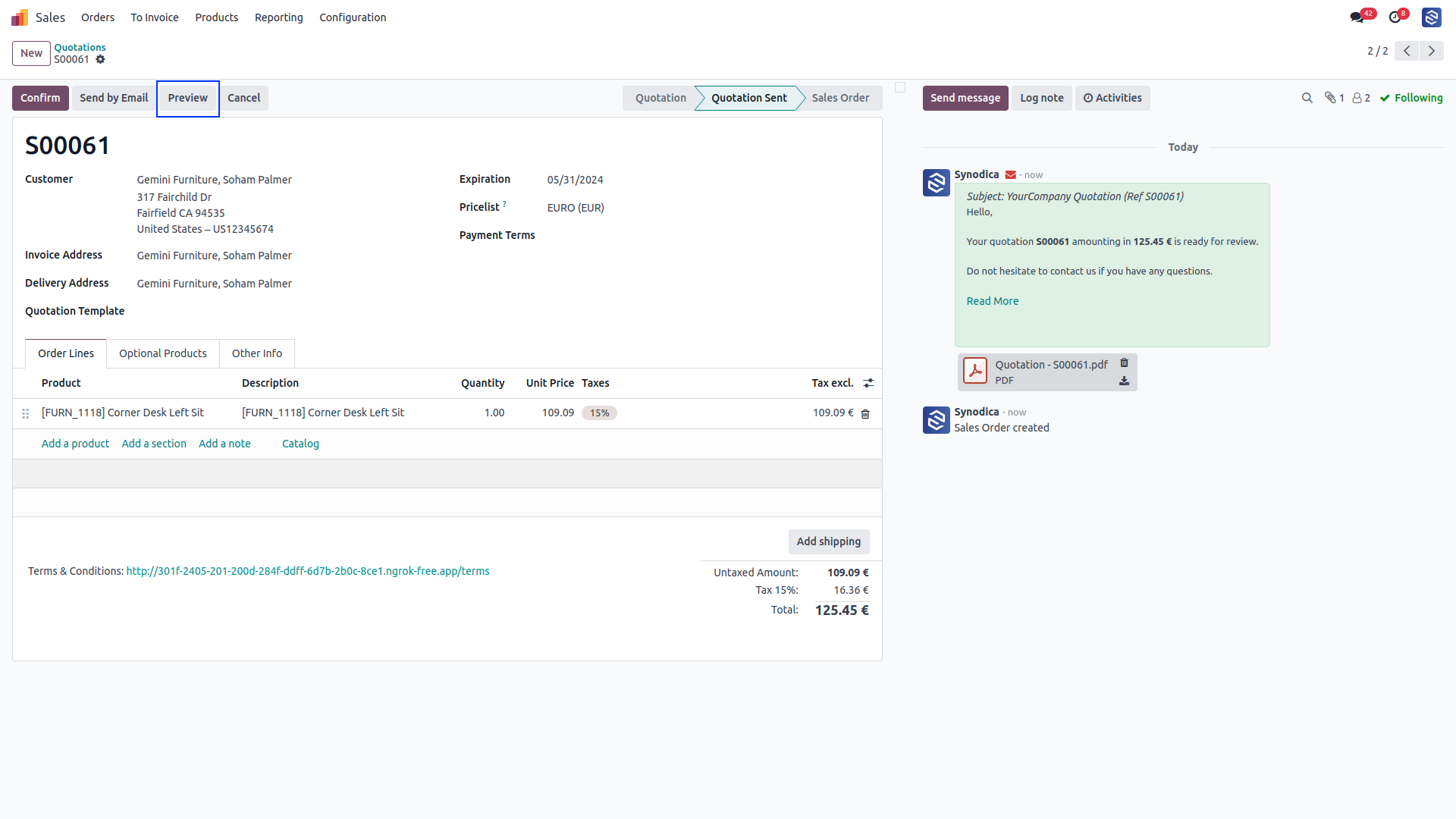
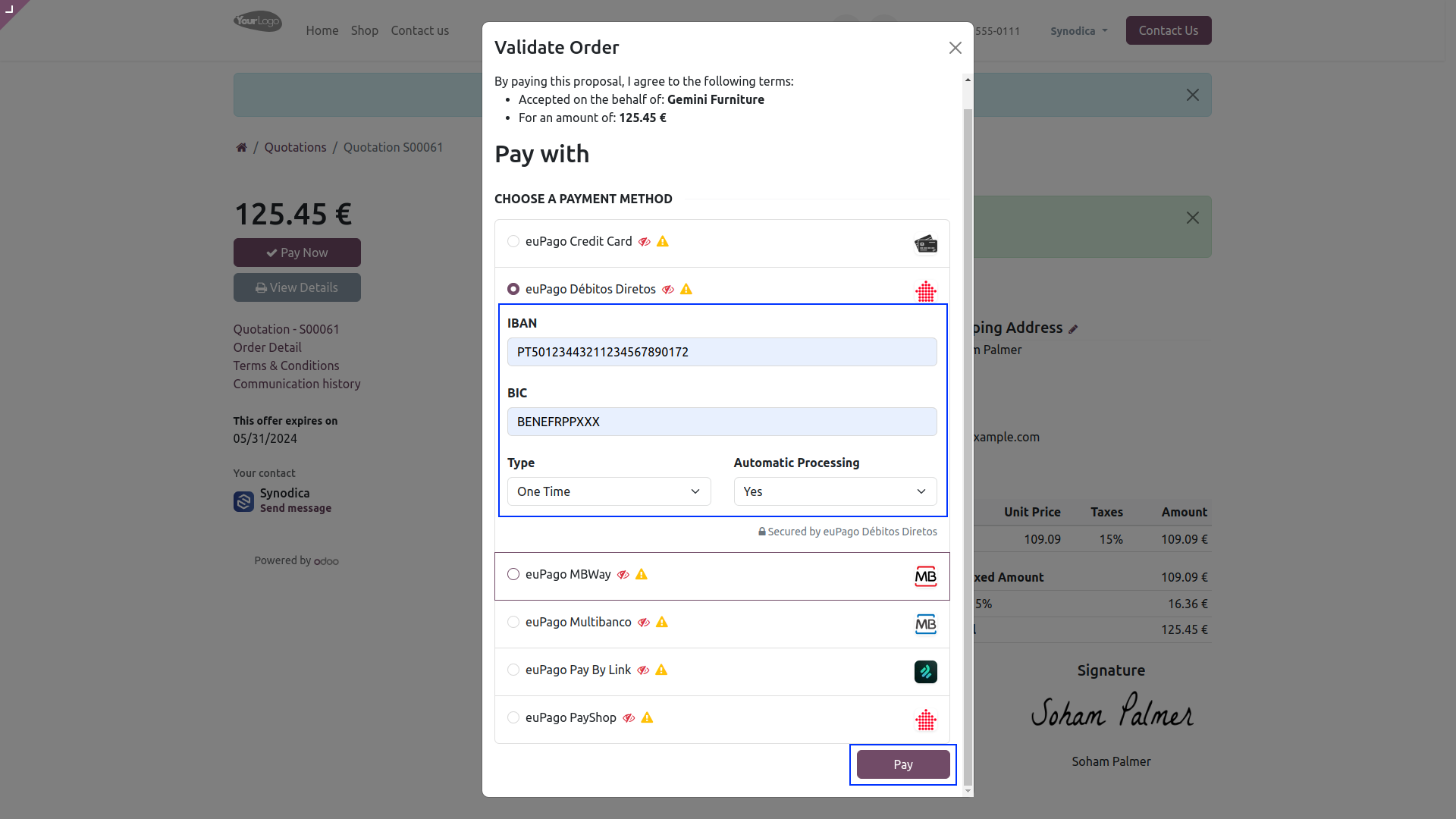
Now click Sign & Pay, Sign document and select euPago Débitos Diretos as payment method. Fill out from as per your requirements Then click Pay.
After redirecting to the payment confirmation page, you will see the Payment Reference with payment method and payment amount to make payment as directed in email notification.
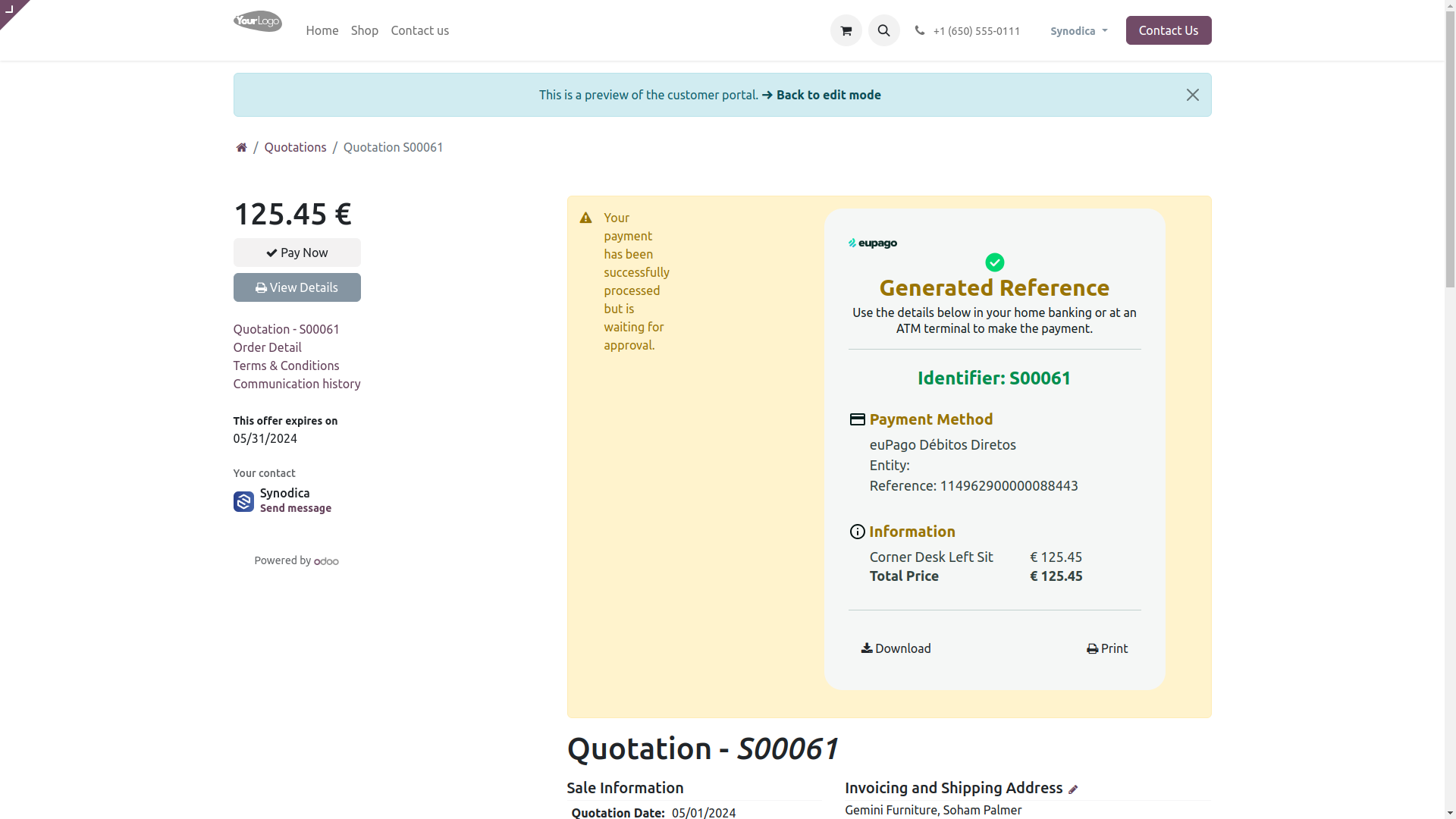

Payment From Invoice
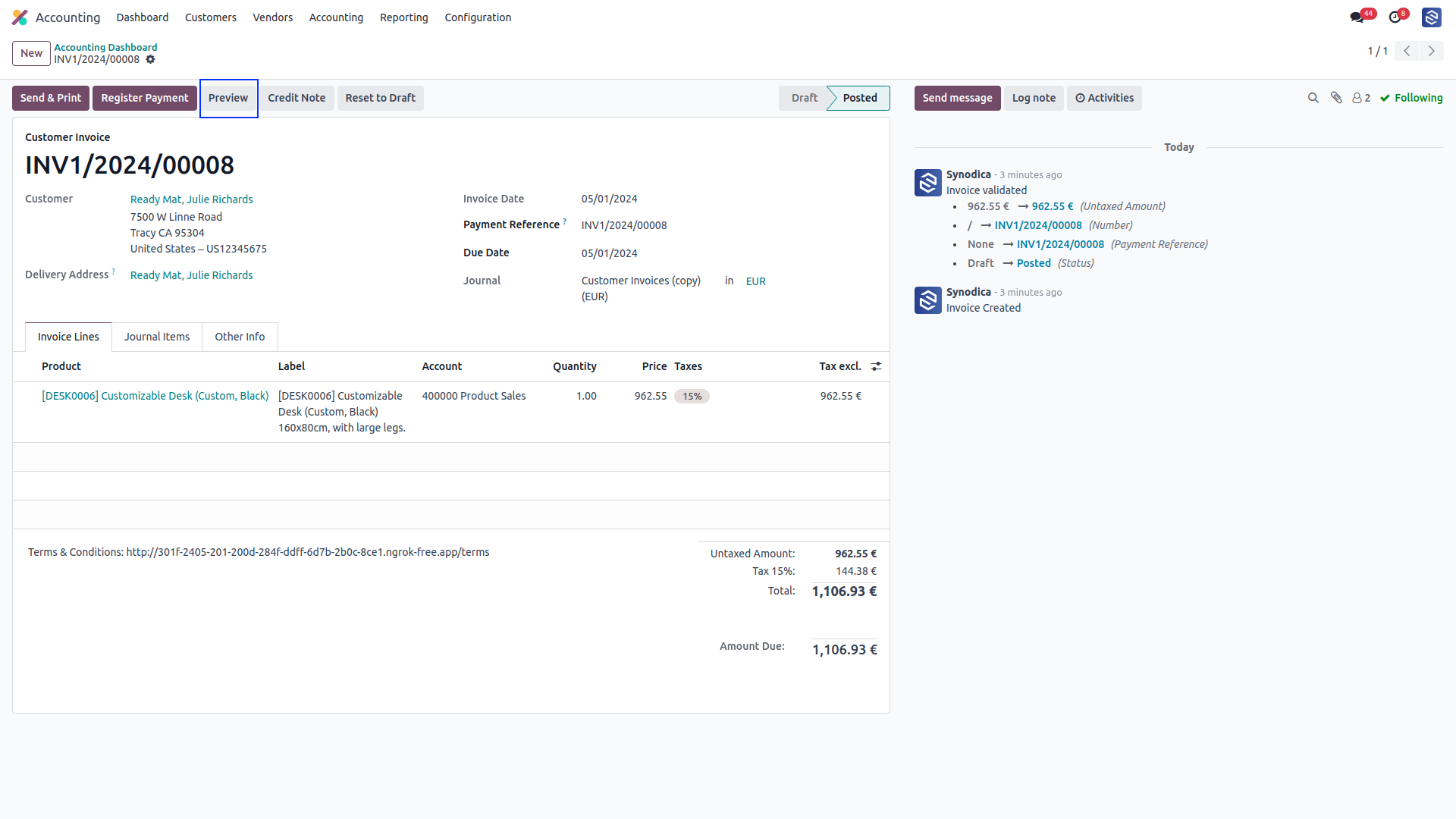
To pay with invoice, create invoice and click Preview button
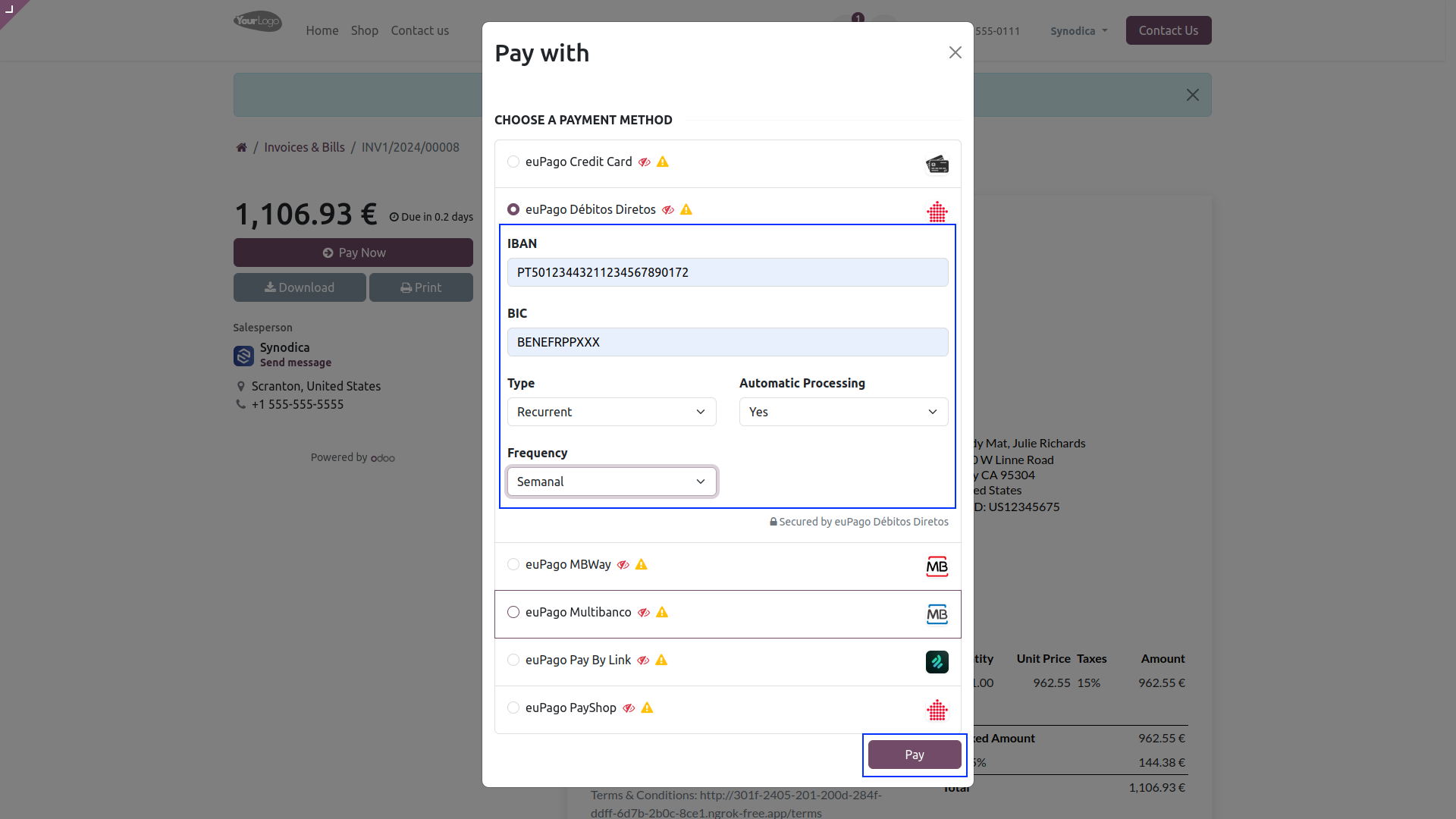
Now click Pay Now, There select Débitos Diretos as payment method. Fill out from as per your requirements Then click Pay.
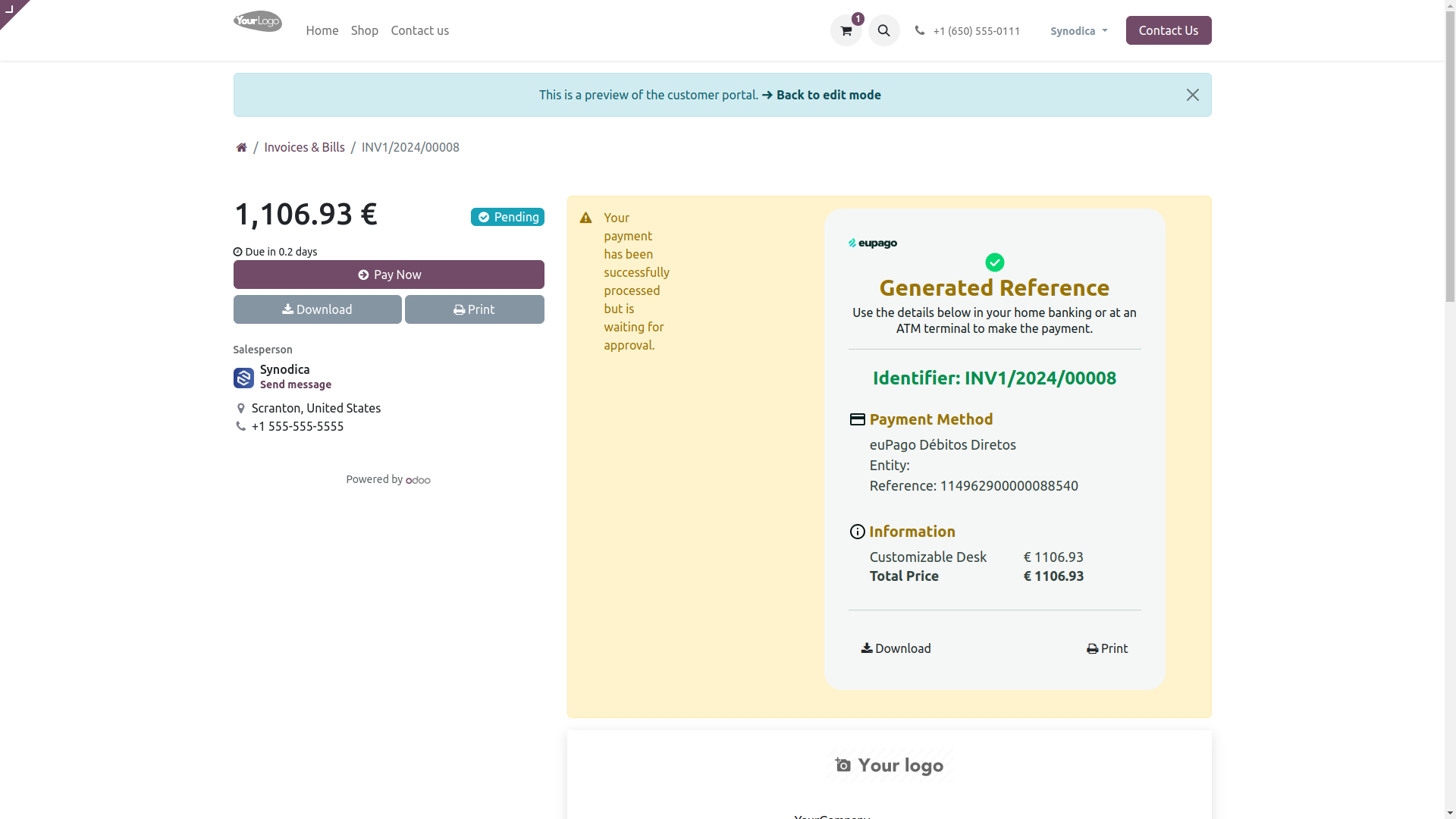
After redirecting to the payment confirmation page, you will see the Payment Reference with payment method and payment amount to make payment as directed in email notification.
Payment From Website
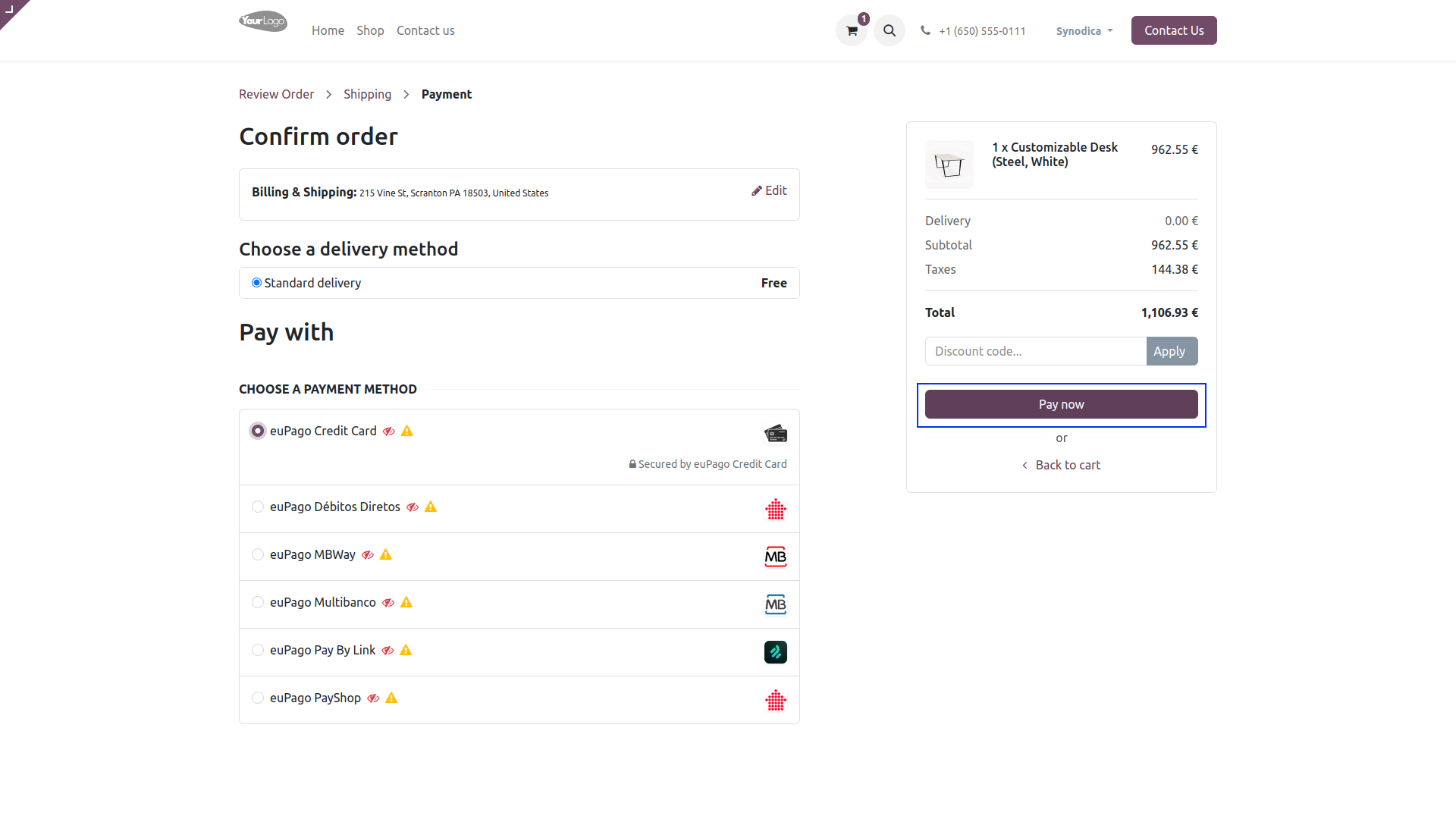
To pay with euPago Credit Card Payment Method, select Credit Card as payment method.Click Pay Now button. And you will redirect to enter card details.
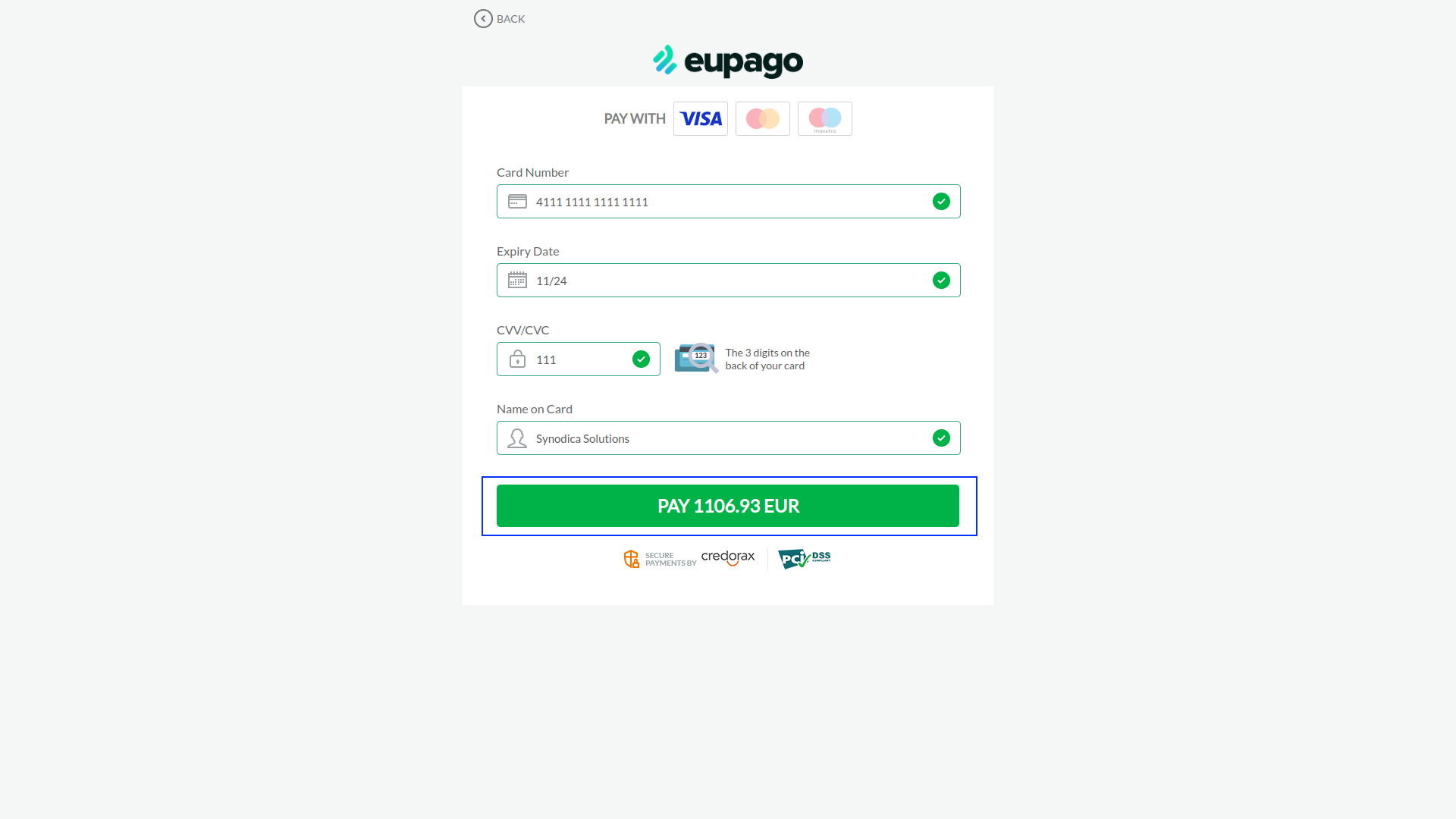
On Redirected page, Enter credit card details and click Pay to make payment.
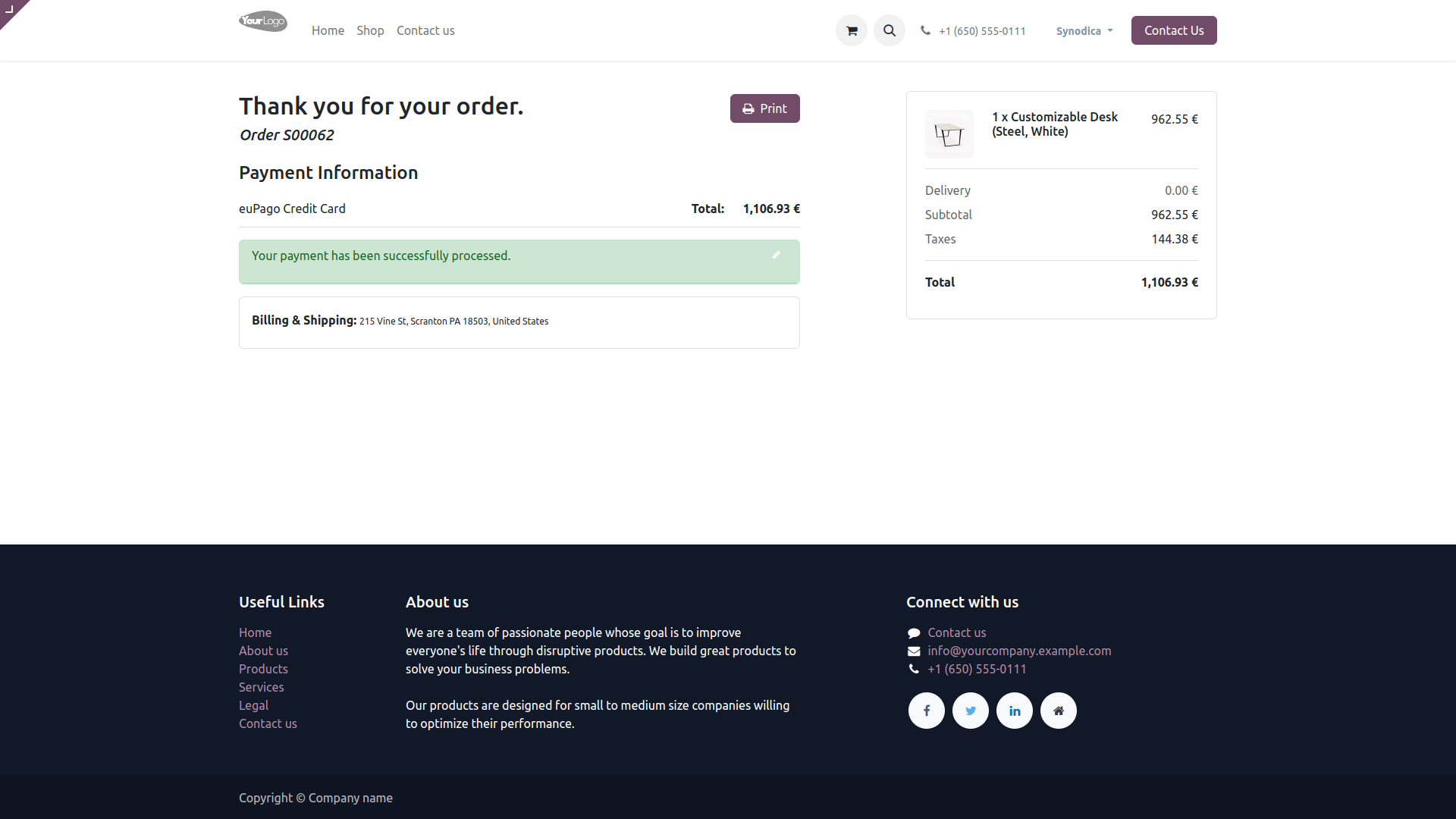
After successful payment, you will see the payment status as Paid in odoo.

Payment From Sale Order
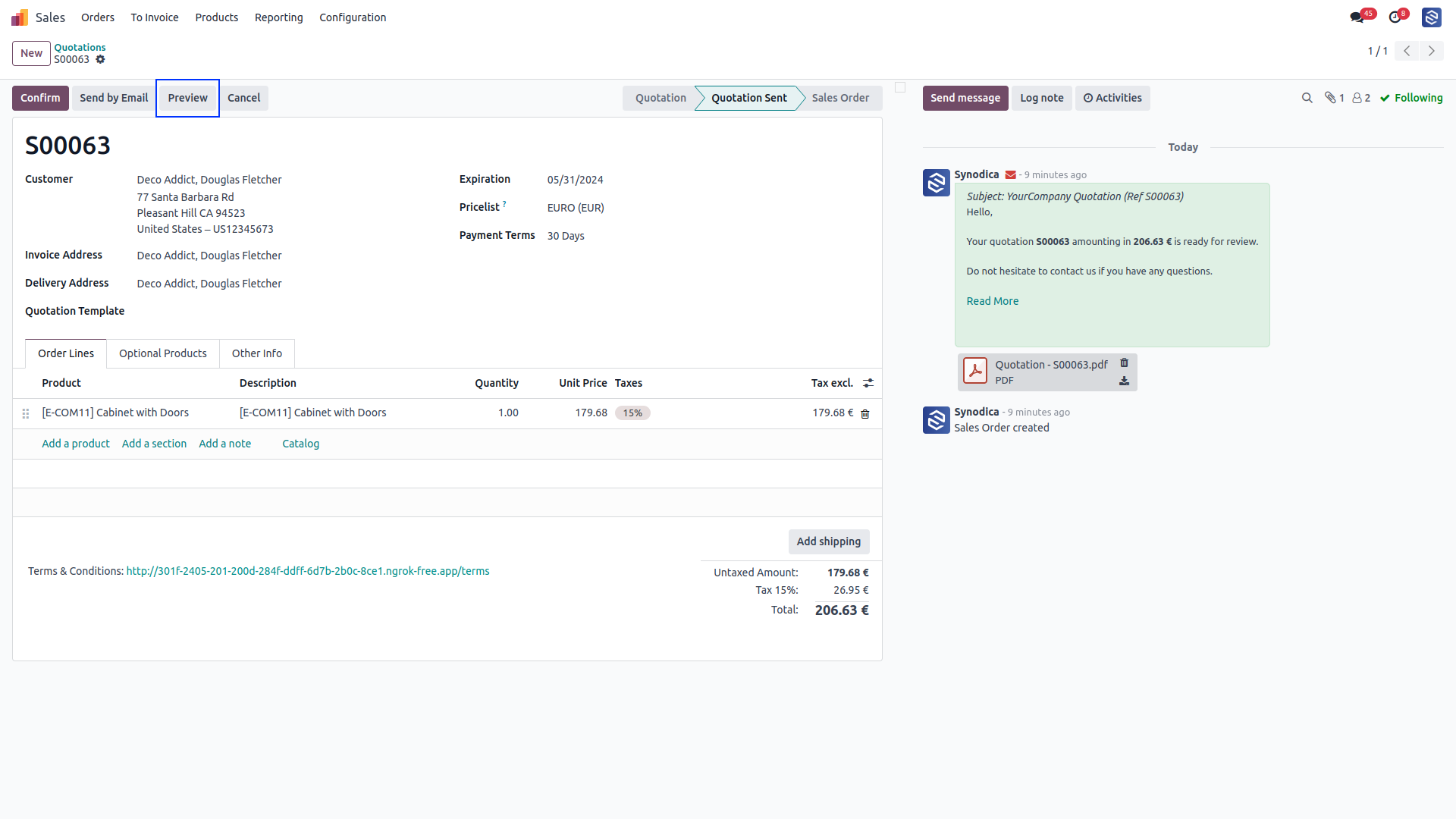
To pay with sale order, create sale order and click Preview button
Now click Sign & Pay, Sign document and select euPago Credit Card as payment method. Then click Pay. You will redirect to enter card details.
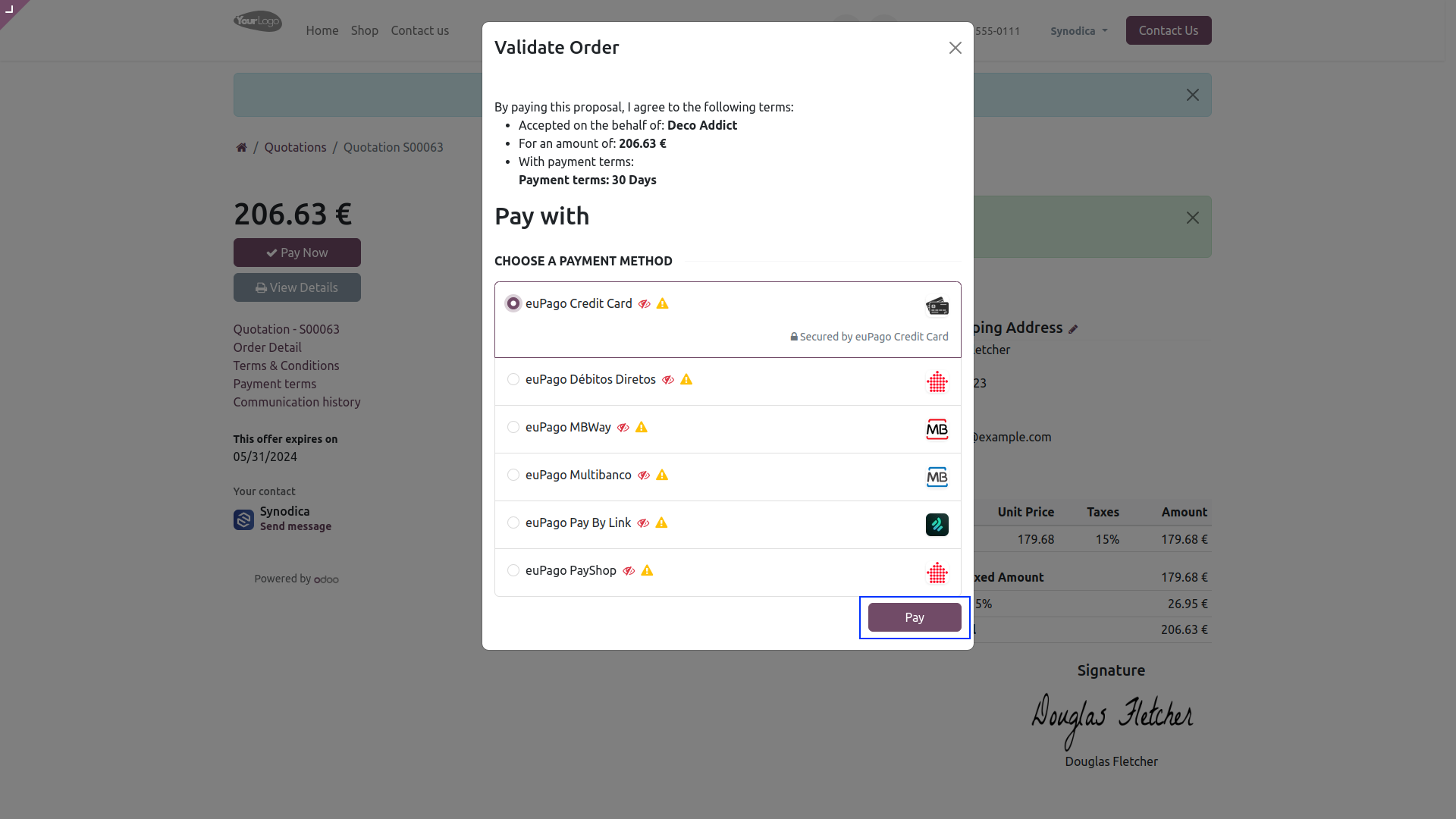
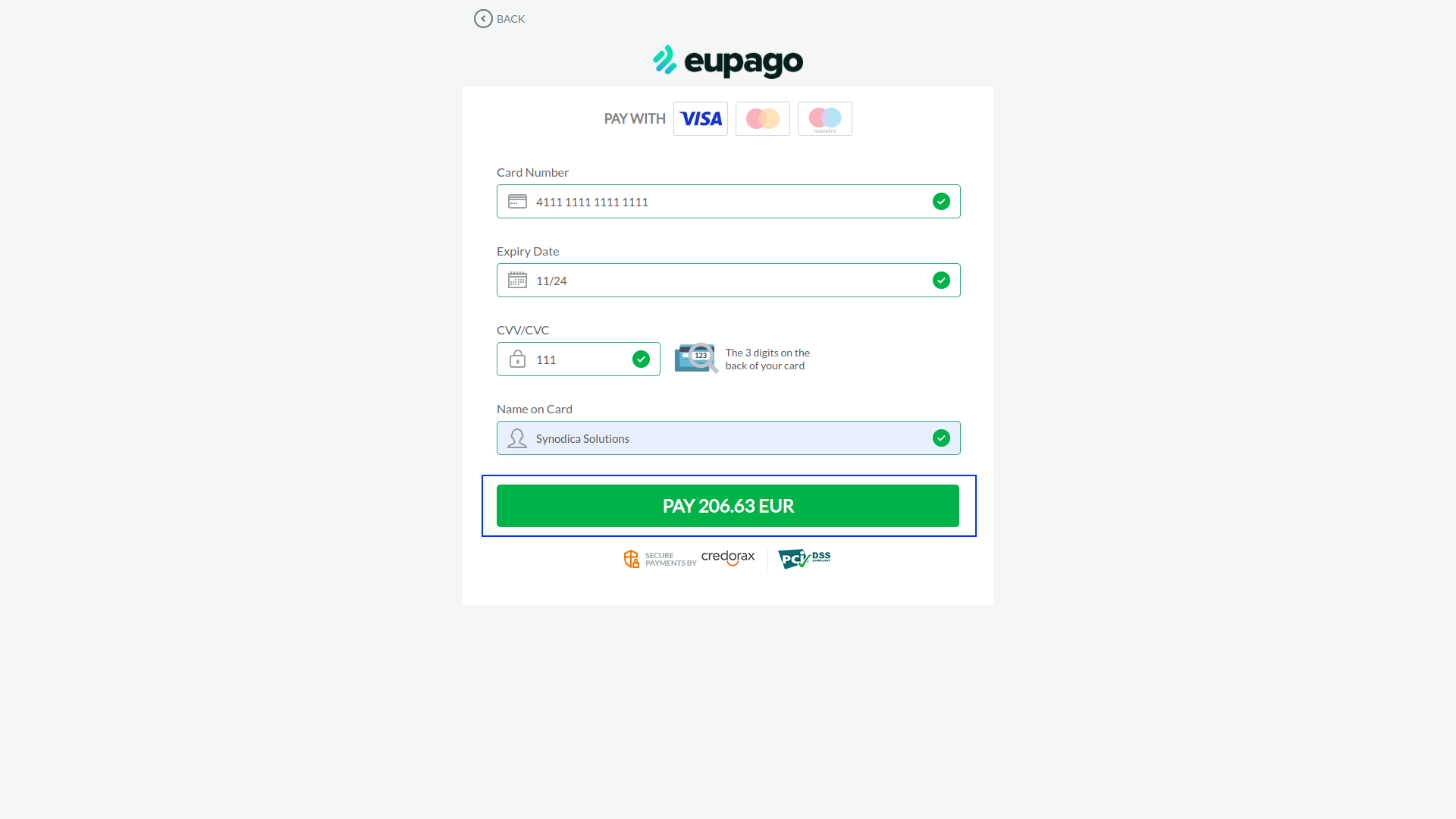
On Redirected page, Enter credit card details and click Pay to make payment.
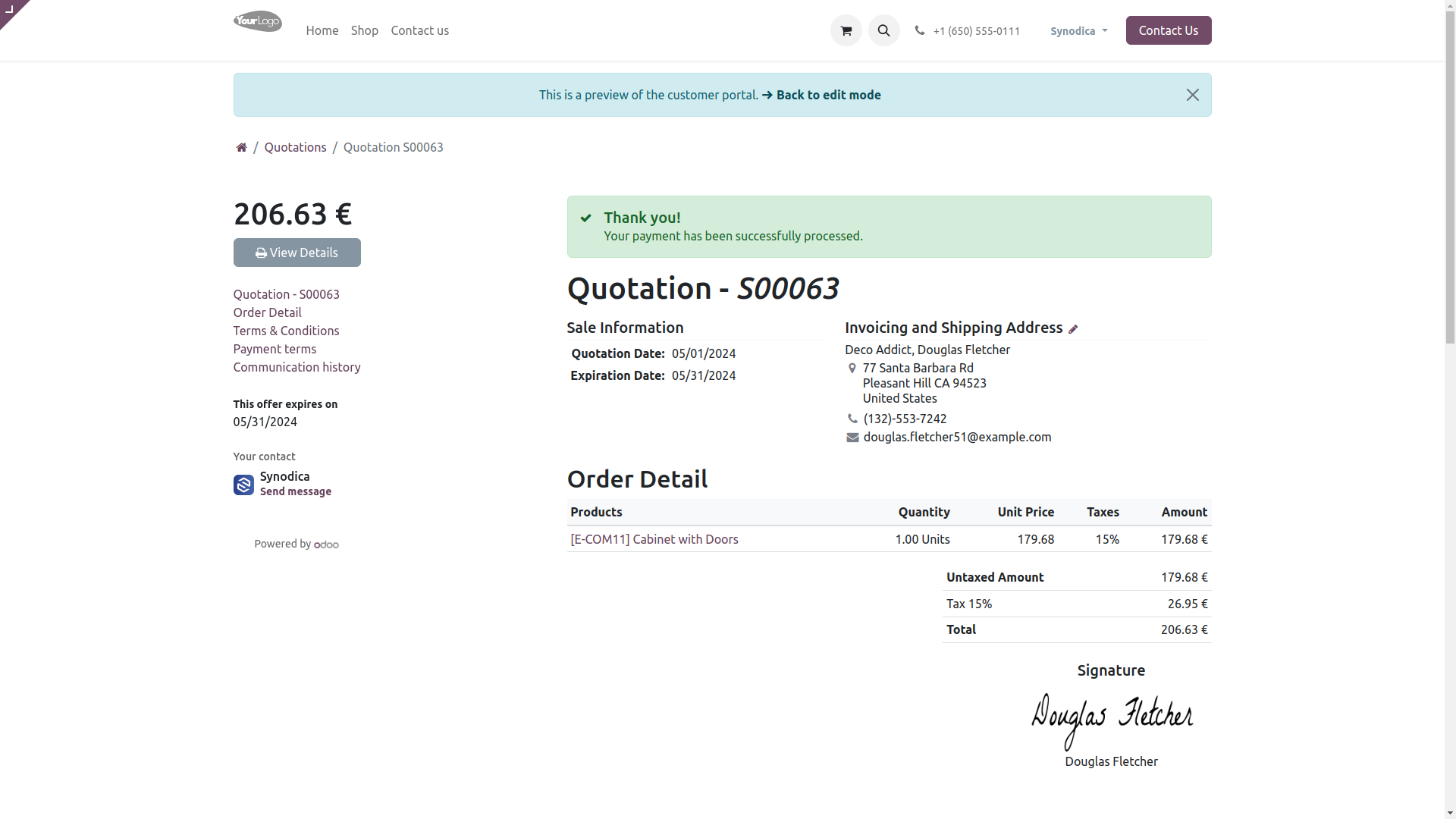
After successful payment, you will see the payment status as Paid in odoo.

Payment From Invoice
To pay with invoice, create invoice and click Preview button
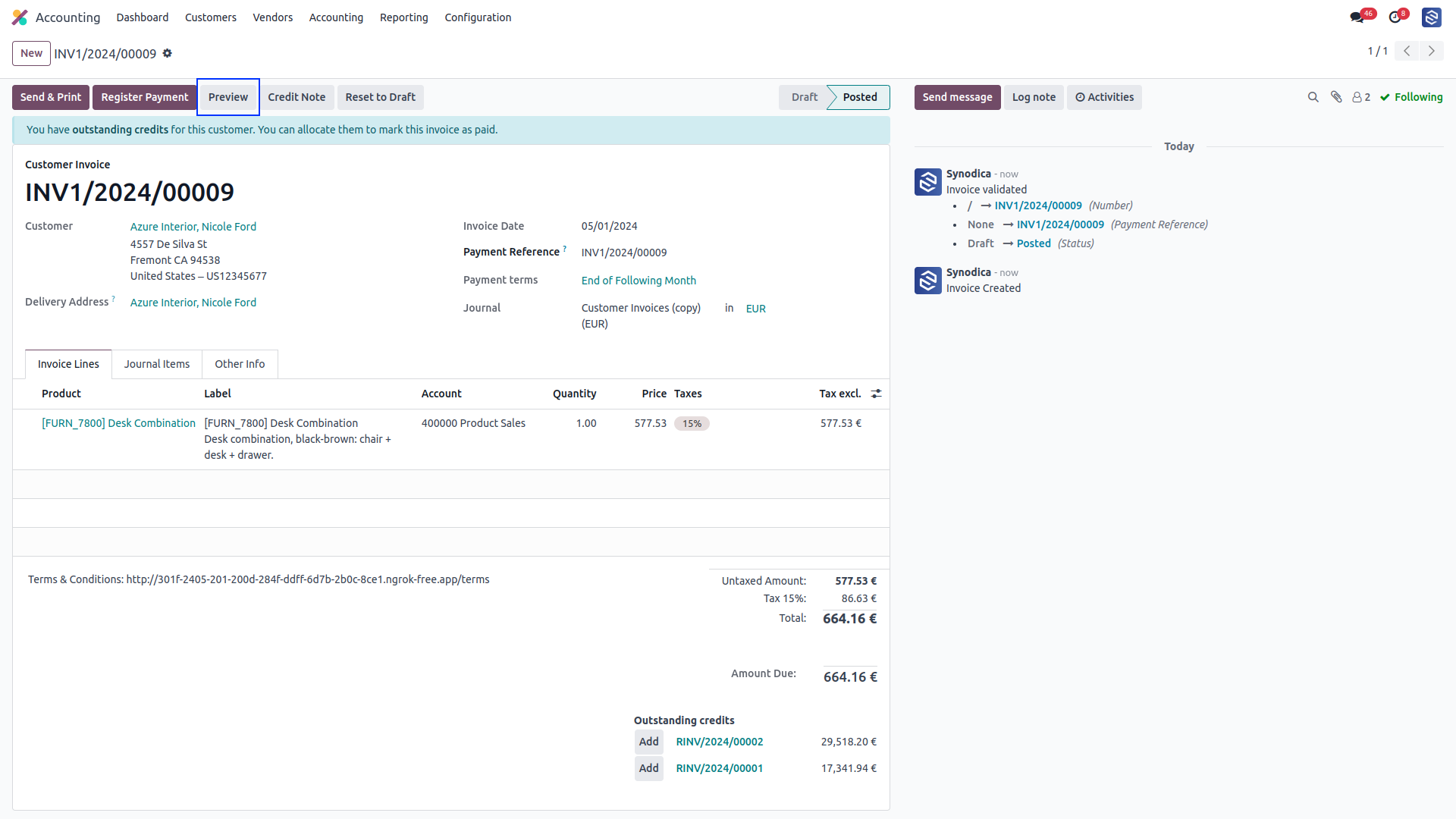
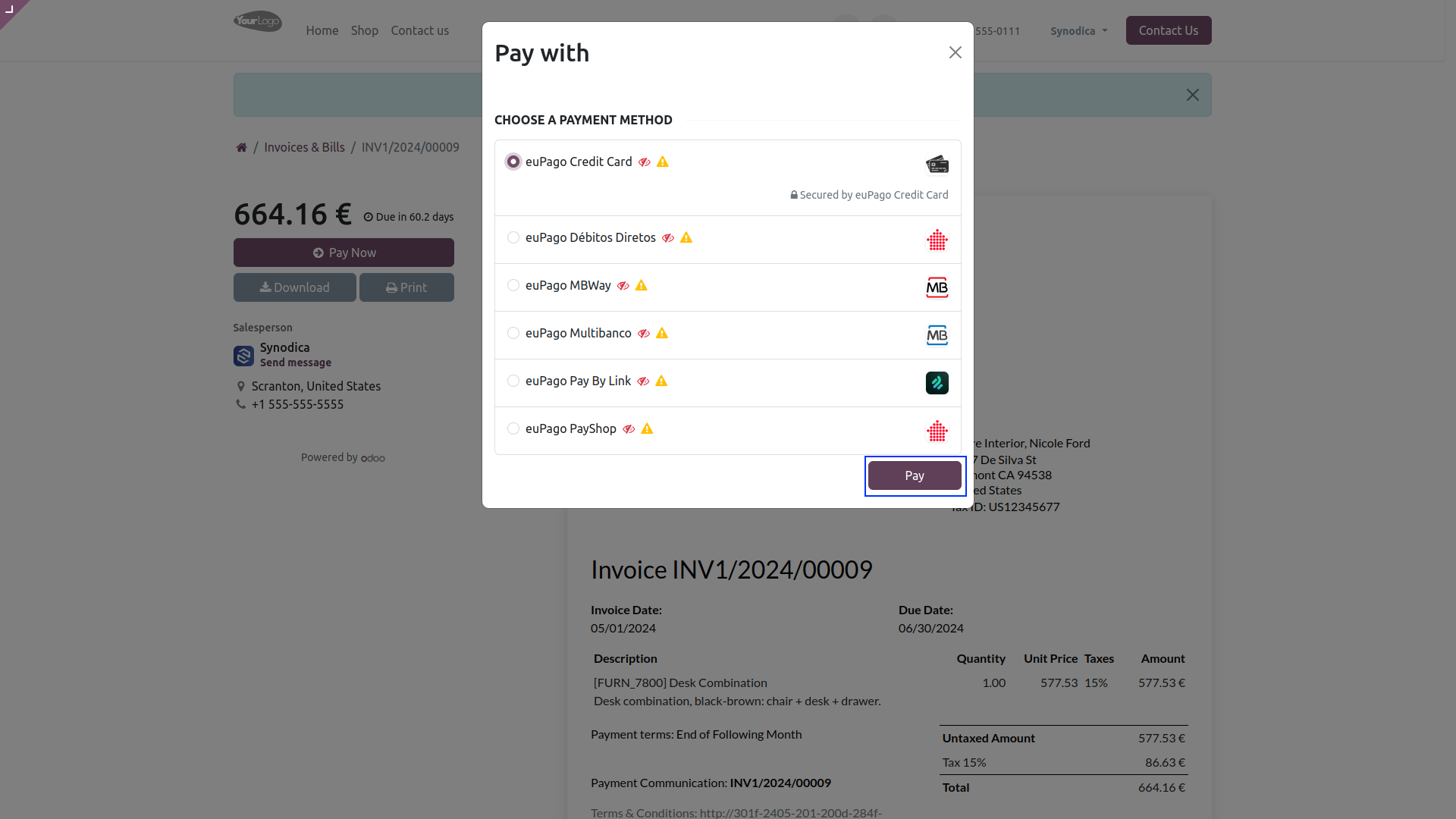
Now click Pay Now, There select euPago Credit Card as payment method. Then click Pay. You will redirect to enter card details. Enter card details and click Pay to make payment.
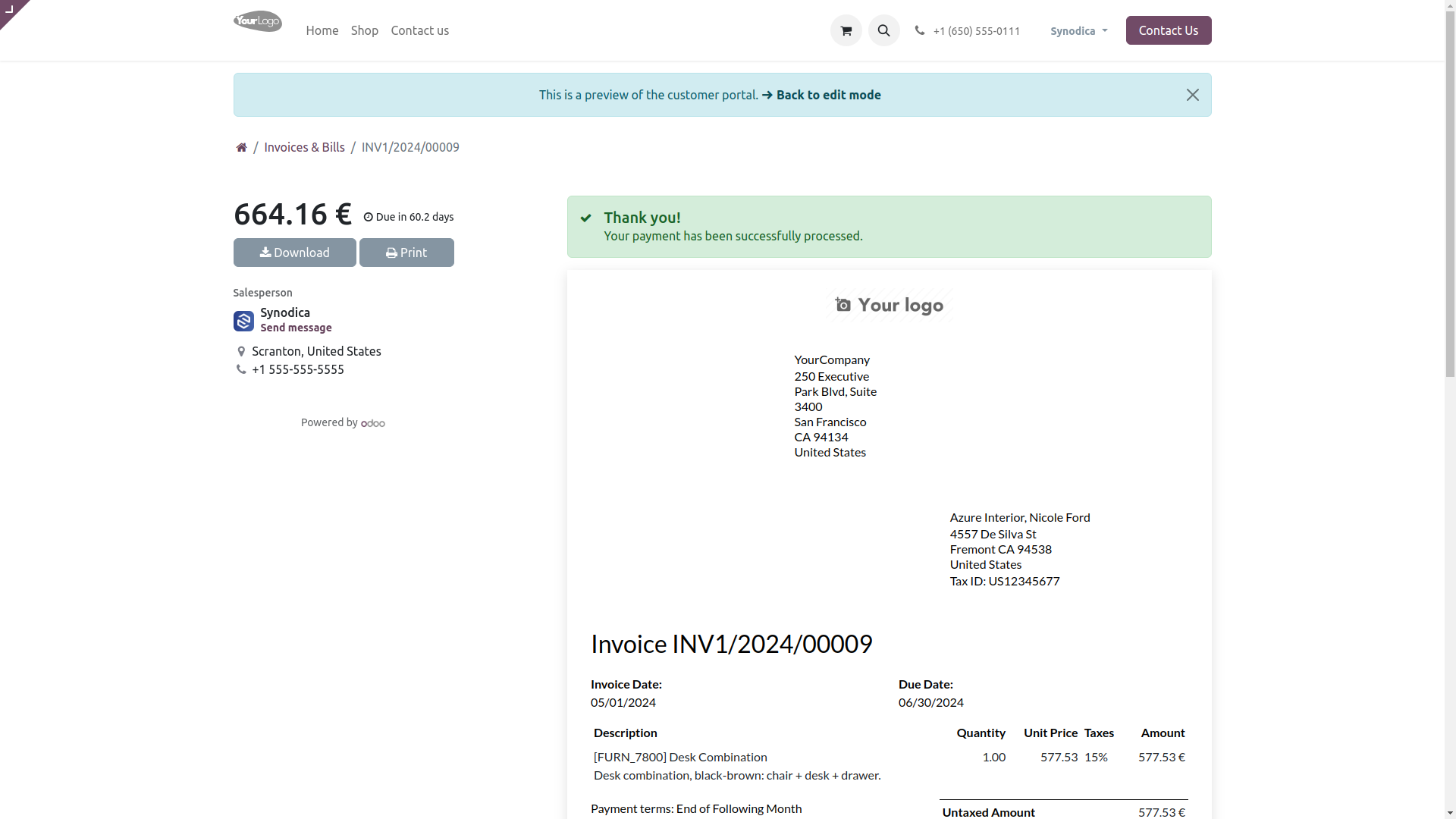
After successful payment, you will see the payment status as Paid in odoo.
Payment From Website
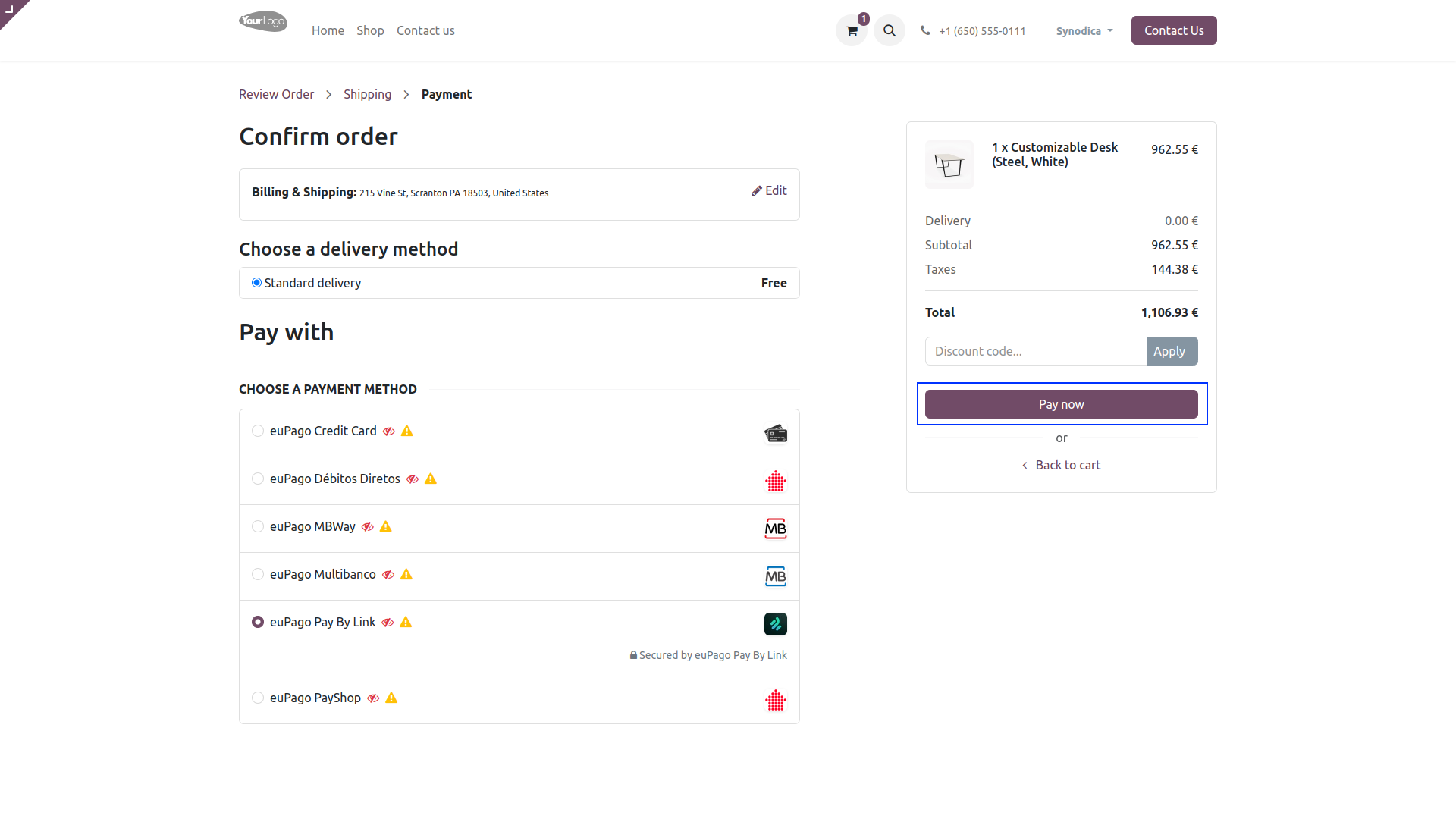
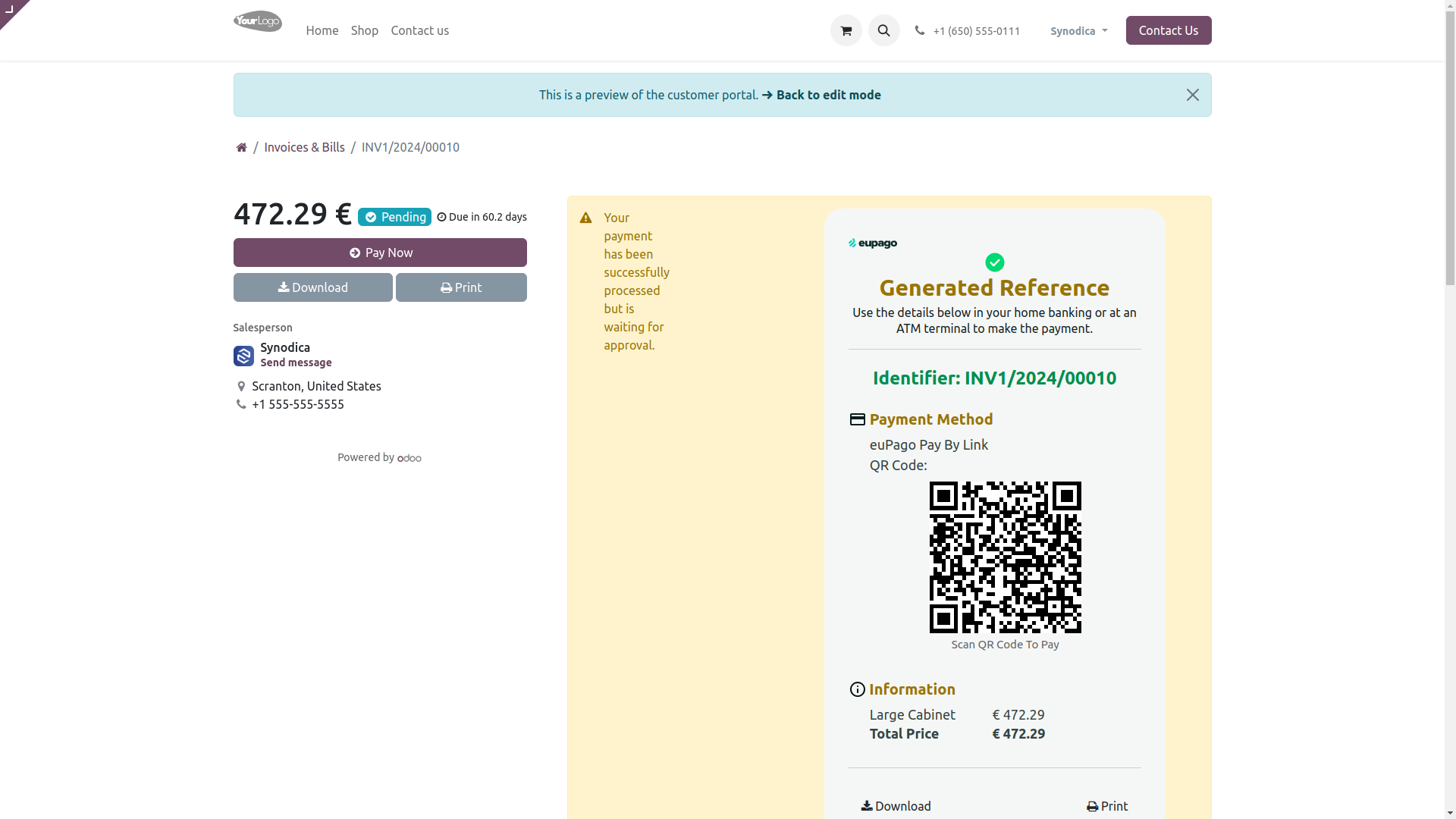
To pay with euPago Pay By Link Payment Method, select Pay By Link as payment method.Click Pay Now button. And you will redirect you to the Payment confirmation page.
On Payment confirmation page, you will see the Payment QR Code. Scan QR Code to make payment.
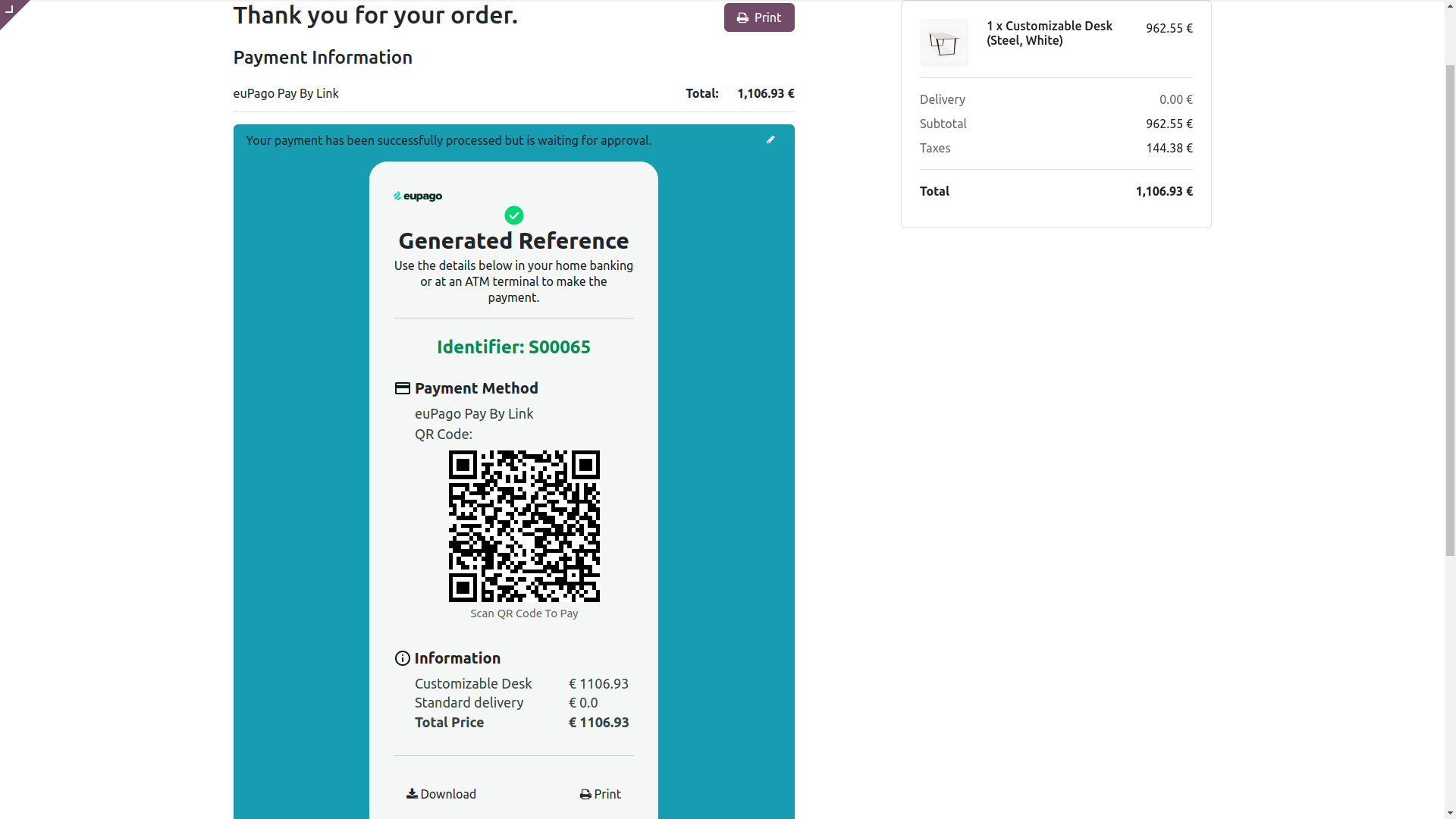
Scan QR code, you will have the link to make payment. Make payment based on payment methods in the link.
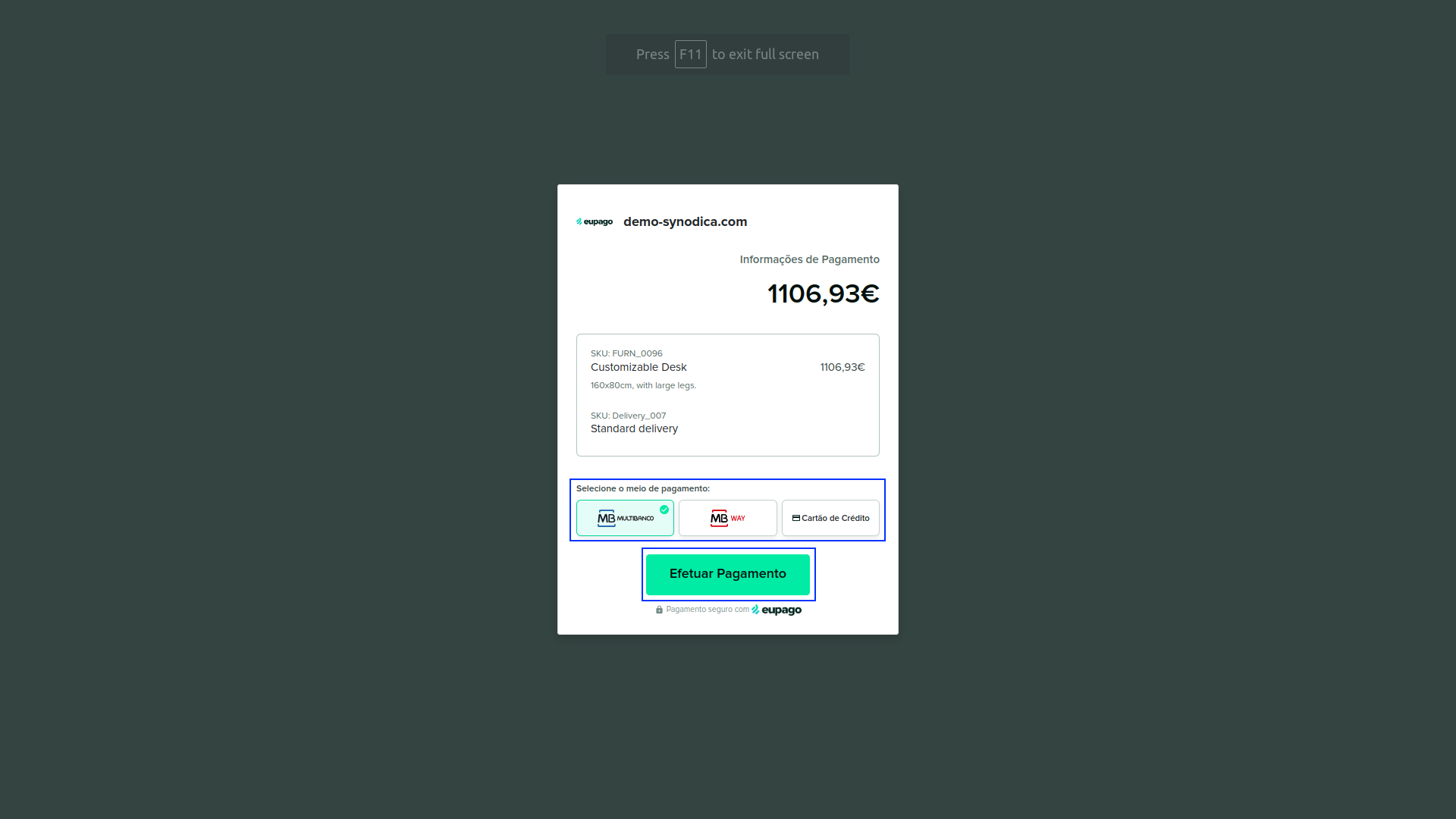
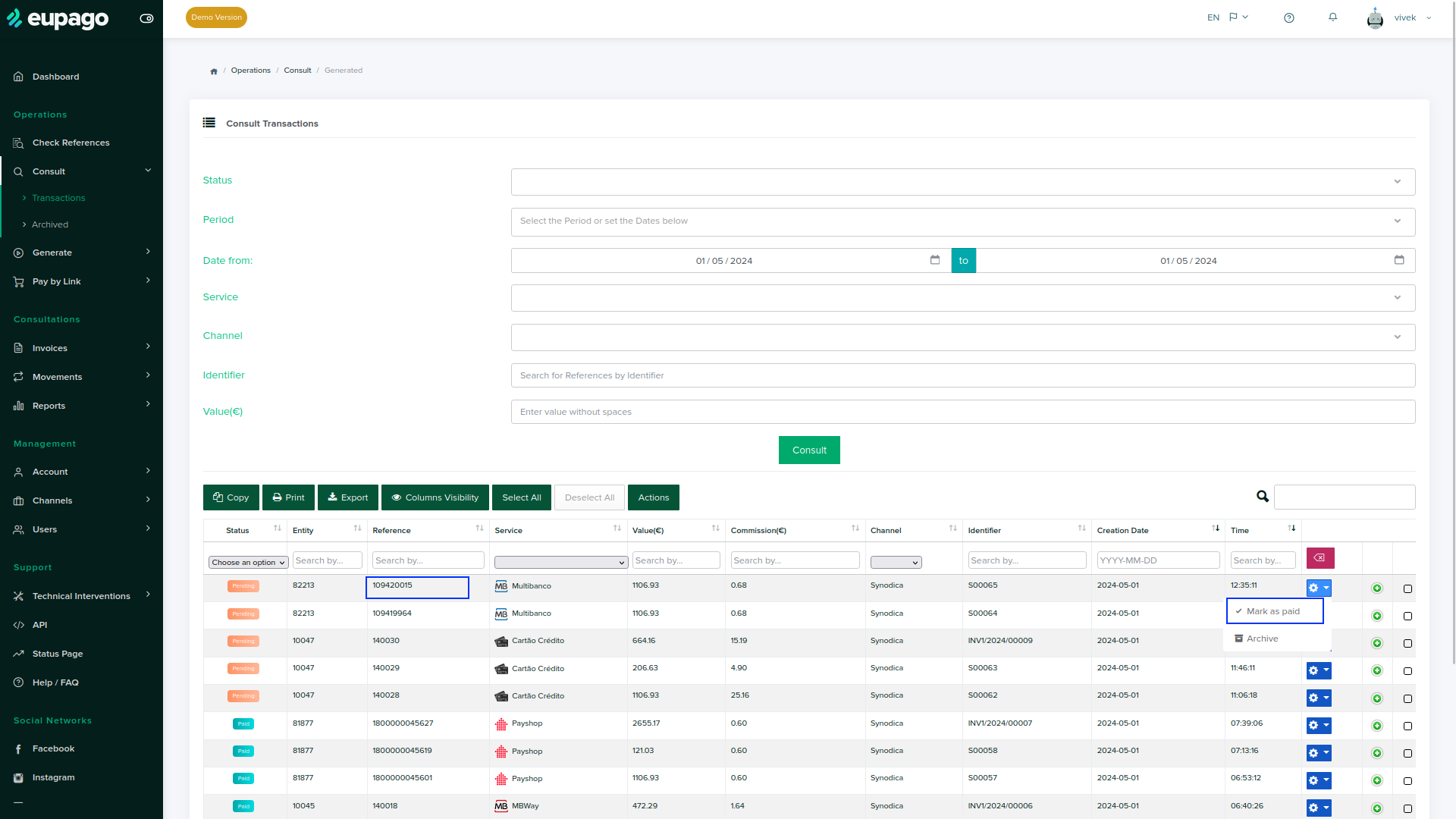
To confirm payment in odoo, Consult transactions in euPago Portal. After verifying reference paid, click Mark as Paid to confirm the payment.
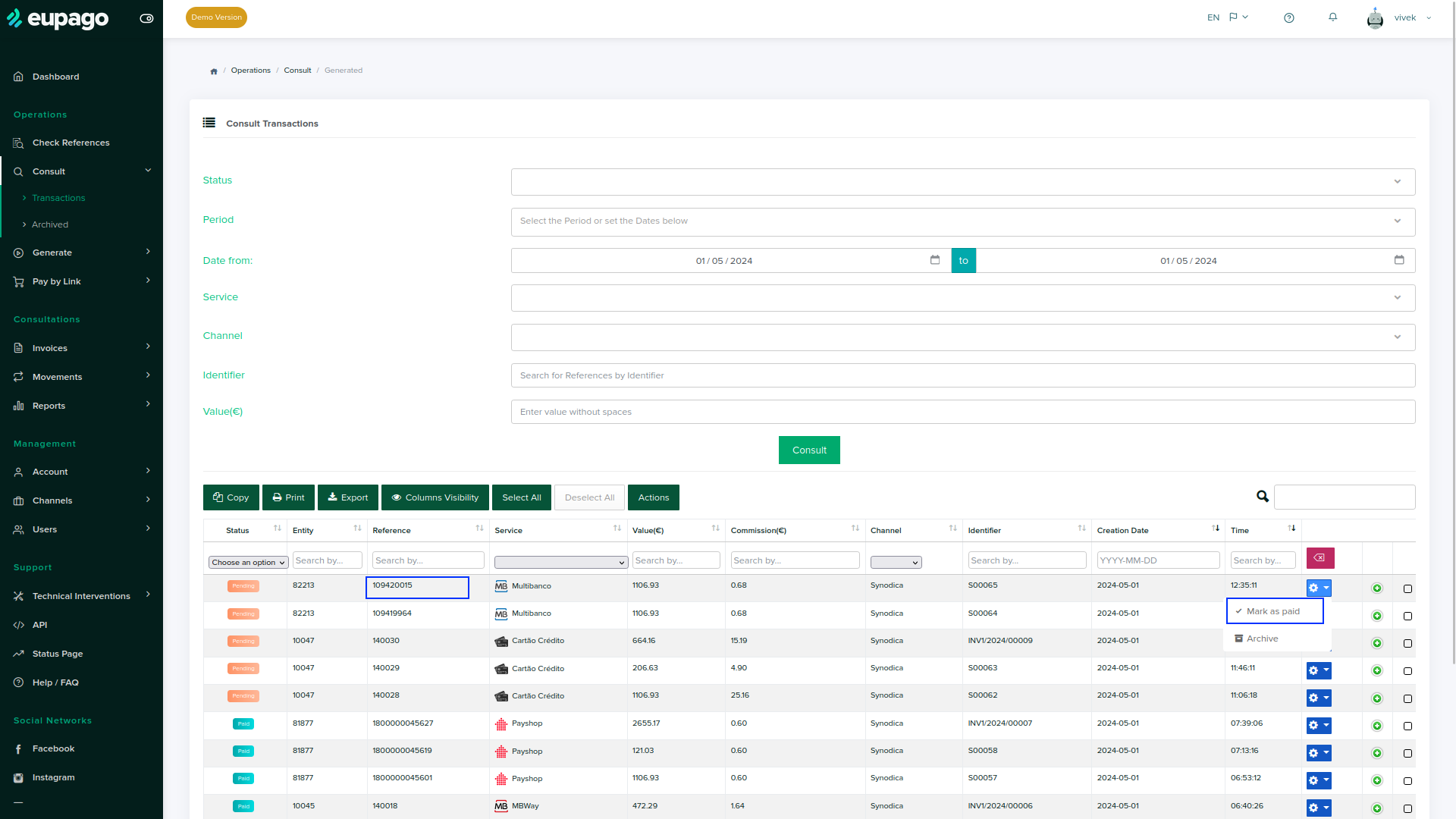
After confirming the payment paid by user, you will see the payment status as Paid in odoo.

Payment From Sale Order
To pay with sale order, create sale order and click Preview button
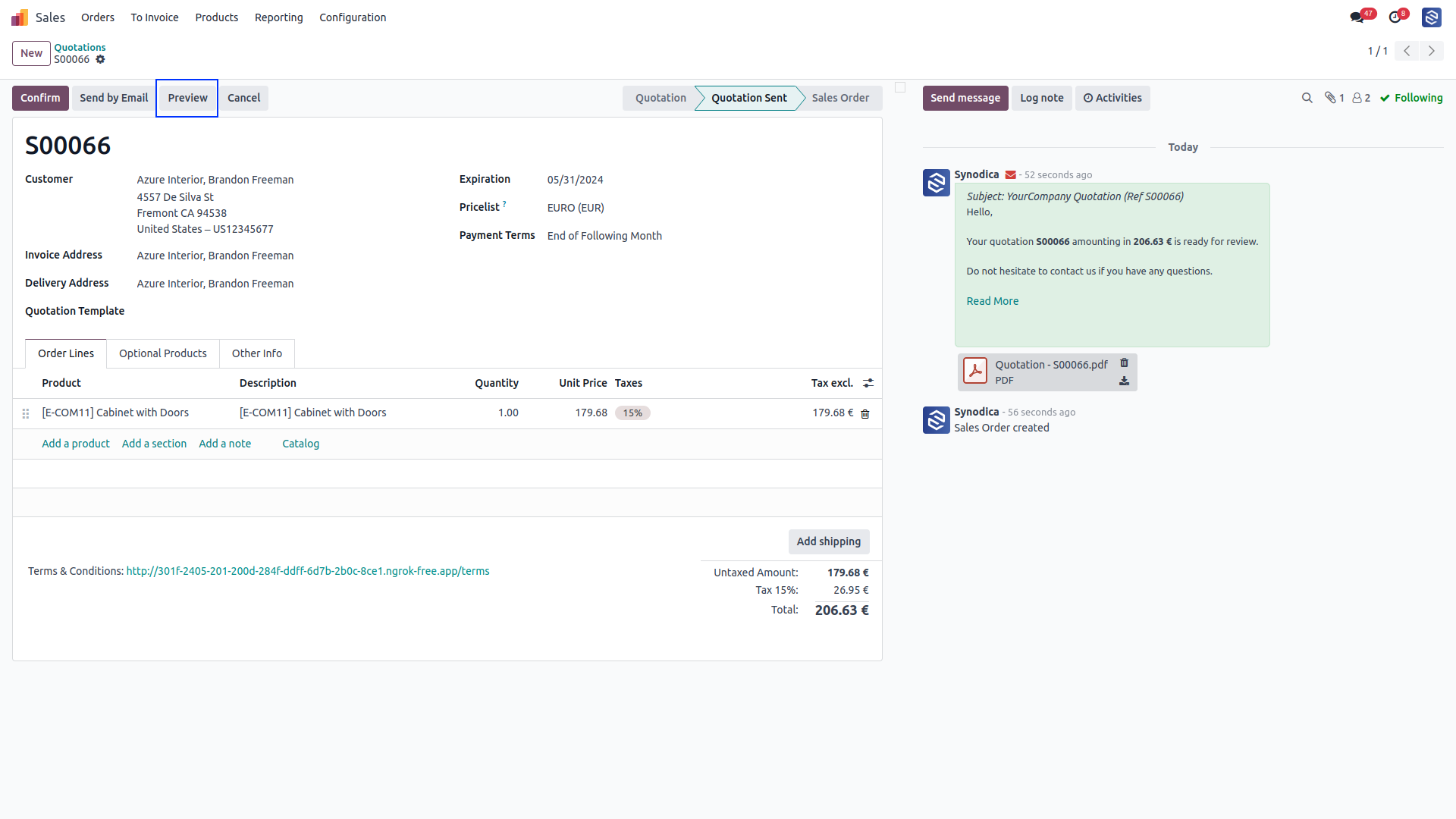
Now click Sign & Pay, Sign document and select euPago Pay By Link as payment method. Then click Pay.
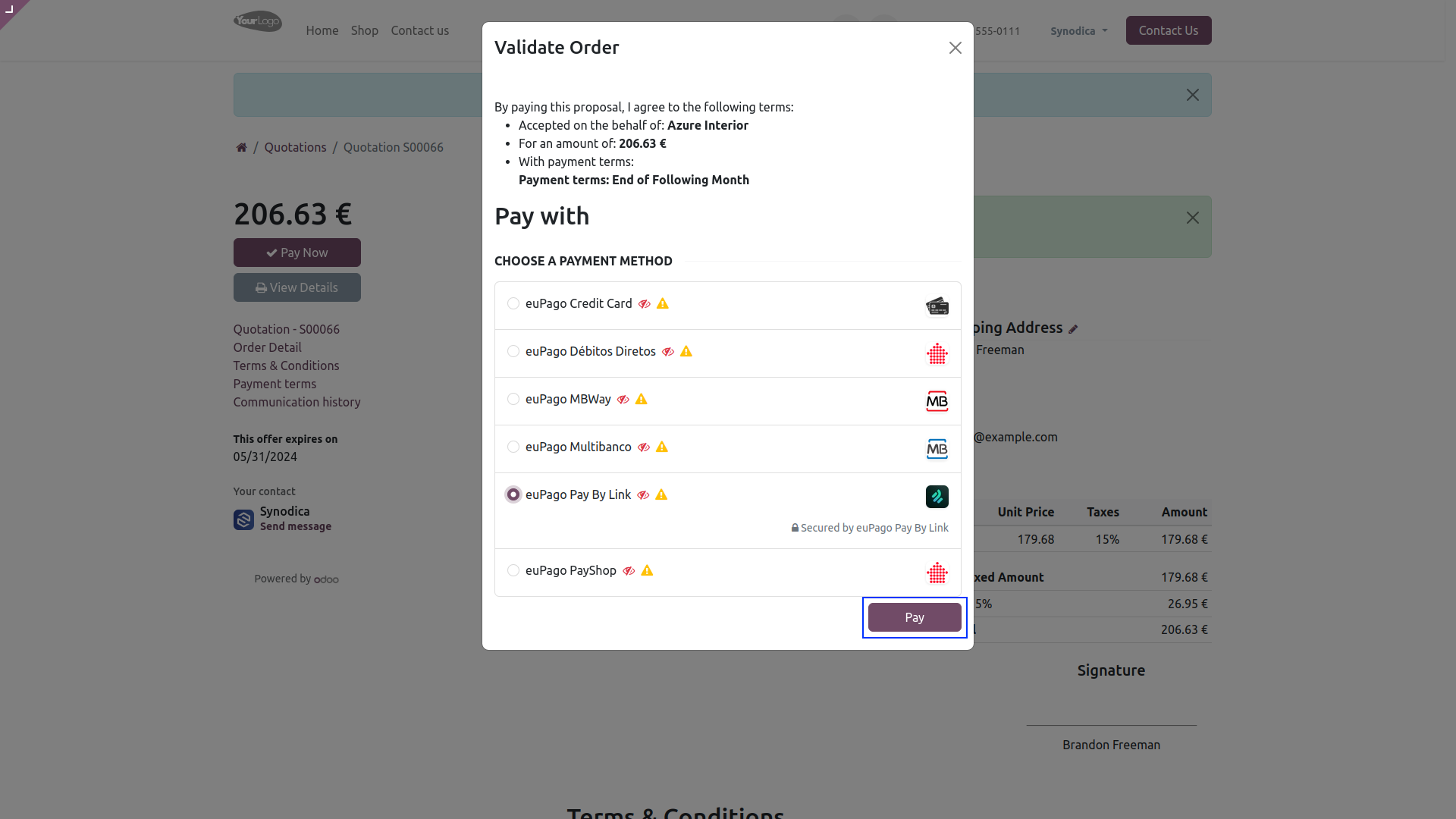
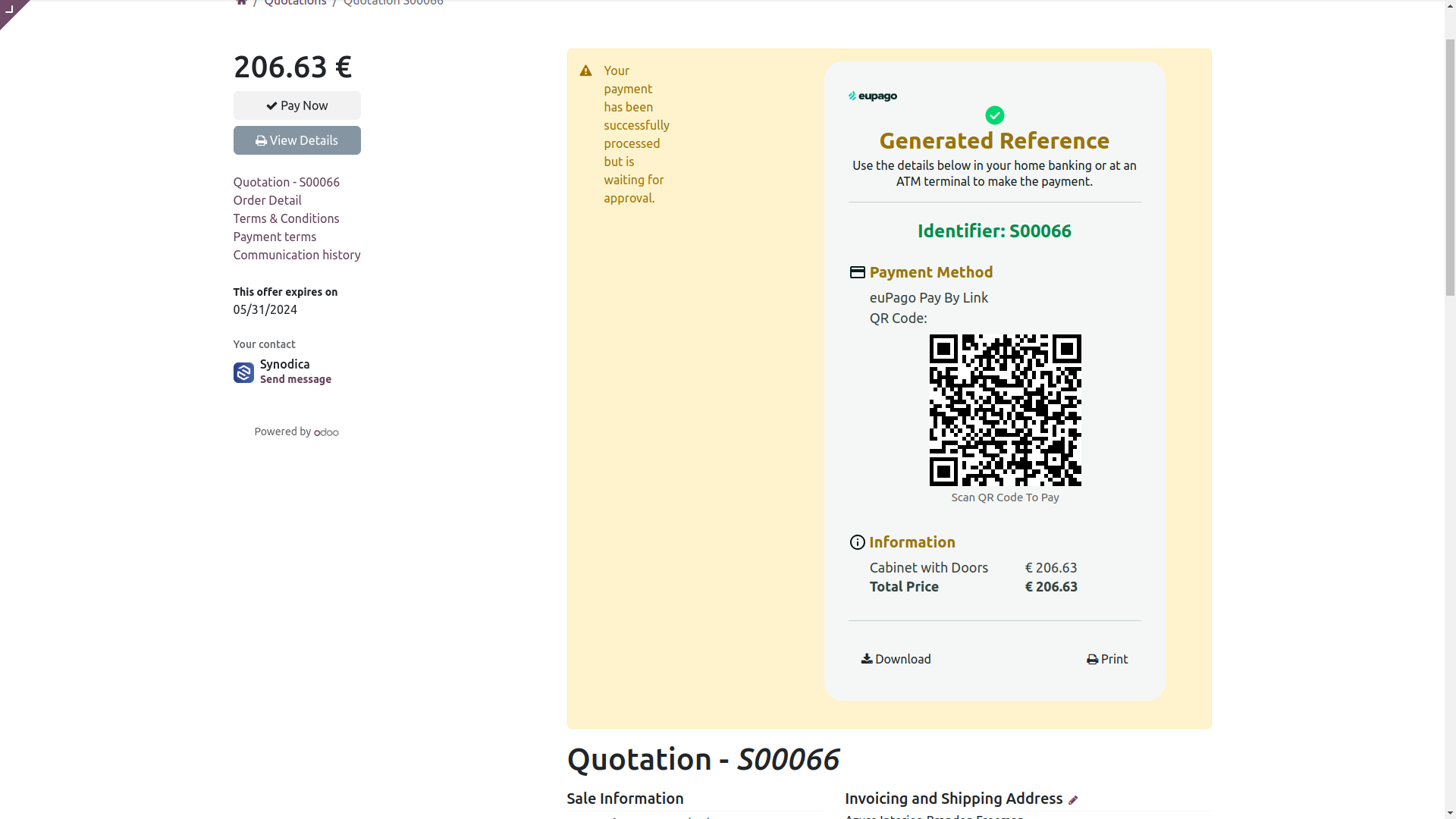
After redirecting to the payment confirmation page, you will see the QR Code. Scan QR Code to make payment.

Payment From Invoice
To pay with invoice, create invoice and click Preview button
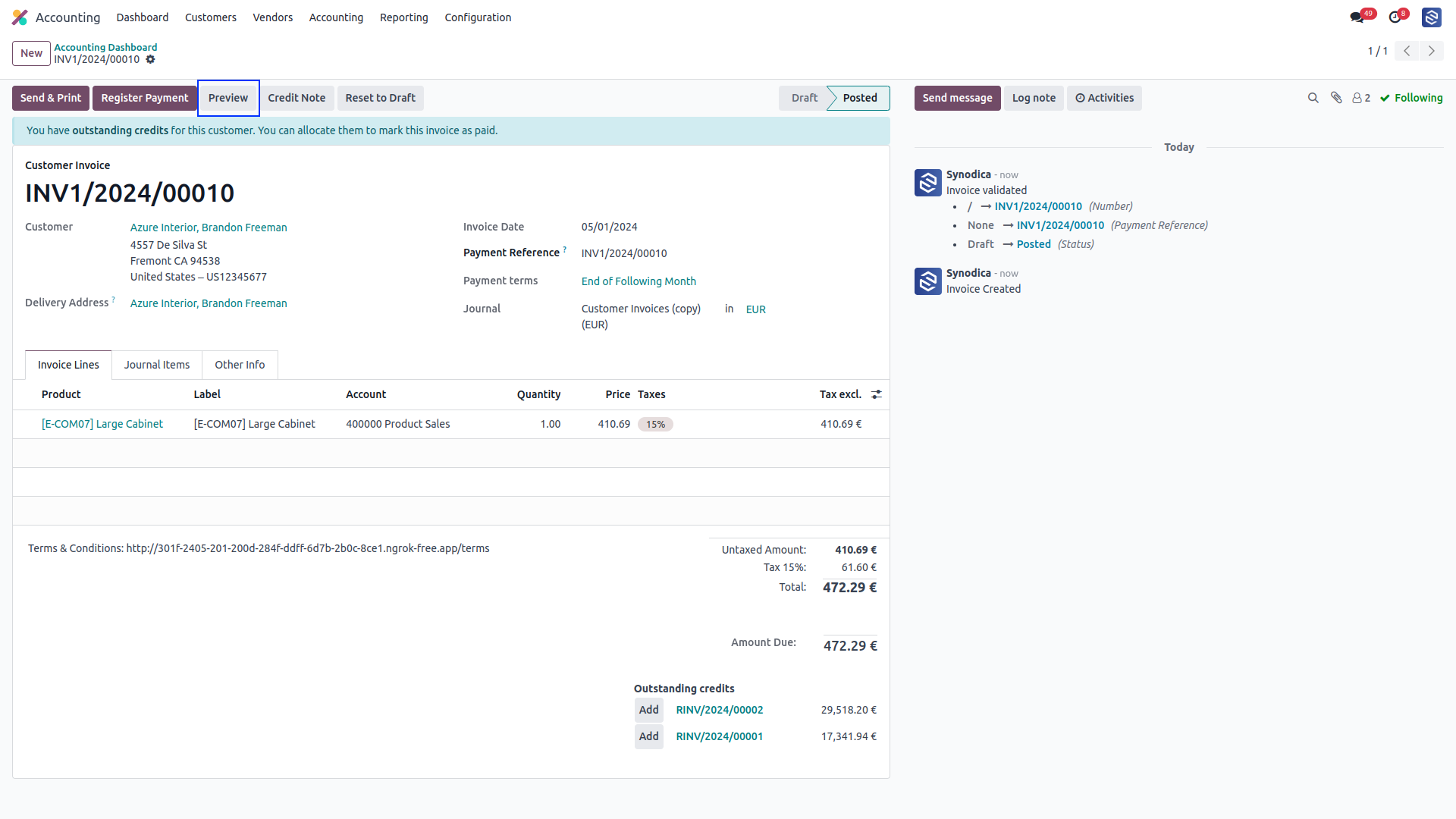
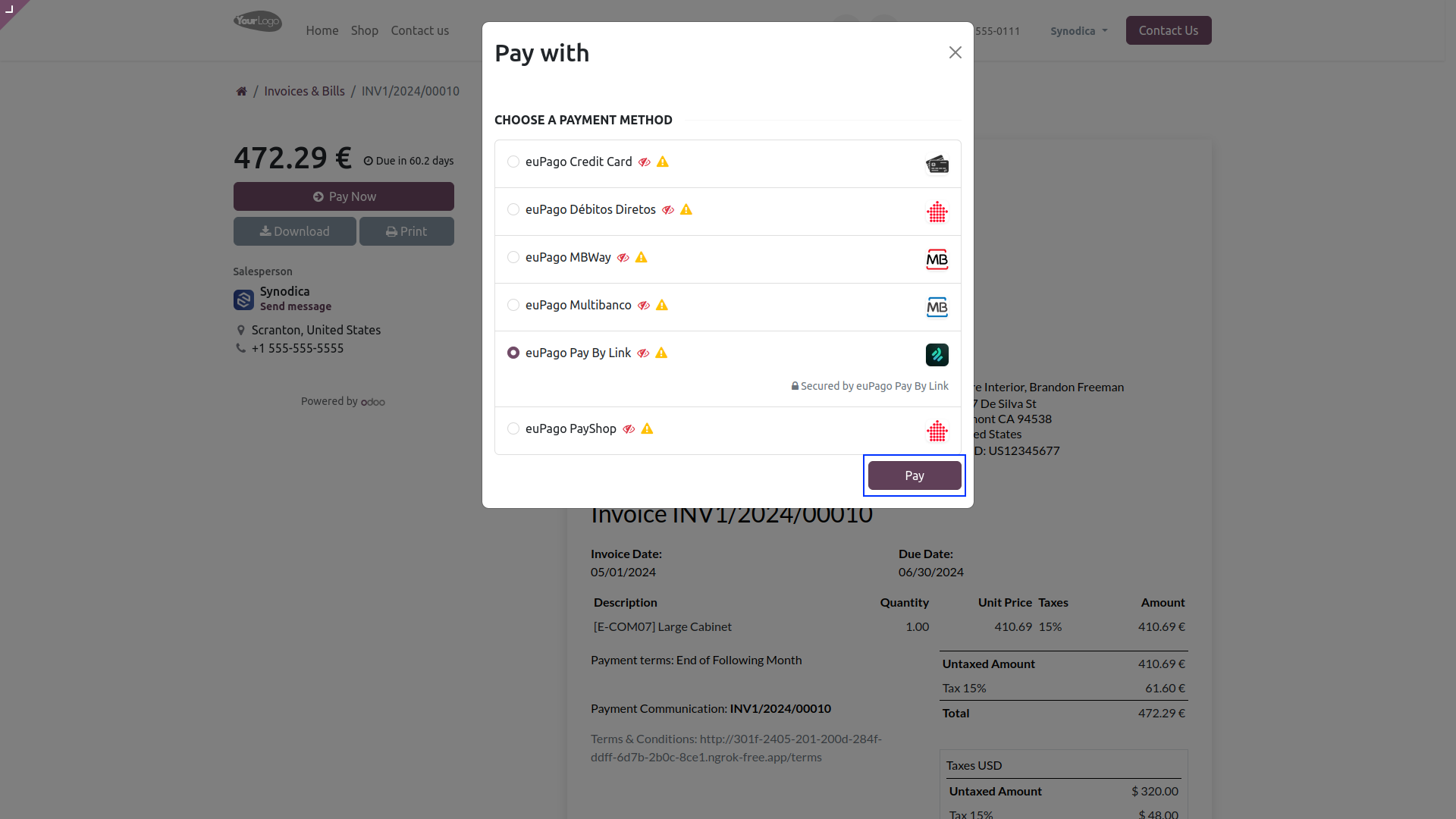
Now click Pay Now, There select euPago Pay By Link as payment method. Then click Pay.
After redirecting to the payment confirmation page, you will see the QR Code. Scan QR Code to make payment.
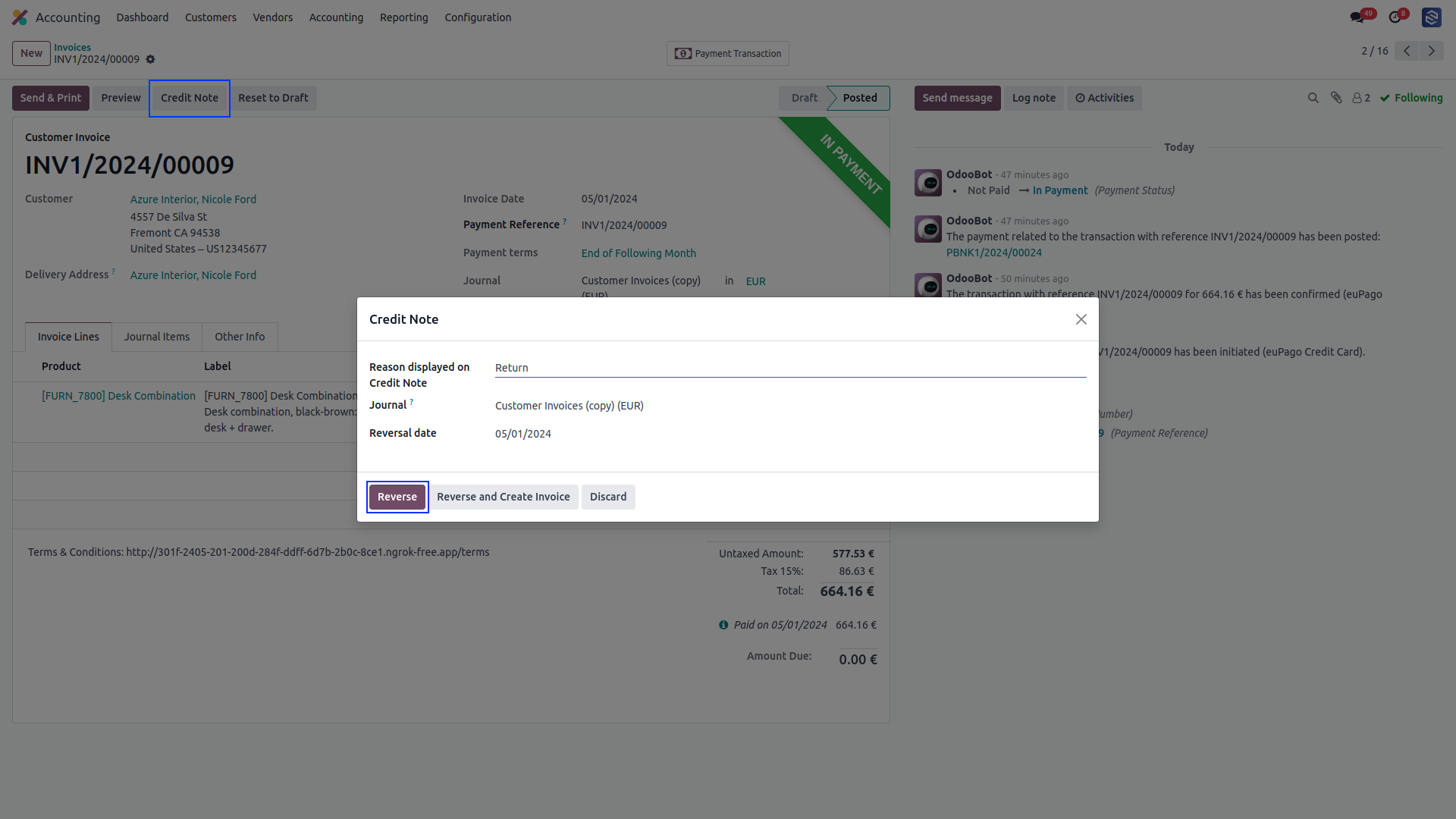
To initiate a refund, create a credit note for the corresponding invoice
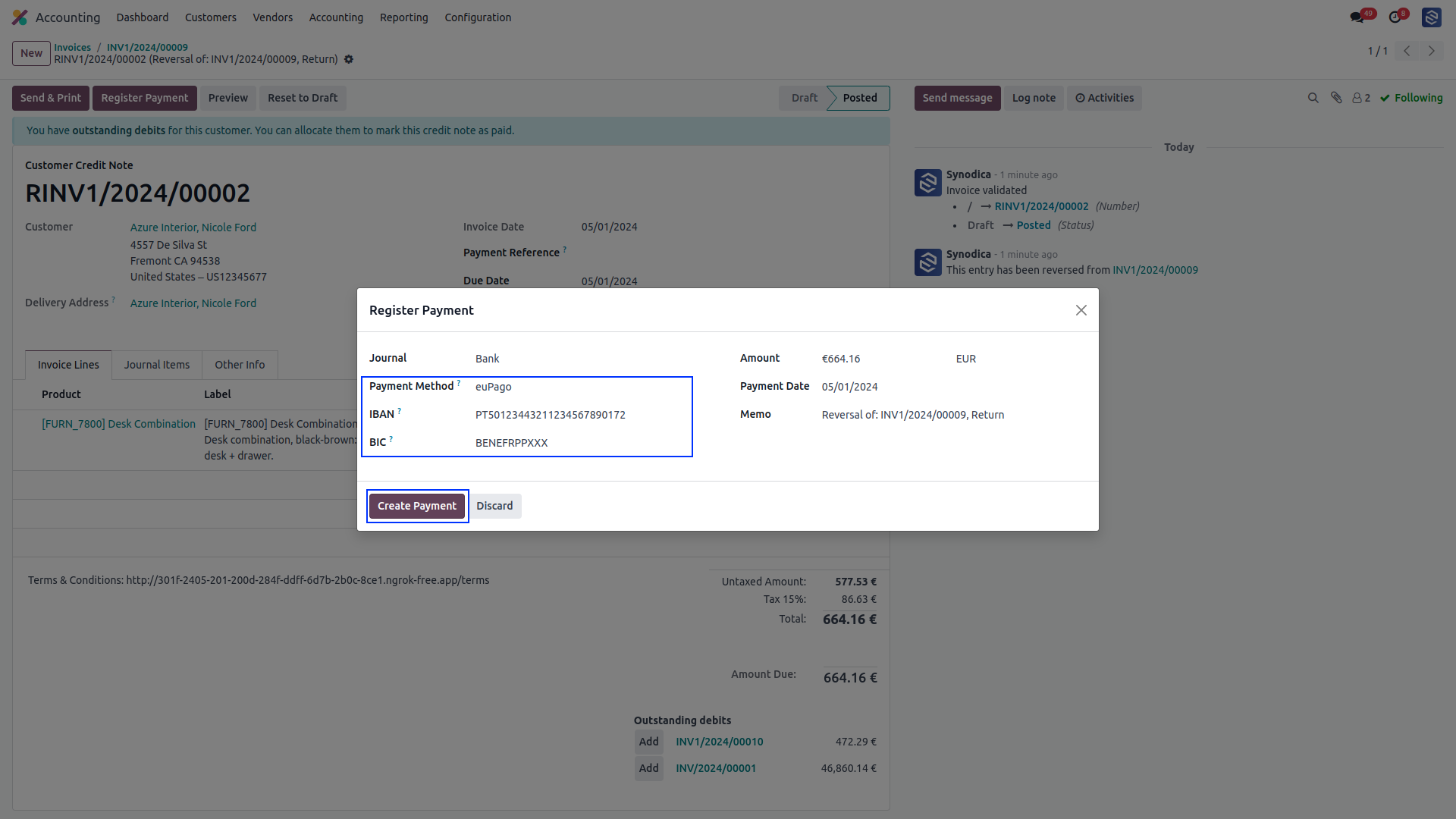
click on Register Payment. A popup window will appear. In the popup, select euPago as the payment method. Enter IBAN and BIC then click on Create Payment.
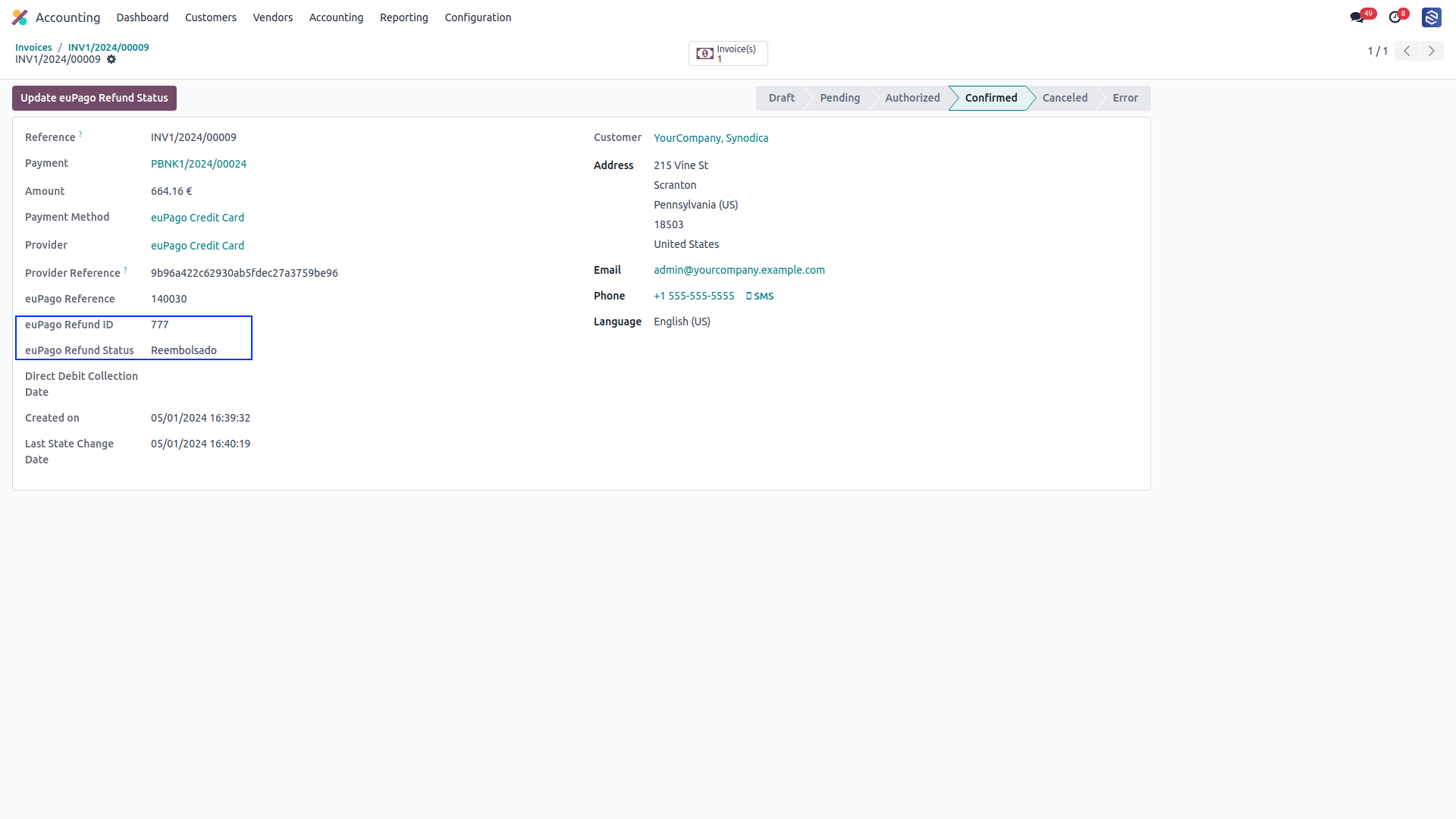
In the payment transaction of invoice, you will see the refund ID and refund status.
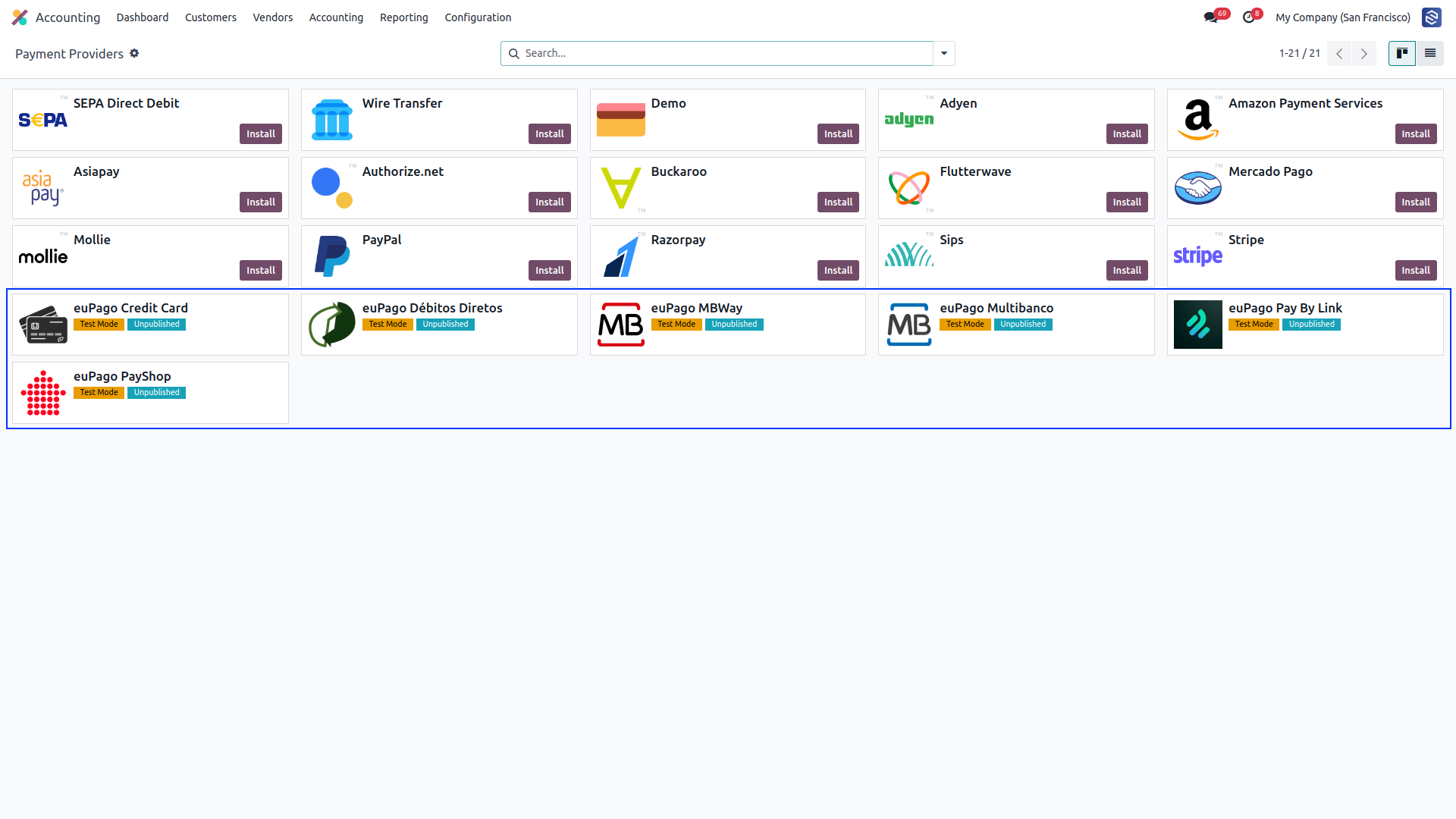
After installing app, you will be able to see All euPago Payment Methods in Accounting >> Configuration >> Payment Providers menu
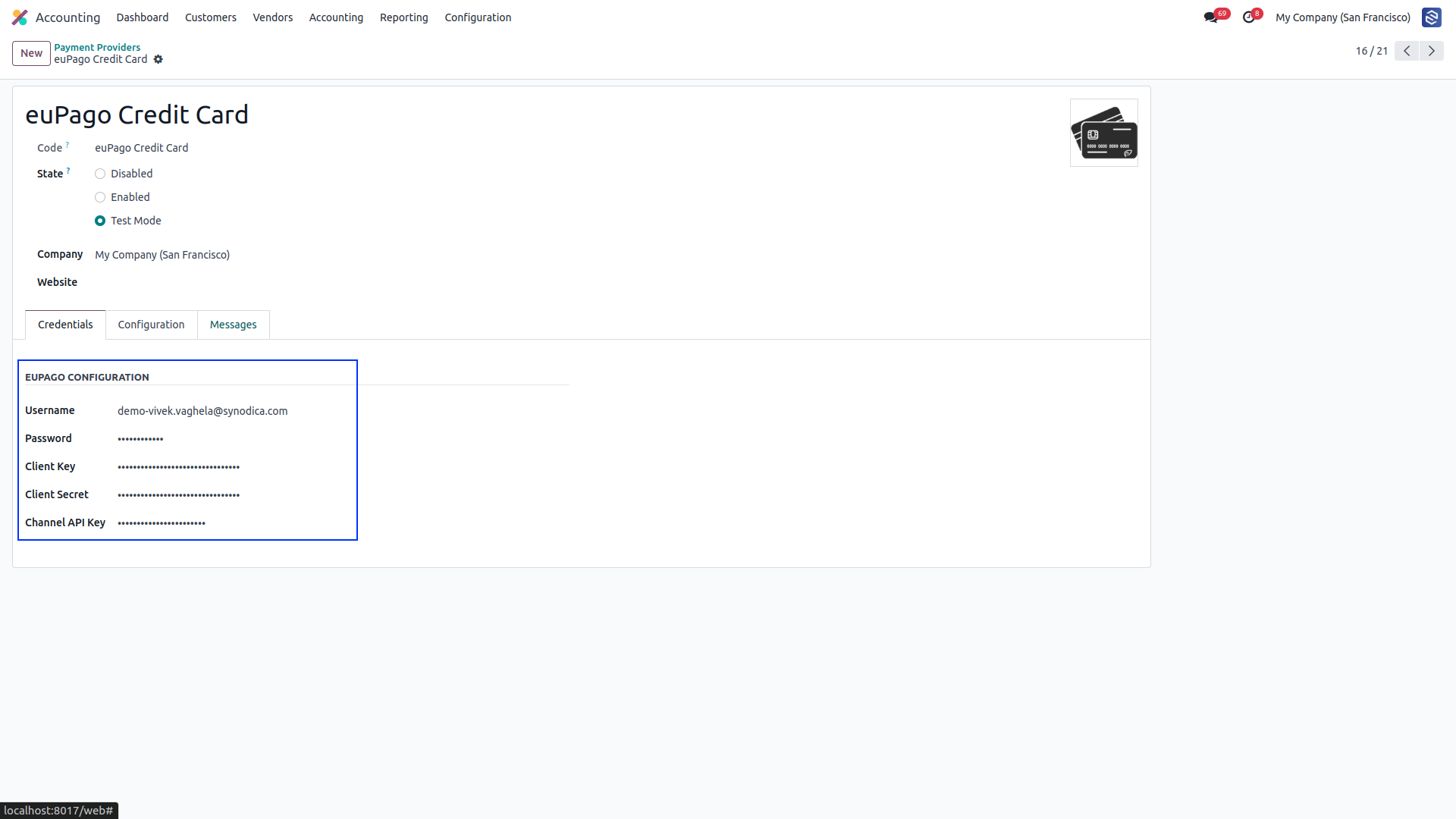
Setup euPago configurations like Username, Password, Client Key, Client Secret and Channel API Key.
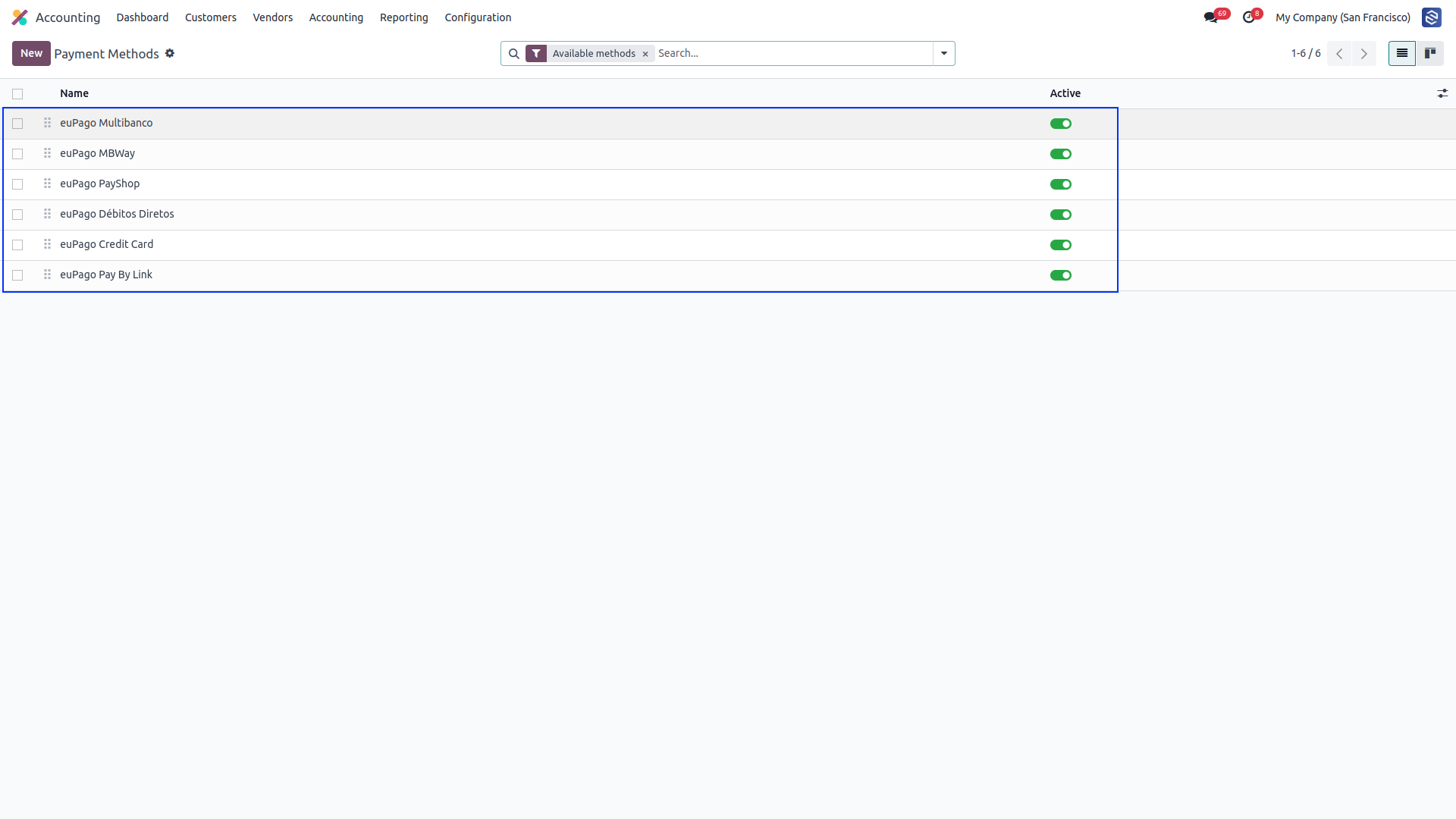
To activate the payment method go to Accounting > Configuration > Payment Methods.
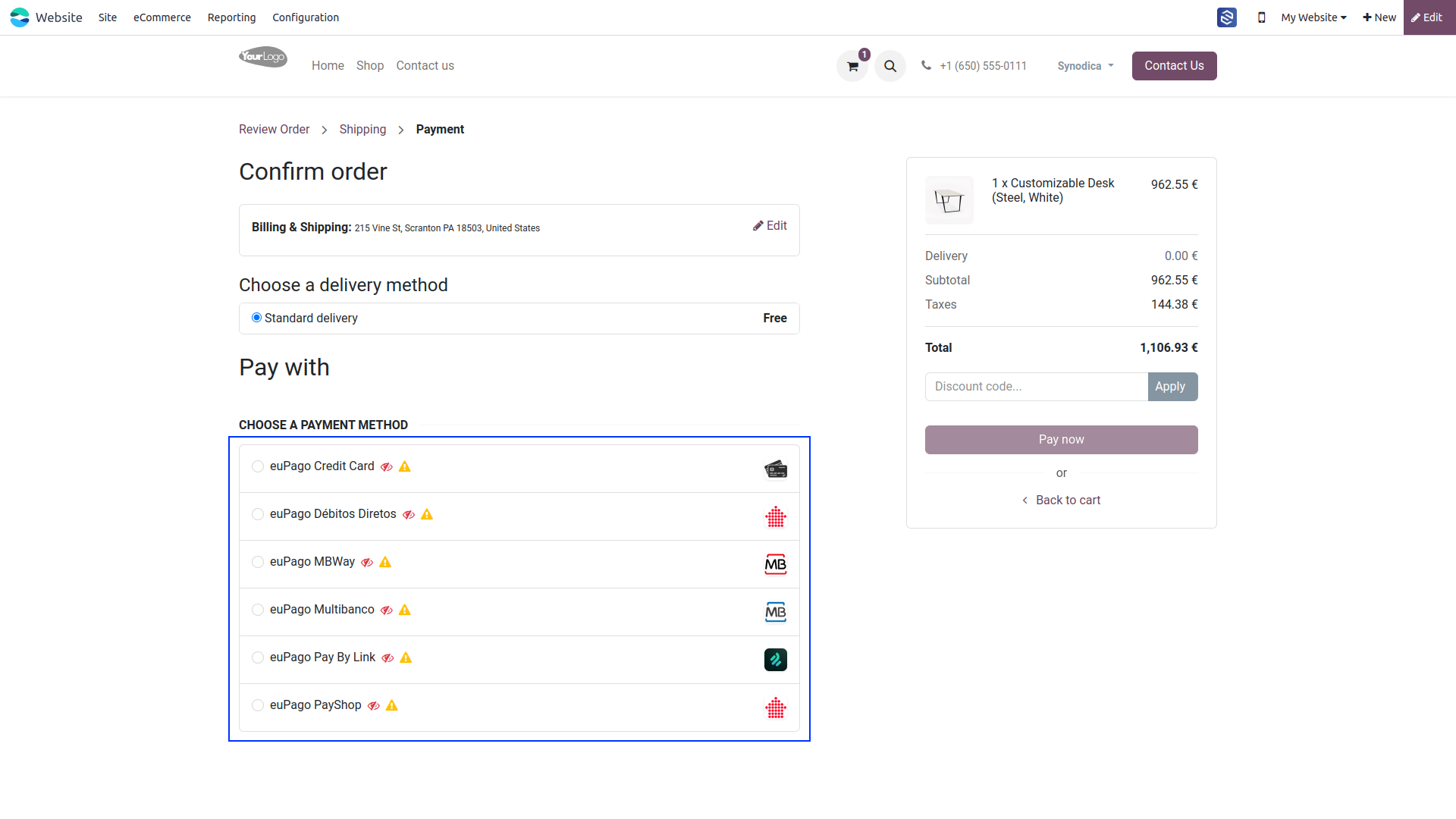
Now euPago payment methods will be available for payment.
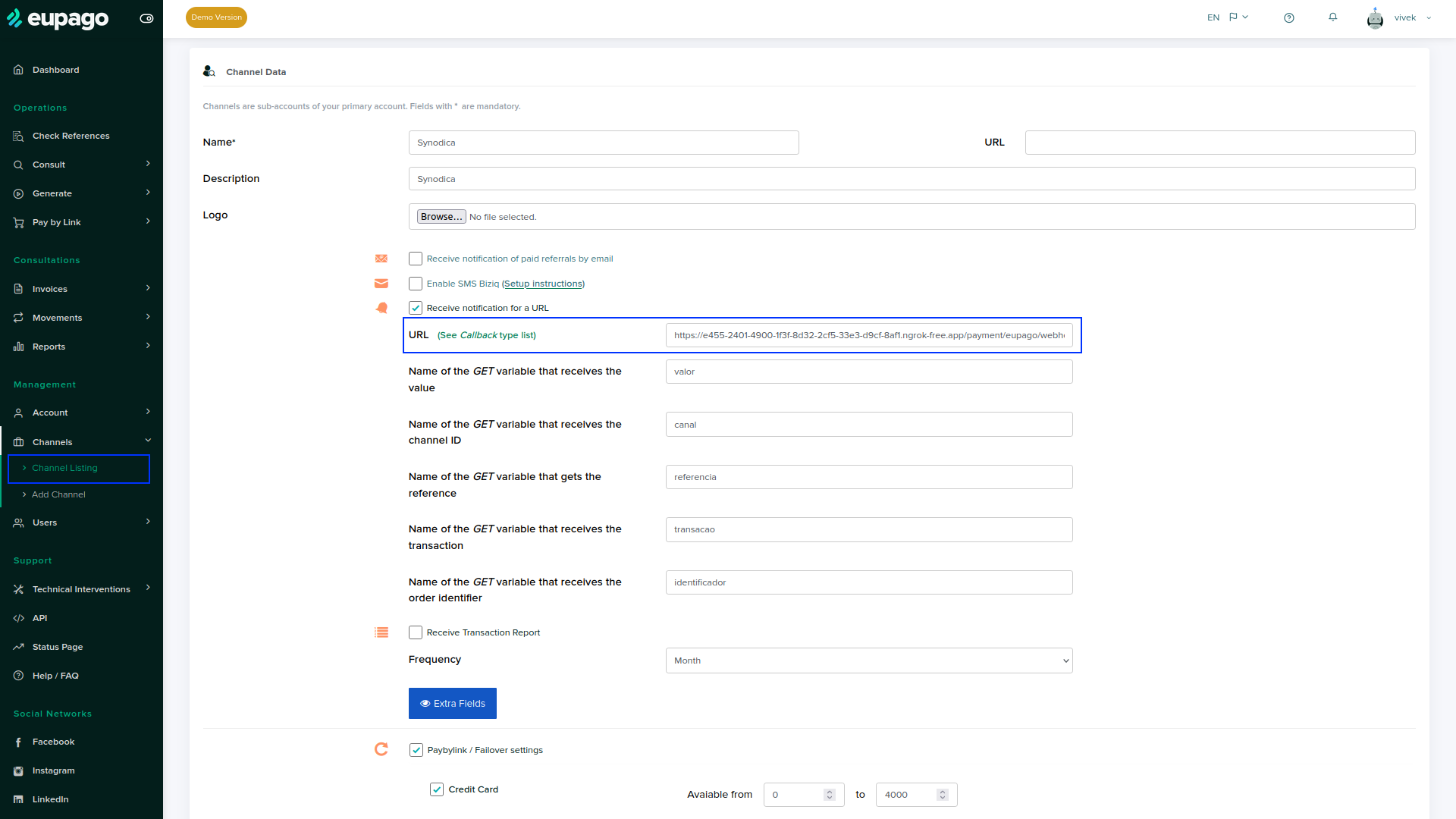
To setup webhooks in euPago, go to euPago portal and go to Channels > Channel Listing in the left menu and edit channel and set url with endpoint /payment/eupago/webhook to receive webhooks.
Contact Us
We create ERP solutions for you using Odoo ERP that will build a strong and efficient business for you. It's SYNODICA WAY