

Smart Tip & Service Fee Manager
Smart Tip &
Service Fee
Manager for Odoo
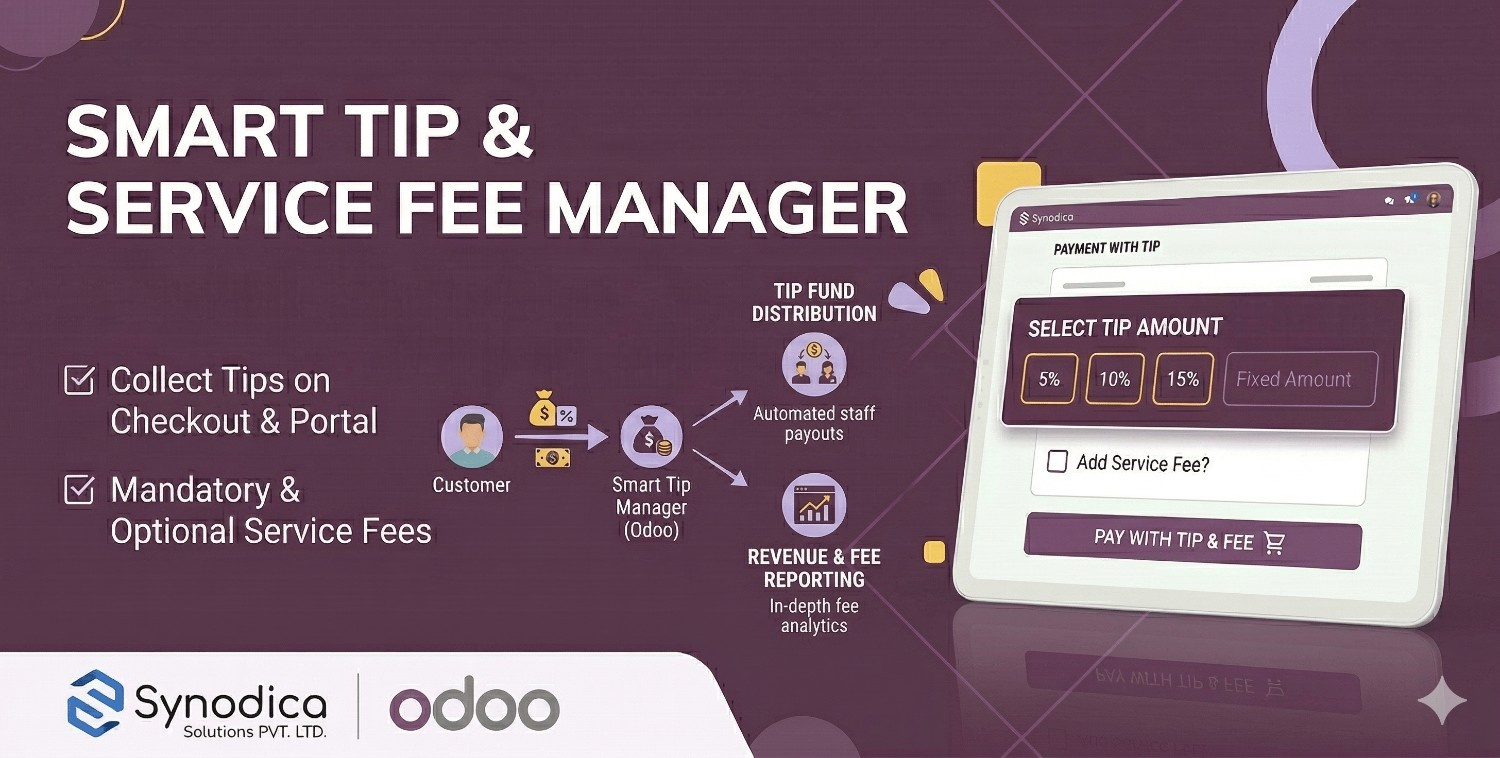
Collect optional tips for staff or mandatory/optional service fees during eCommerce checkout and portal payment — all seamlessly synchronized with Odoo Accounting. Configure tip presets, calculation modes, and invoicing policies with full backend control.
How It Works
From backend configuration to seamless tip and fee collection — a streamlined process built for eCommerce and portal payments.
Configure Settings
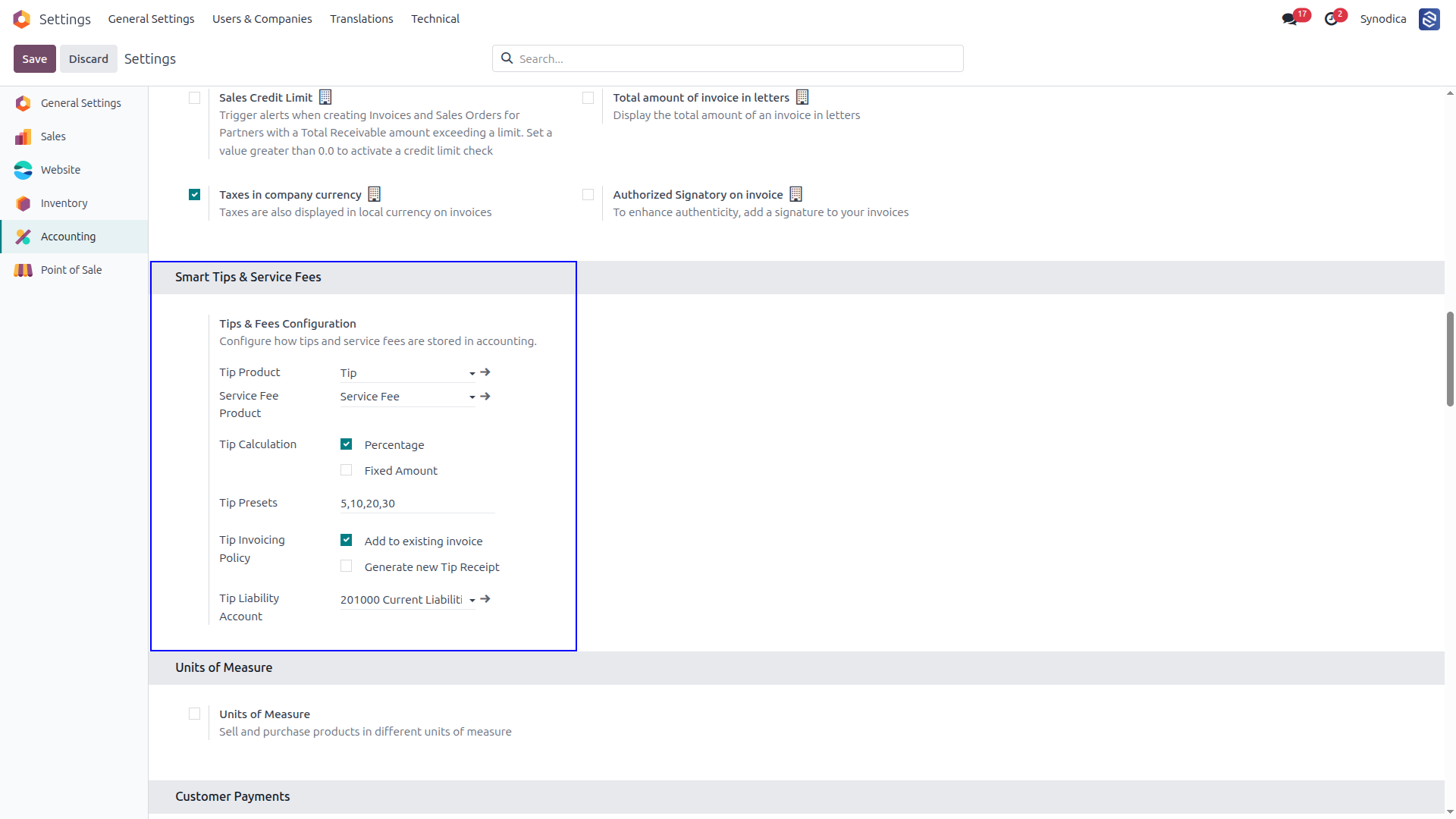
Set your tip product, service fee product, calculation mode (percentage or fixed), preset amounts, and invoicing policy directly from Odoo's Accounting Settings.
Collect Tips & Fees
Customers choose a tip or service fee during eCommerce checkout, invoice portal payment, or sale order confirmation — powered by a smart, auto-injected widget.
Sync & Analyze
Tips and fees are automatically added to existing invoices or a new receipt — and tracked in the built-in Tip Analytics report with pivot and graph views.
See It in Action
A visual journey through the primary tip and service fee features inside Odoo.
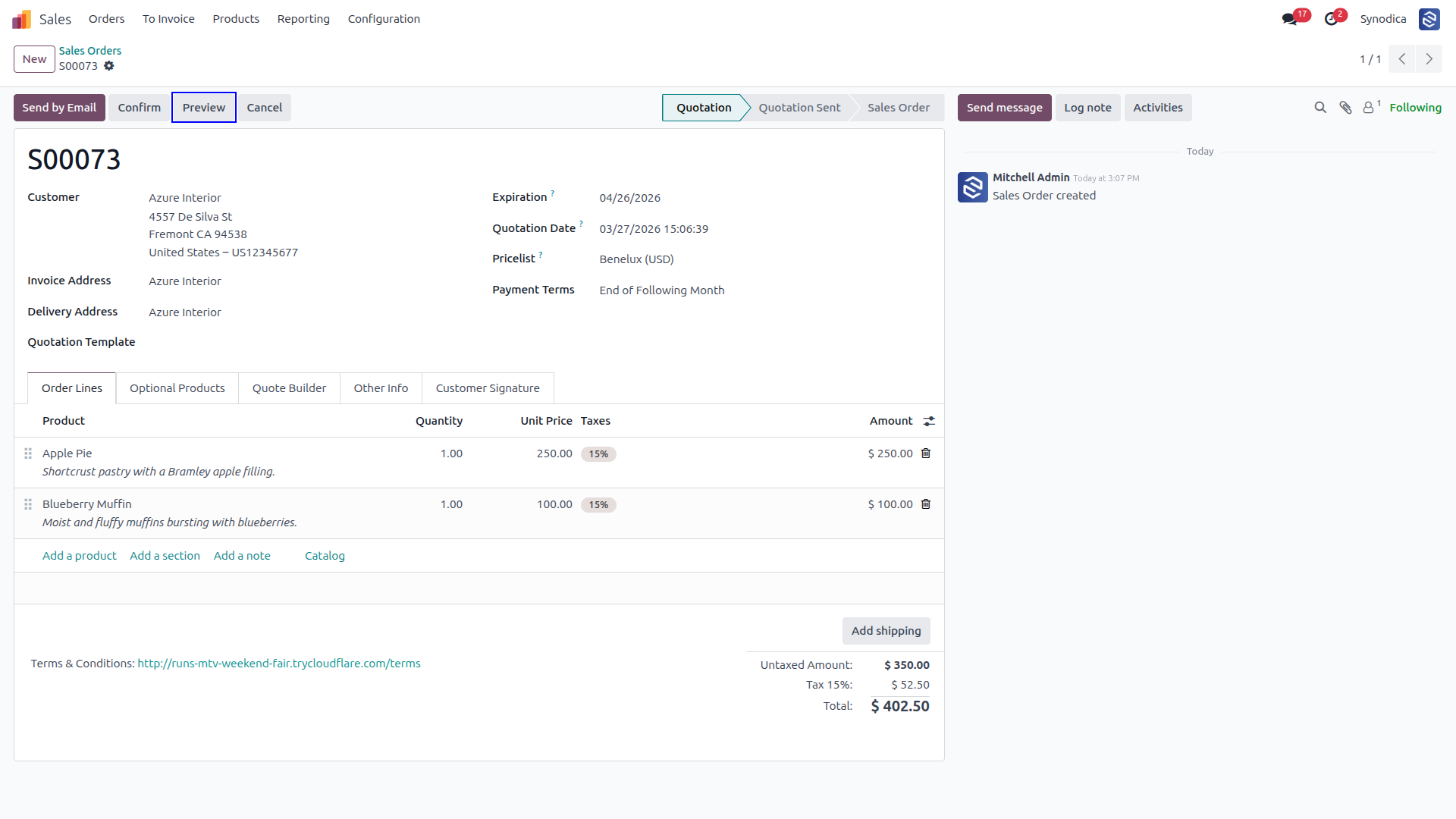
Create a Sales Order, Click Preview to Open the Customer Portal, and Complete the Payment With an Optional Tip
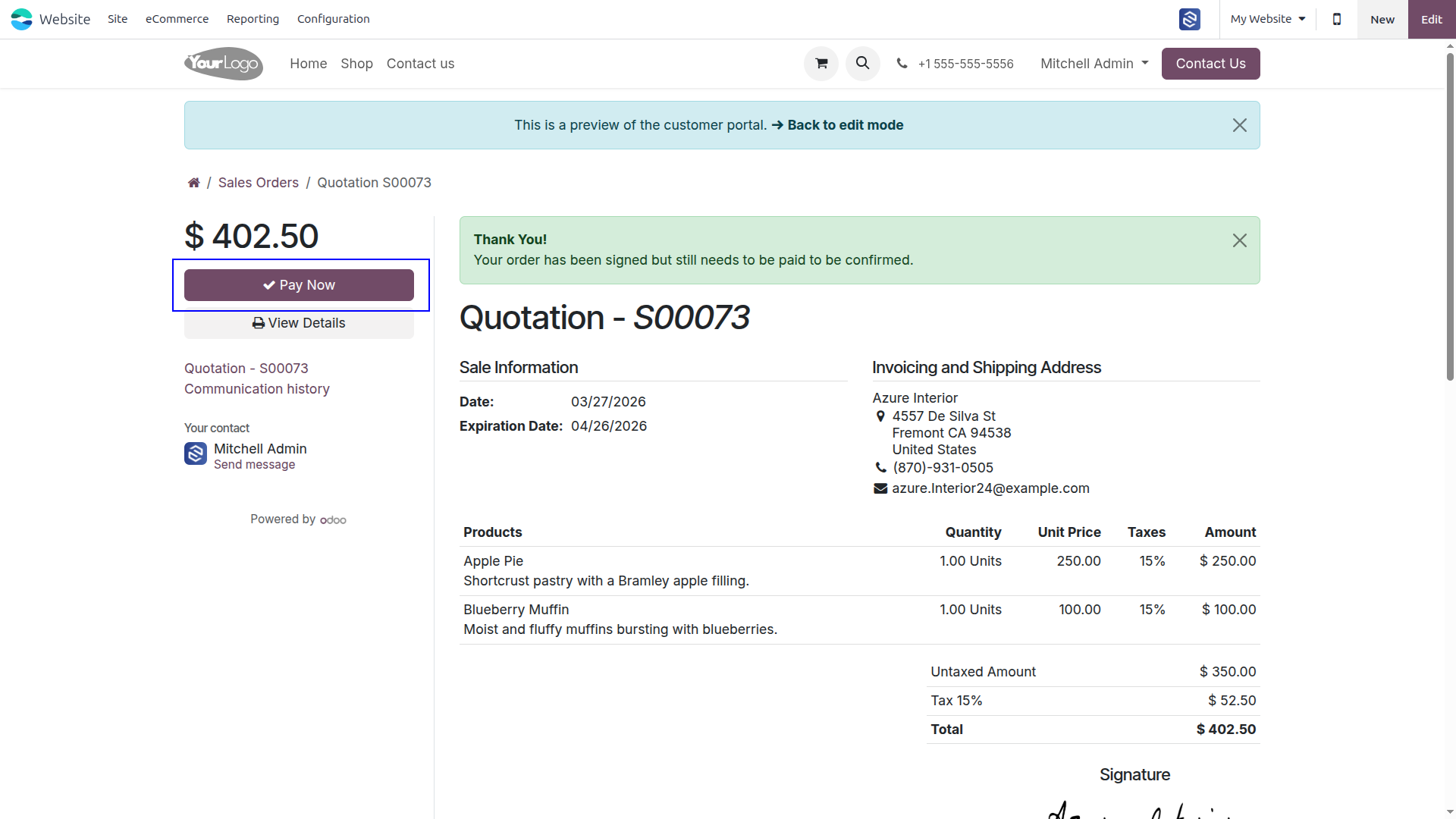
Reviews the Quotation on the Portal, Clicks Pay Now, and Completes the Payment With an Optional Tip to Confirm the Order
Select an Optional Tip, Chooses a Payment Method, and Complete the Payment to Confirm the Order
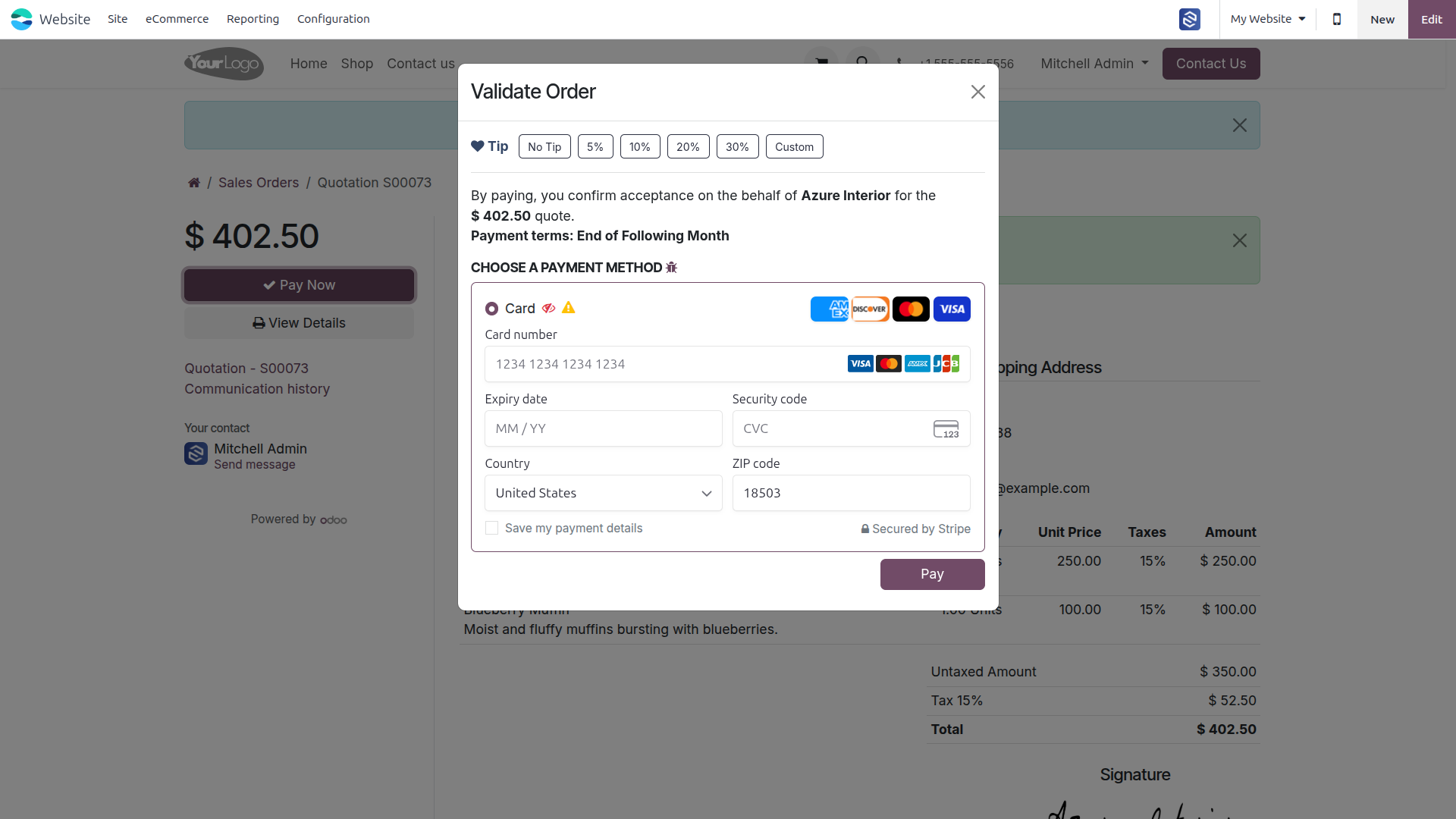
Select Tip, Enters Card Details, and Clicks Pay to Complete the Payment
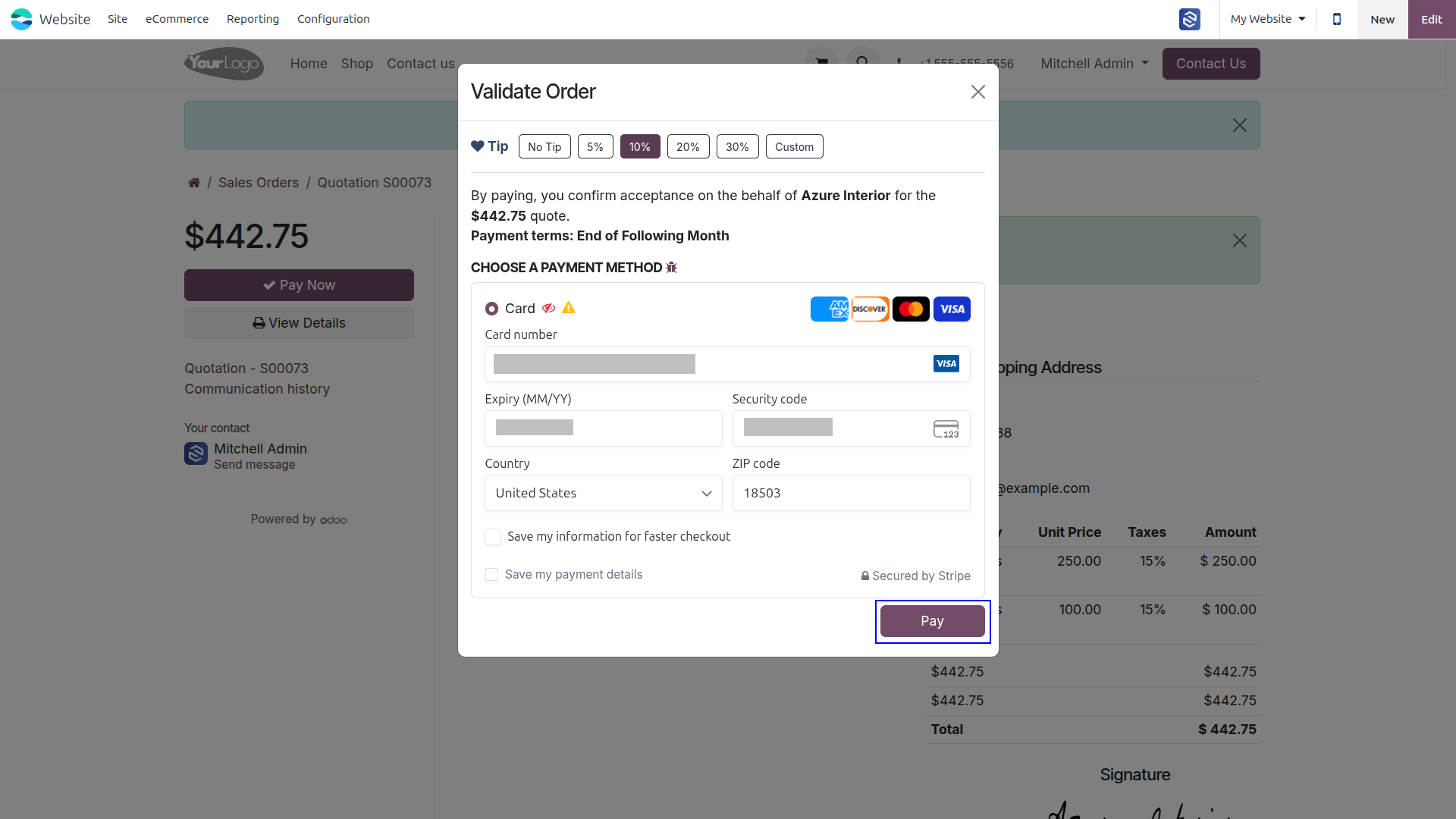
When a “service Fee Product” Is Configured, a Corresponding Product Category Is Automatically Created. Any Product Assigned to This Category Will Automatically Include the Service Fee As a Separate Line in the Invoice
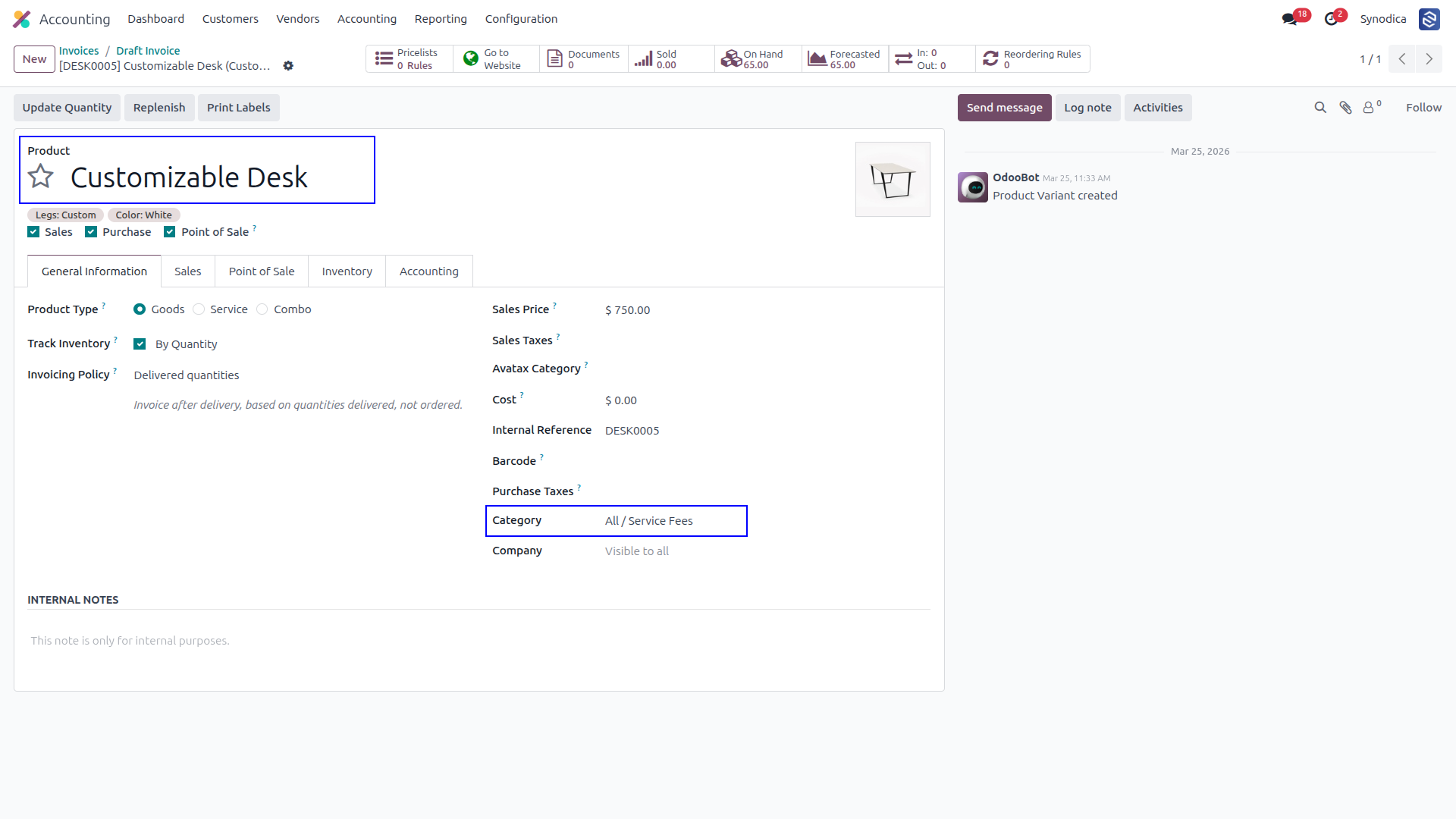
The System Auto-adds the Service Fee Line When Applicable Products Are Invoiced. Users Can Verify the Details and Proceed by Clicking Confirm
Click Preview to Open the Customer Portal, and Complete the Payment With an Optional Tip
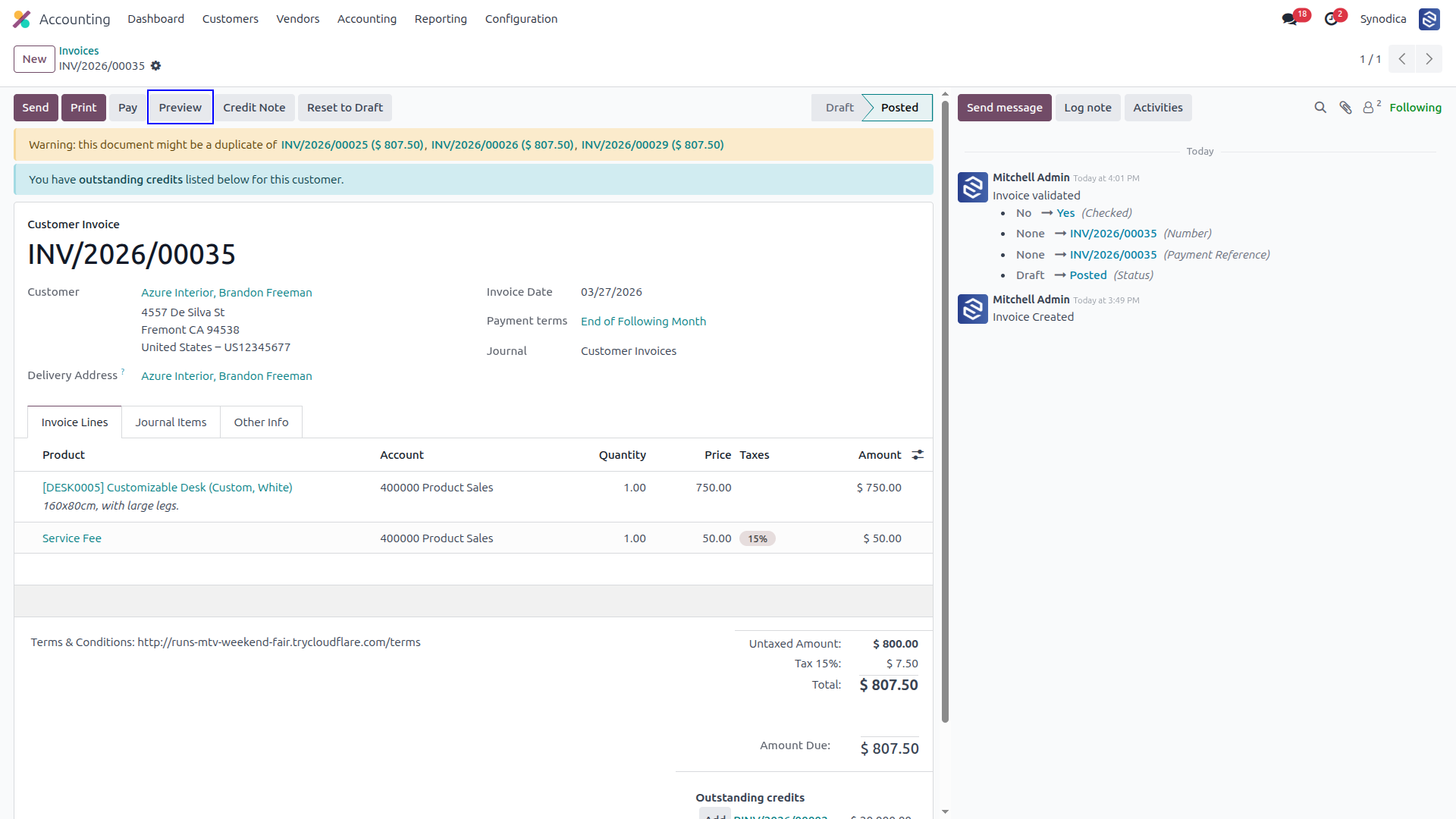
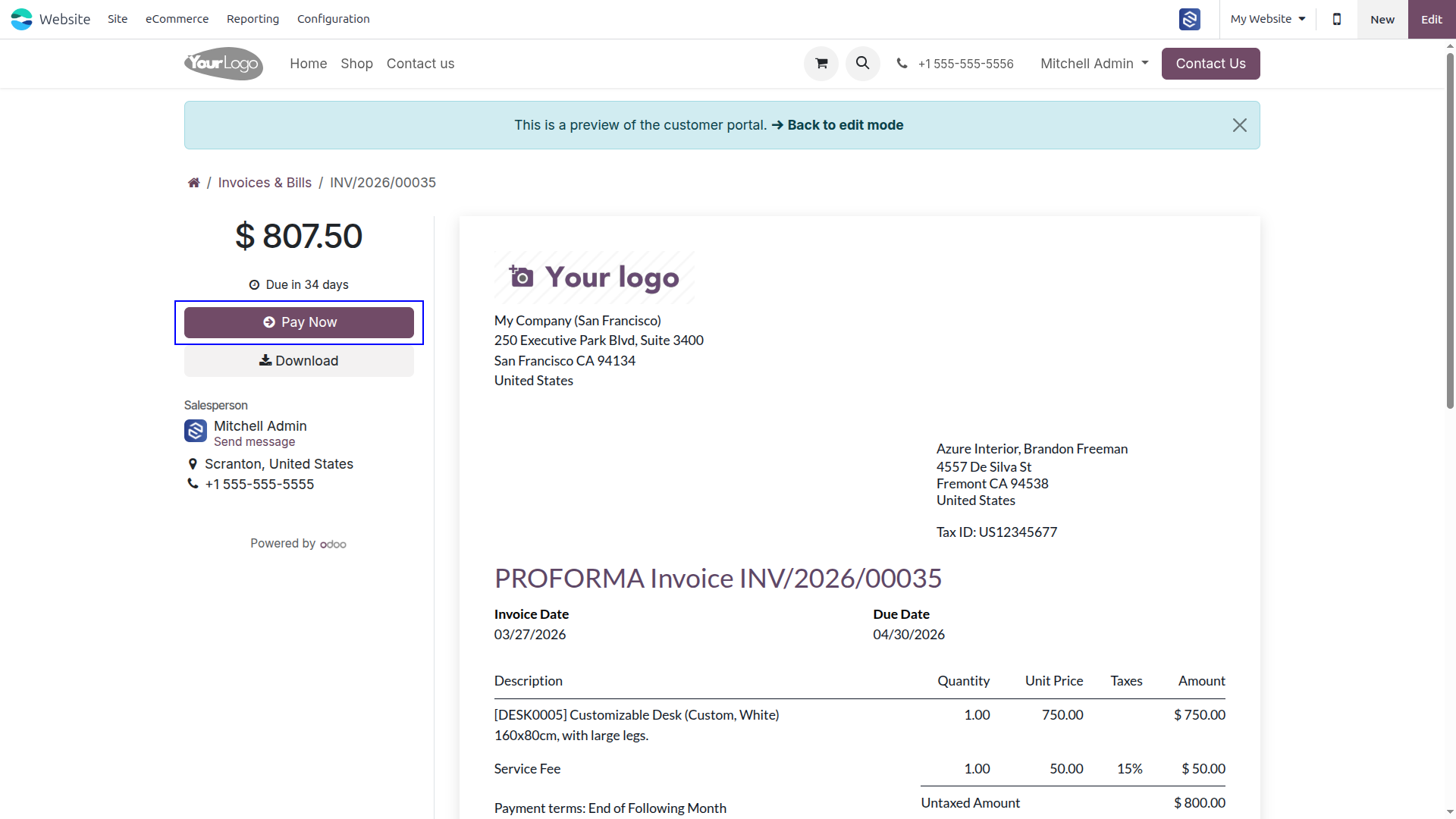
Reviews the Invoice on the Portal, Clicks Pay Now, and Completes the Payment With an Optional Tip to Confirm the invoice
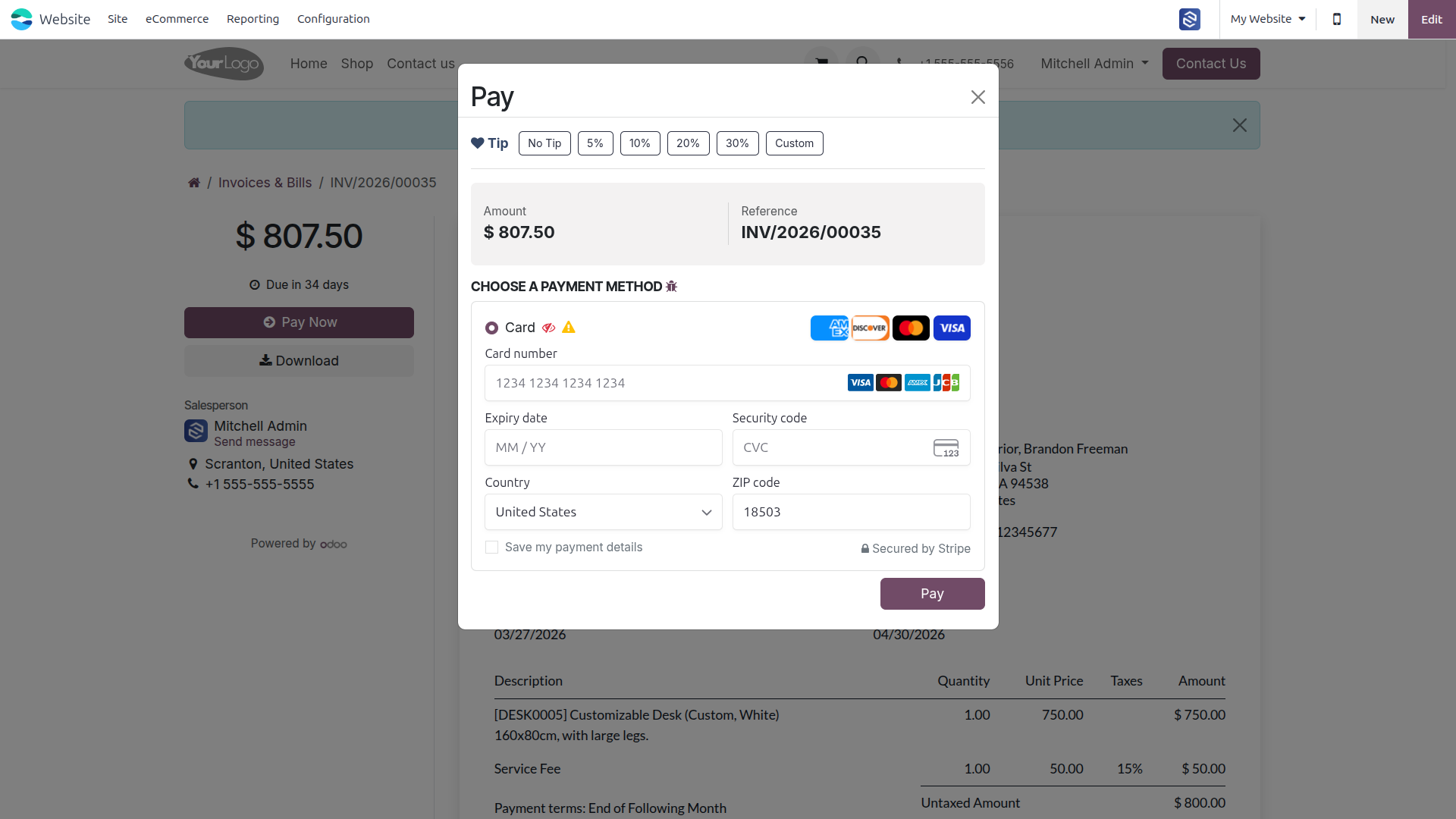
Select an Optional Tip, Chooses a Payment Method, and Complete the Payment to Confirm the Invoice
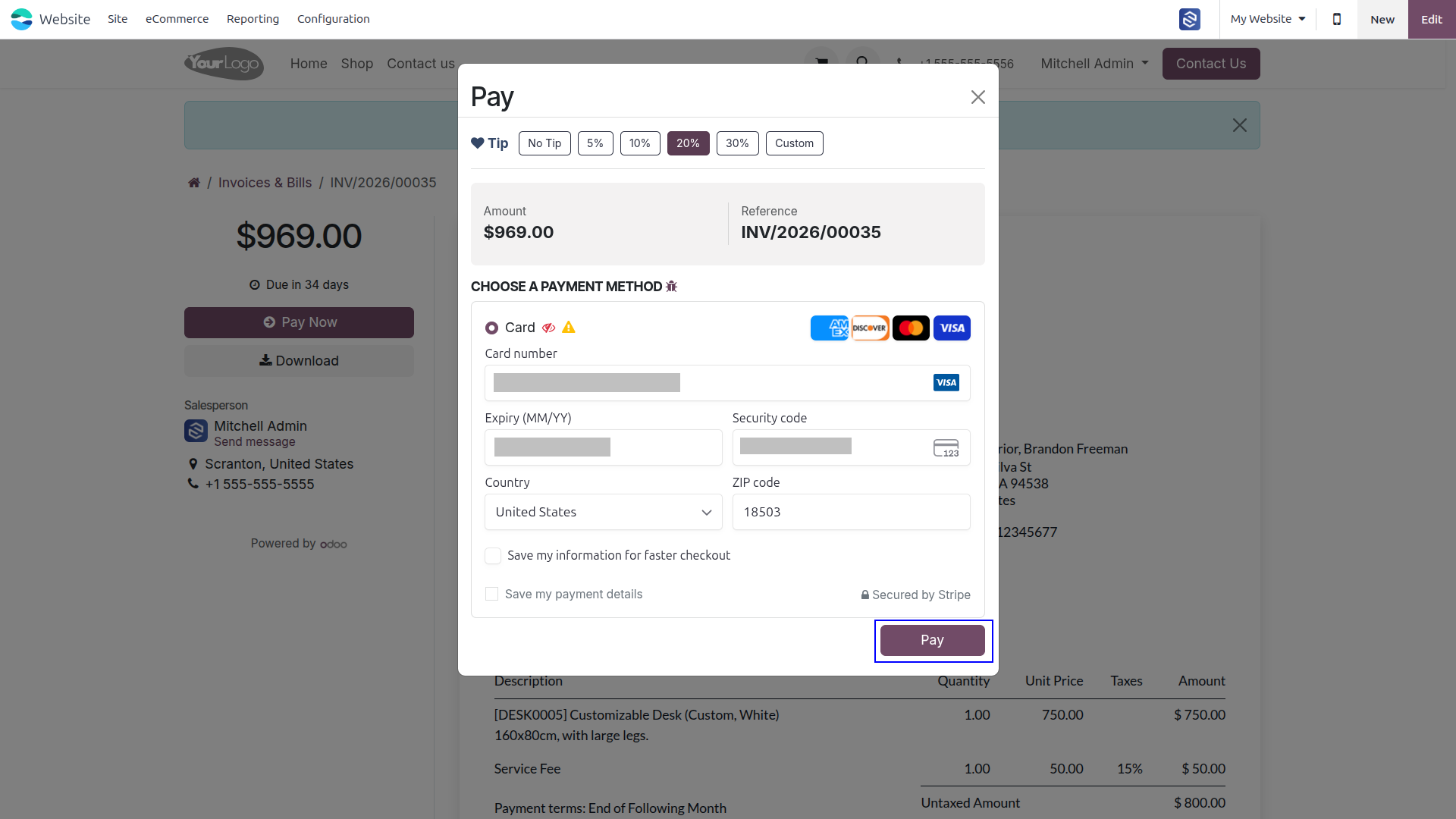
Select Tip, Enters Card Details, and Clicks Pay to Complete the Payment
Service Fee and Tip Are Automatically Applied and Included in the Invoice’s Total Amount
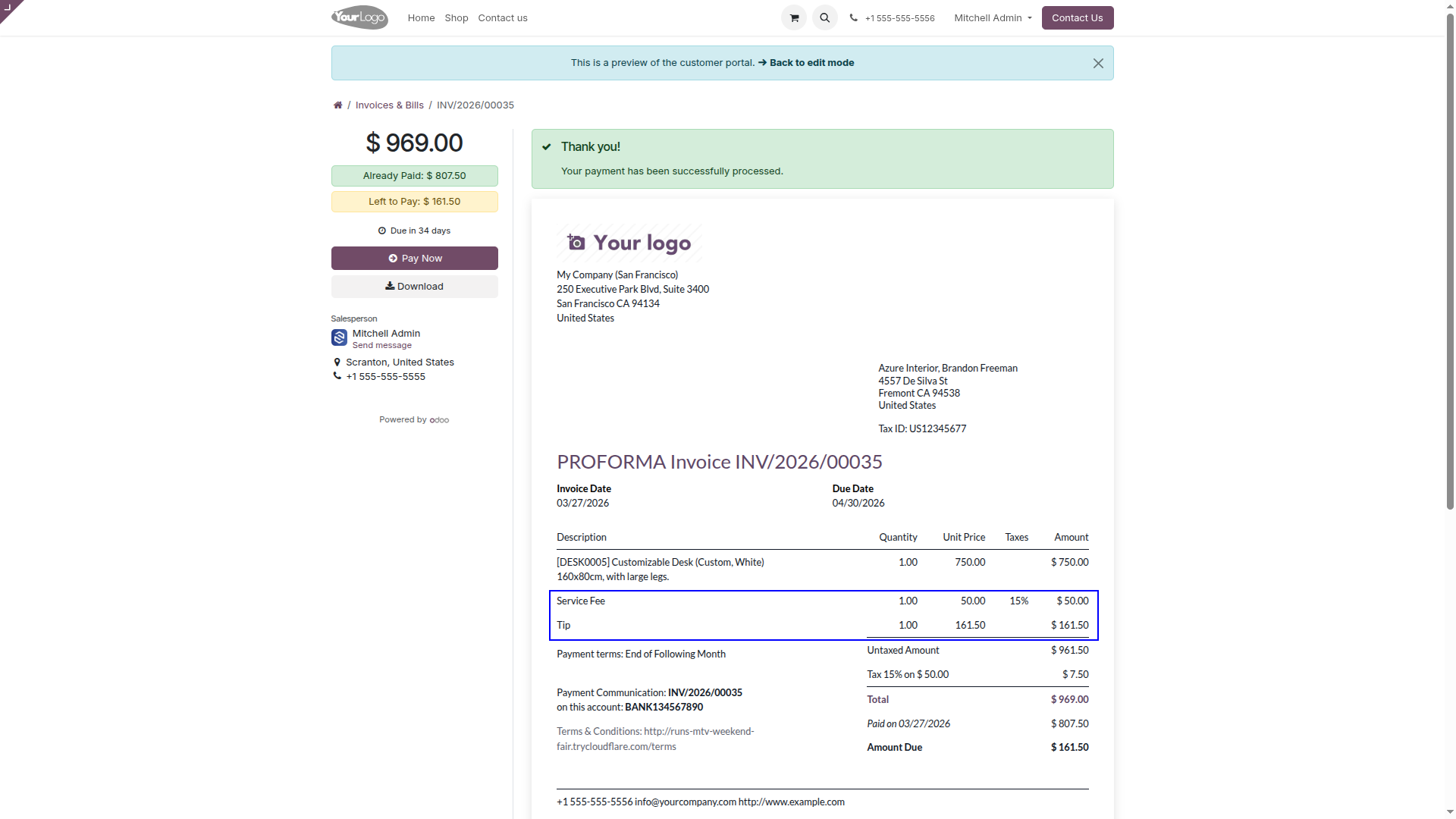
A Tip Can Also Be Added Directly Through the Customer Portal/website During Payment
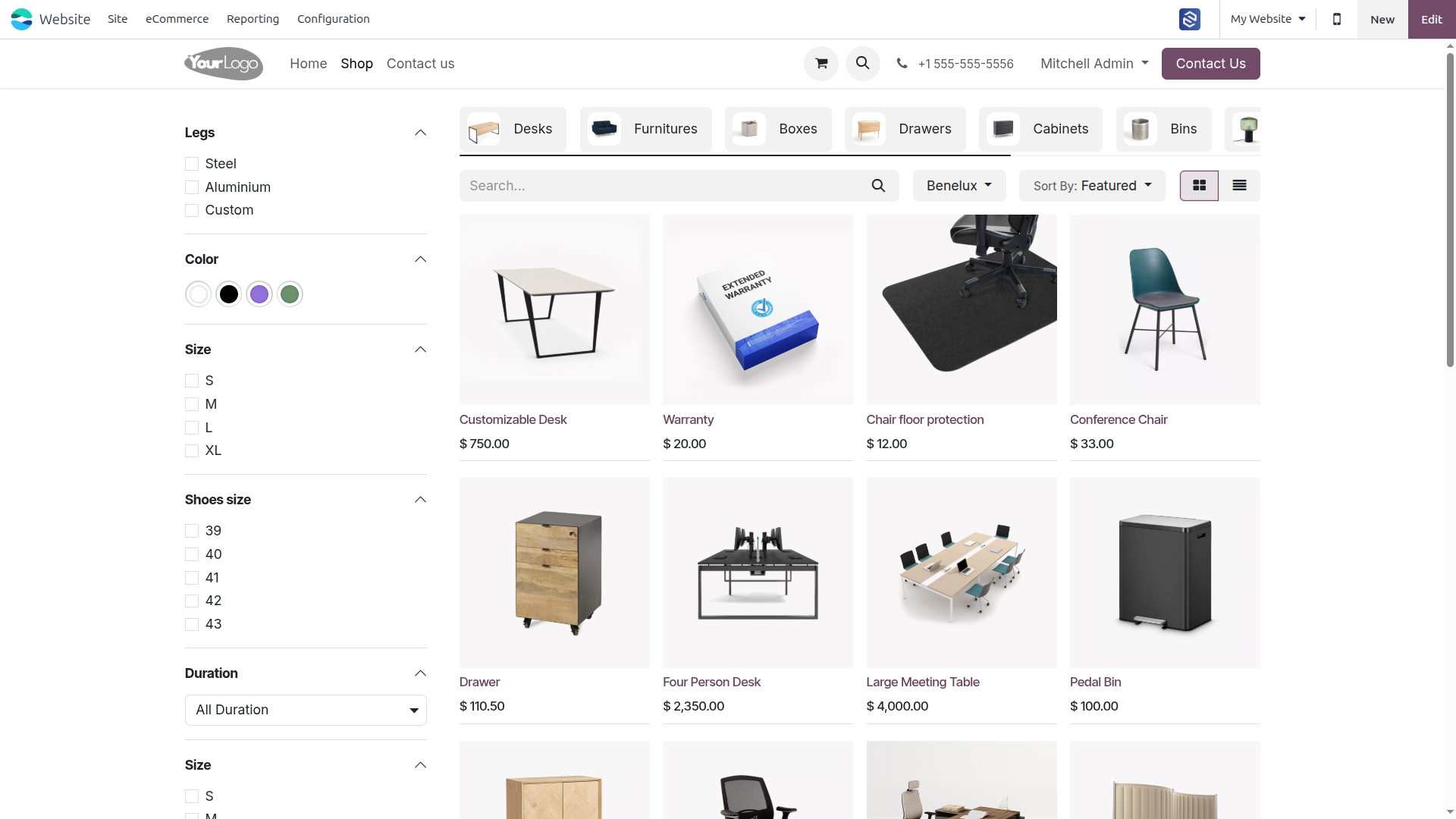
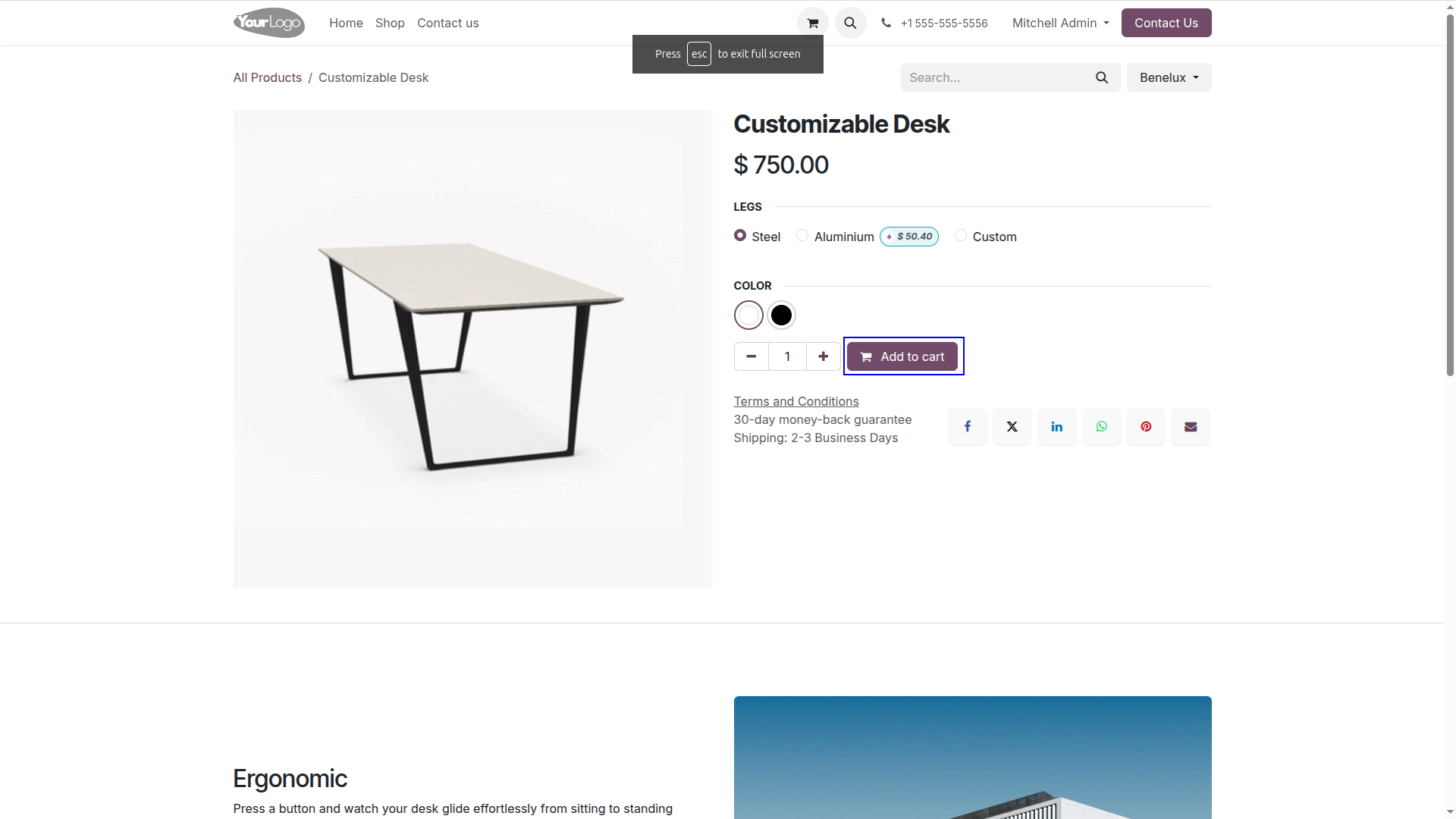
Pick a Product and Add It to the Cart for Checkout
Select an Optional Tip, Chooses a Payment Method, and Complete the Payment to Confirm the Order
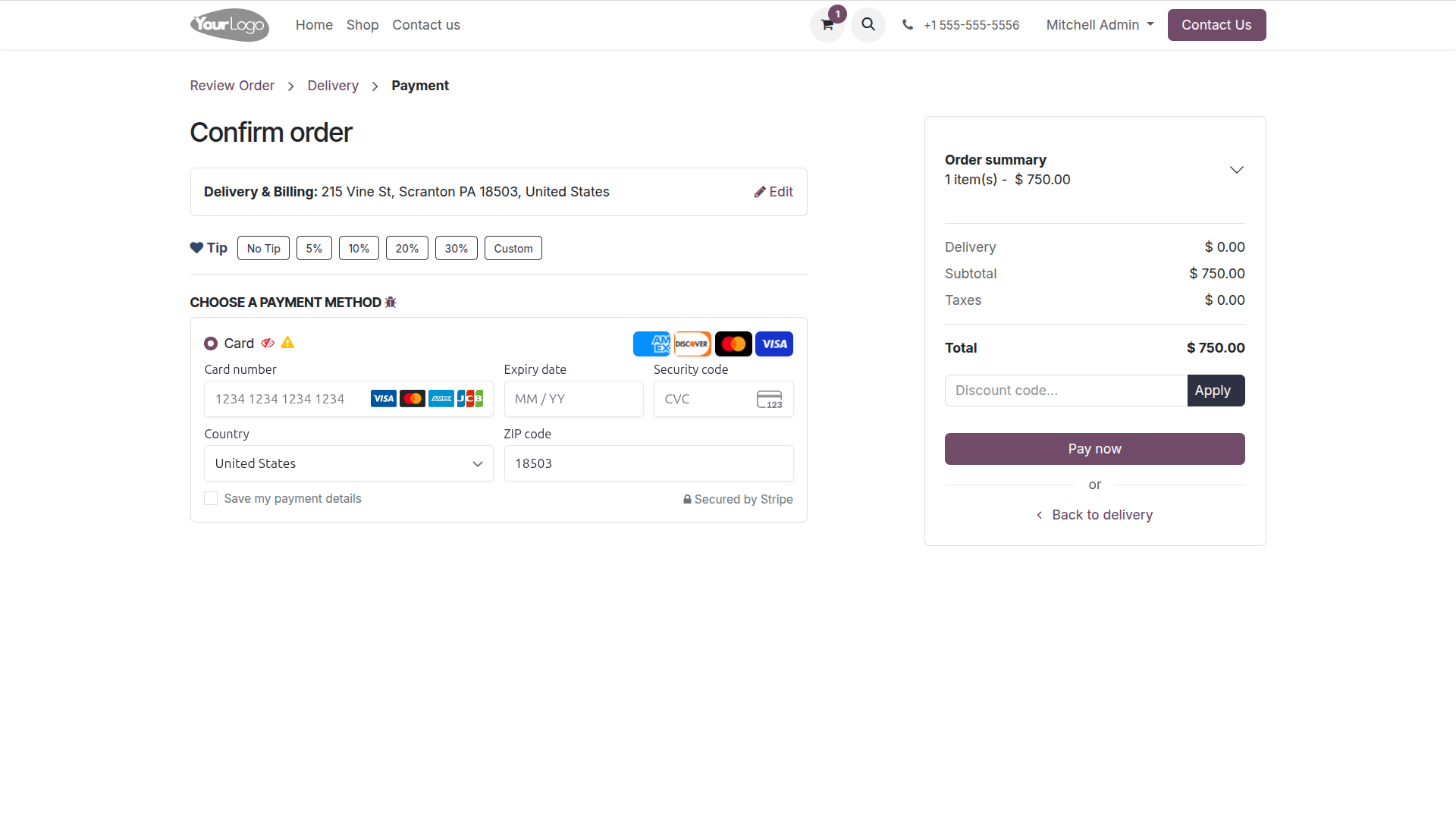
Select Tip, Enters Card Details, and Clicks Pay Now to Complete the Payment
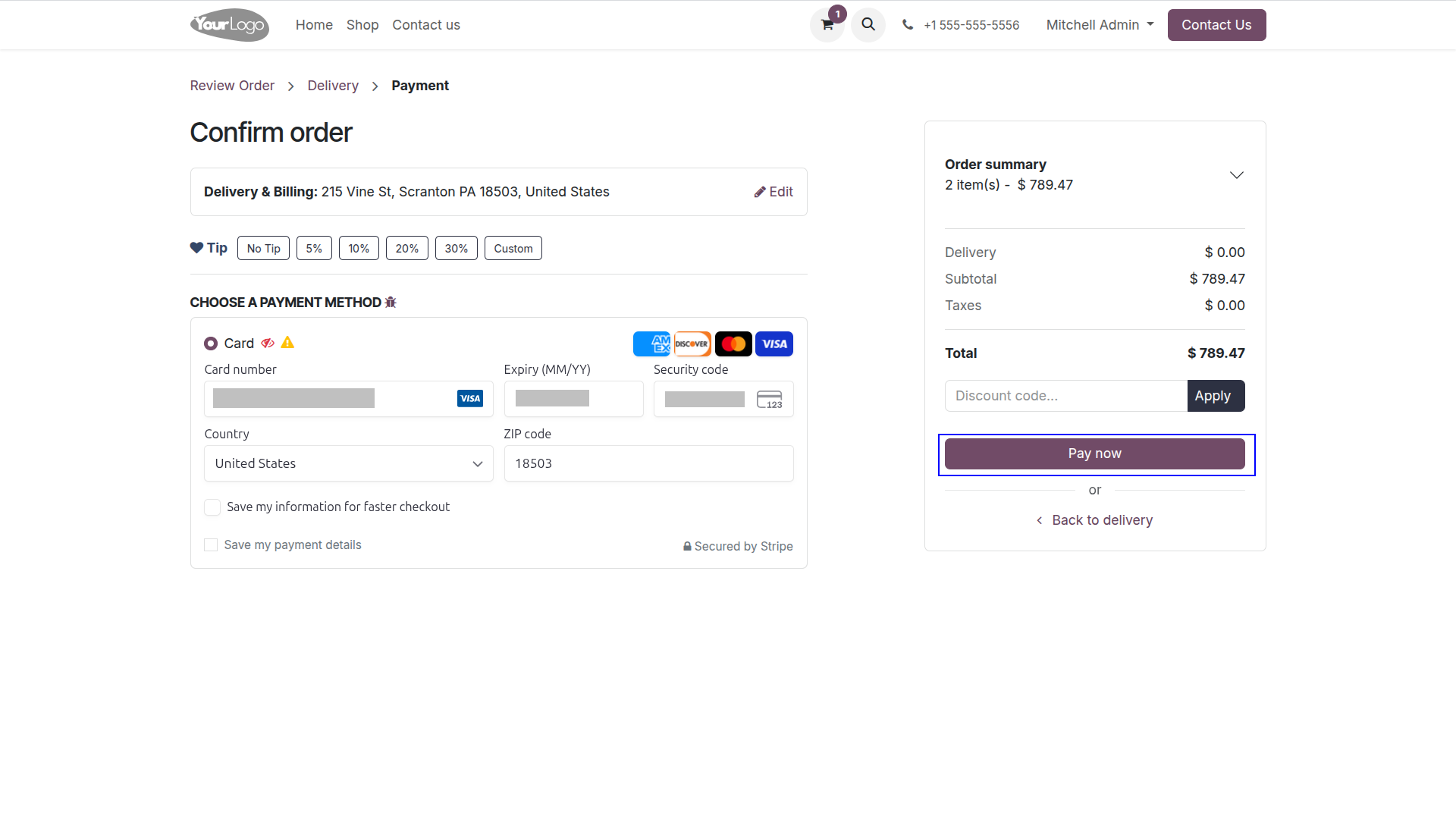
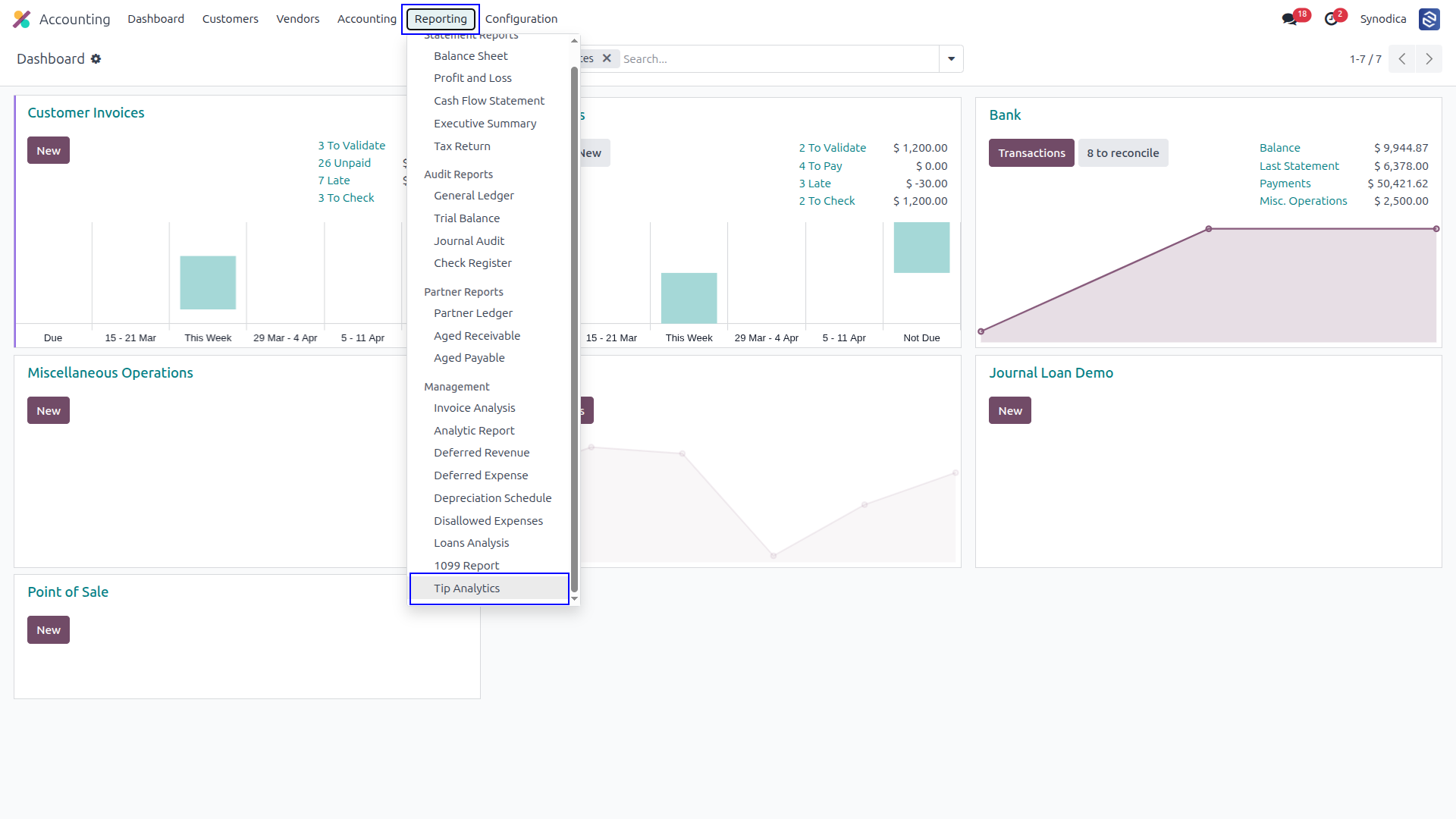
Go to Accounting > Reporting > Tip Analytics to View Detailed Tip & Service Fee Reports
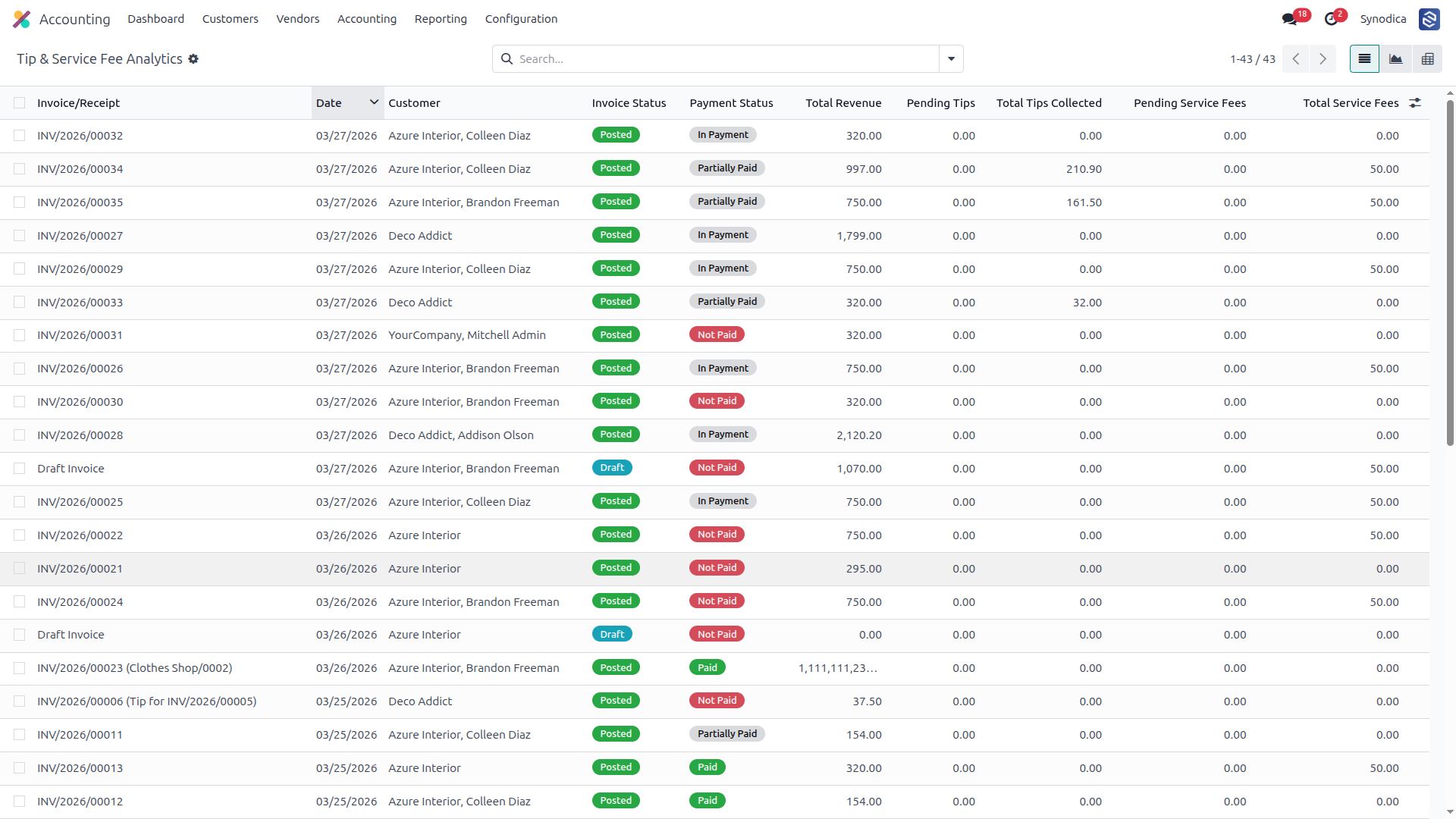
View All Tip & Service Fee Analytics Reports and Complete Details
Everything You Need
A modern featureset designed to handle tip and service fee collection across all Odoo payment touchpoints with precision and simplicity.
Multi-Touchpoint Collection
Collect tips and service fees at eCommerce checkout, invoice portal payment, and sale order confirmation — all from a single auto-injected widget with zero template customization needed.
Flexible Tip Configuration
Choose between percentage or fixed-amount tip modes, define custom preset amounts, set your invoicing policy, and configure dedicated accounting accounts — all from Odoo Settings.
Analytics & Reporting
Track all tip and service fee revenue with the built-in analytics report featuring list, pivot, and graph views — grouped by month and user for complete financial insight.
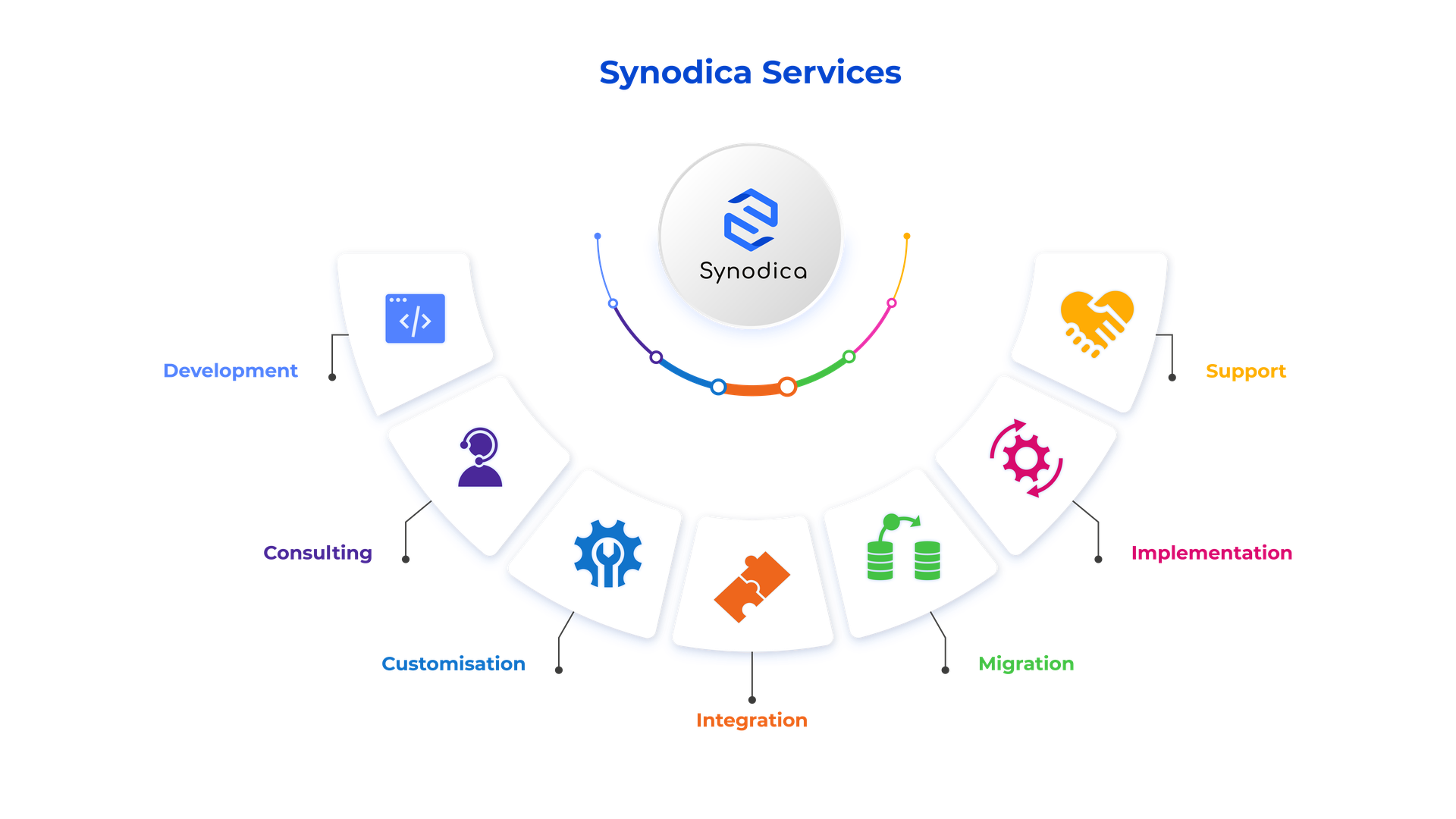
Specialized Odoo Services
We build, customize, and maintain Odoo solutions for businesses worldwide — from implementation to advanced integrations.
Need Custom Tip & Fee Solutions?
Our experts can customize tip flows, service fee logic, and accounting integrations to perfectly match your business requirements.
support@synodica.com© 2026 Synodica Solutions PVT. LTD. — Smart Tip & Service Fee Manager for Odoo
We create ERP solutions for you using Odoo ERP that will build a strong and efficient business for you. It's SYNODICA WAY